

Canon printers offer excellent print quality and reliable performance. However, like any device, they can show error codes from time to time. One common issue users face is Canon Printer Error E04.
Fortunately, this error is not serious. In most cases, you can fix it quickly with a few simple steps.
This guide explains what Error E04 means, why it appears, and how you can resolve it without technical help.
What Is Canon Printer Error E04?
Canon Printer Error E04 appears when the printer cannot recognise the installed ink cartridge. As a result, printing stops immediately.
In simple terms, the printer fails to detect the cartridge correctly. Consequently, it blocks all print jobs until you fix the problem.
Although the error may seem serious, it usually relates to cartridge placement or compatibility.
Why Does Canon Printer Error E04 Occur?
Several factors can trigger this error. Most often, the issue involves the ink cartridge itself.
For example, you may have installed the cartridge incorrectly. In other cases, the cartridge might not match your printer model. Additionally, dust or dried ink can block the gold contact points.
Here are the most common causes:
-
Incorrect cartridge installation
-
Use of third-party or refilled cartridges
-
Dirty or blocked cartridge contacts
-
Damaged ink cartridge
-
Incompatible cartridge model
Because Canon printers rely on accurate cartridge detection, even small issues can cause this error.
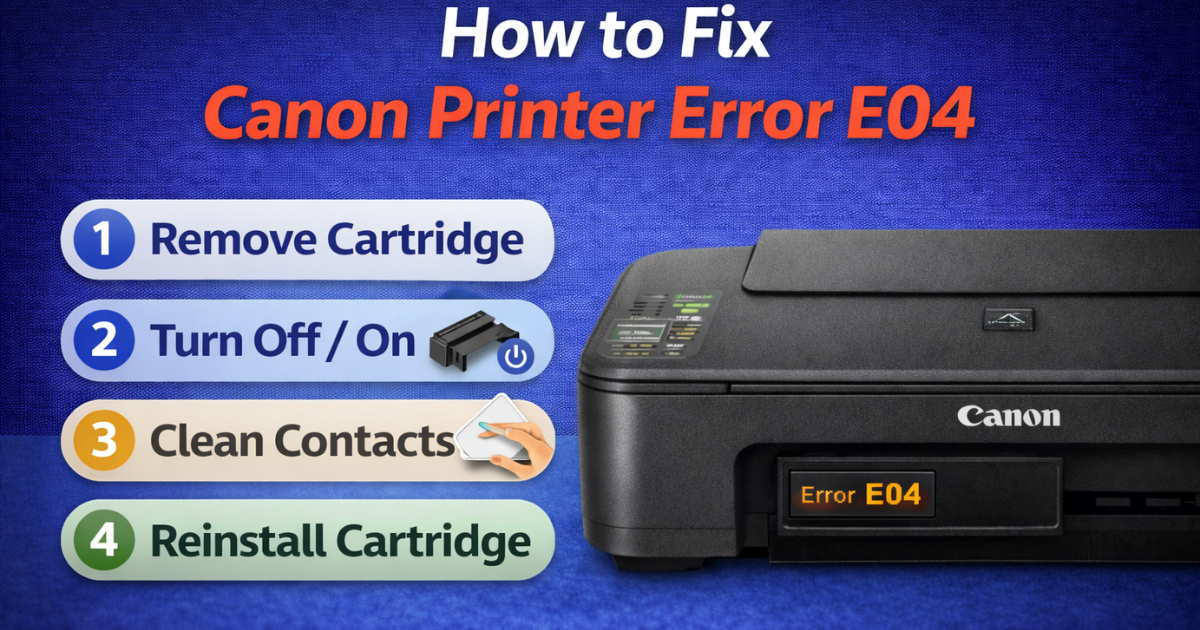
How to Fix Canon Printer Error E04
To resolve the issue, follow the steps below carefully. In most situations, one of these methods will fix the problem.
Step 1: Remove the Ink Cartridges
First, open the printer cover.
Next, carefully remove all installed ink cartridges.
Handle them gently to avoid damage.
Step 2: Turn Off the Printer
After removing the cartridges, press the power button to turn off the printer. However, do not unplug it from the power outlet.
Wait for about 30 seconds before moving to the next step.
Step 3: Inspect the Cartridges
Now, examine each cartridge closely.
Check the following:
-
The model number matches your printer
-
No protective tape remains attached
-
The cartridge body shows no visible damage
If anything looks unusual, consider replacing the cartridge.
Step 4: Clean the Cartridge Contacts
Over time, dust and ink residue may collect on the gold-colored contact points. Therefore, cleaning them often solves the issue.
Use a soft, lint-free cloth. If needed, lightly dampen the cloth with water. Then gently wipe the gold connectors.
Allow the cartridge to dry completely before reinstalling it.
At the same time, inspect the contact points inside the printer. Clean them carefully as well.
Step 5: Reinstall the Cartridges Properly
Once everything is clean and dry, turn the printer back on.
After the printer finishes starting up, insert the cartridges again. Push each cartridge firmly until it clicks into place.
Finally, close the printer cover and check whether the error message disappears.
What If the Error Still Appears?
If the error continues, try a different approach.
For instance, replace the cartridge with a new genuine Canon cartridge. In many cases, third-party cartridges cause recognition problems.
Alternatively, reset the printer and repeat the installation process.
Should the issue persist, contact Canon support or a certified technician for assistance.
Tips to Prevent Error E04 in the Future
Taking preventive measures can reduce the chances of seeing this error again.
For best results:
-
Always install cartridges carefully
-
Use genuine or high-quality compatible cartridges
-
Keep cartridge contacts clean
-
Store cartridges properly
Regular maintenance not only prevents errors but also extends your printer’s lifespan.
Frequently Asked Questions
What does E04 mean on a Canon printer?
Error E04 indicates that the printer cannot recognise the installed ink cartridge.
How can I fix Canon Printer Error E04?
Remove the cartridge, clean the contacts, reinstall it properly, or replace it if necessary.
Can third-party cartridges cause Error E04?
Yes, they can. Sometimes the printer fails to detect non-genuine cartridges correctly.
Final Thoughts
Canon Printer Error E04 may interrupt your work. Nevertheless, the solution is usually simple.
Carefully checking the cartridge often resolves the problem. In addition, cleaning the contact points can restore proper detection.
With the right steps and regular maintenance, your printer should function smoothly without repeated errors.