

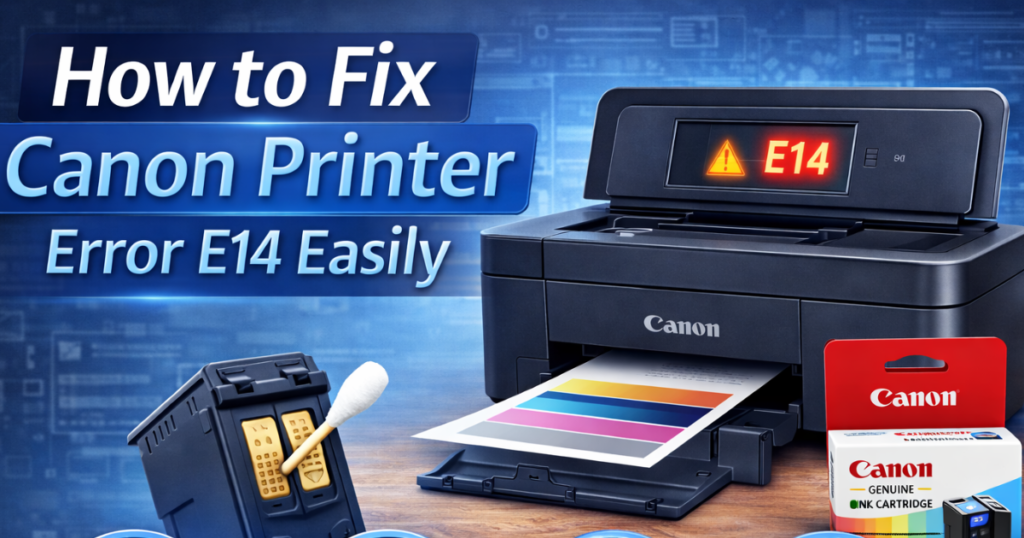
Canon printers are well known for their high-quality printing and reliable performance. Many people use them at home and in offices because they offer good speed and sharp print results. However, like any electronic device, Canon printers can sometimes show technical issues.
One common problem users face is Canon Printer Error E14.
If your printer screen displays this error code, don’t panic. This issue usually relates to the ink cartridge and can be fixed easily at home. In this guide, you will learn what causes the problem and how to apply the right Canon ink cartridge error solution step by step.
What Is Canon Printer Error E14?
Canon Printer Error E14 appears when the printer cannot recognize the installed ink cartridge.
In simple words, your printer is unable to detect the cartridge properly. Because of this, it stops printing and shows the error code on the display screen.
This issue is also known as:
-
Canon printer E14 error code
-
Canon printer not recognizing ink cartridge
-
Fix Canon printer cartridge error problem
The good news is that in most cases, you can solve this issue without professional help.
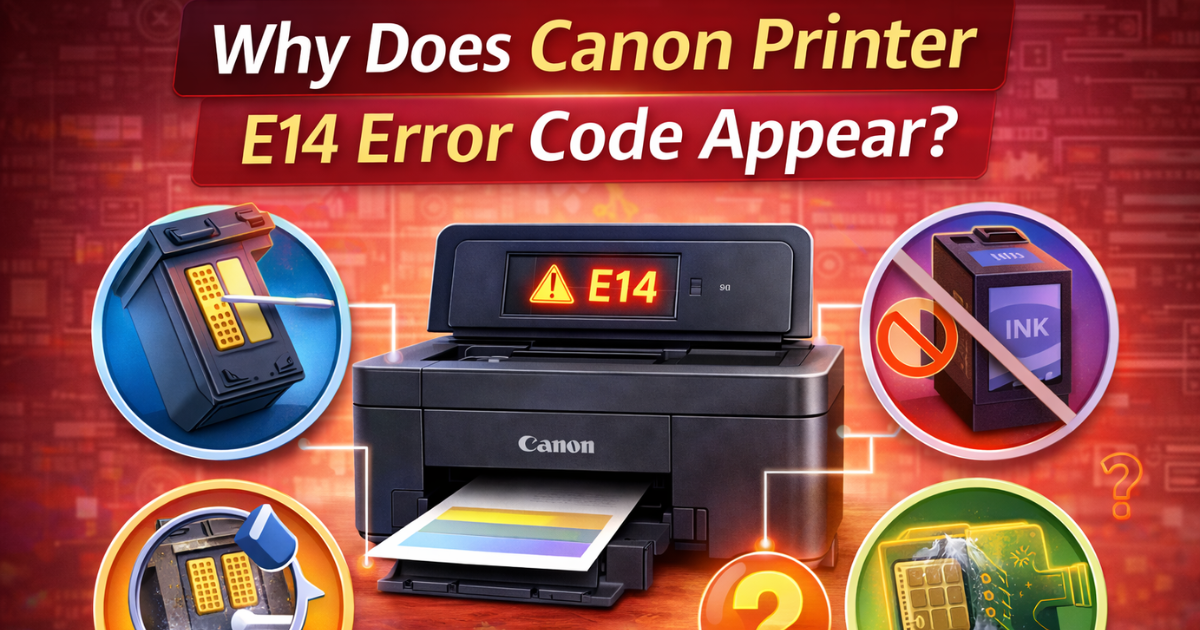
Why Does Canon Printer E14 Error Code Appear?
There are several possible reasons behind this error. Let’s look at the most common ones:
1. Incorrect Cartridge Installation
If you did not install the ink cartridge properly, the printer may fail to detect it.
2. Dirty Cartridge Contacts
Dust, ink residue, or dirt on the gold metal contacts can block communication between the printer and cartridge.
3. Damaged Cartridge Chip
If the cartridge chip is scratched or damaged, the printer cannot read it.
4. Using Third-Party Ink Cartridges
Sometimes, non-genuine cartridges cause compatibility issues. The printer may not recognize them immediately.
5. Firmware Glitch
A minor software or firmware issue can also trigger the Canon printer E14 error code.
Understanding the cause helps you apply the correct fix.
How to Fix Canon Printer Error E14
Follow these simple steps carefully to fix Canon printer cartridge error issues.
Step 1: Turn Off the Printer
Press the power button to switch off the printer. After that, unplug the power cable from the wall socket.
Wait for 2–3 minutes. This helps reset the internal system.
Step 2: Remove the Ink Cartridges
Open the printer cover gently. Wait until the cartridge holder stops moving.
Carefully remove the ink cartridges one by one.
Do not touch the nozzles or scratch the gold contacts.
Step 3: Clean the Cartridge Contacts
This step is very important.
Take a clean, soft, lint-free cloth. Slightly dampen it with water if needed.
Gently wipe the gold metal strip on the cartridge. Remove any dust, dried ink, or dirt.
Also, check the contact points inside the printer and clean them carefully.
Many times, this simple cleaning step solves the Canon printer not recognizing ink cartridge problem.
Step 4: Reinstall the Cartridges Properly
After cleaning, place the cartridges back into their correct slots.
Push them gently until you hear a click sound. That click confirms proper installation.
Close the printer cover securely.
Step 5: Turn the Printer Back On
Plug the printer back into the power source.
Press the power button to turn it on.
Wait for the printer to initialize.
Step 6: Print a Test Page
Now print a test page.
If the printer works normally, you have successfully fixed Canon printer cartridge error E14.
If the error still appears, move to the next solution.
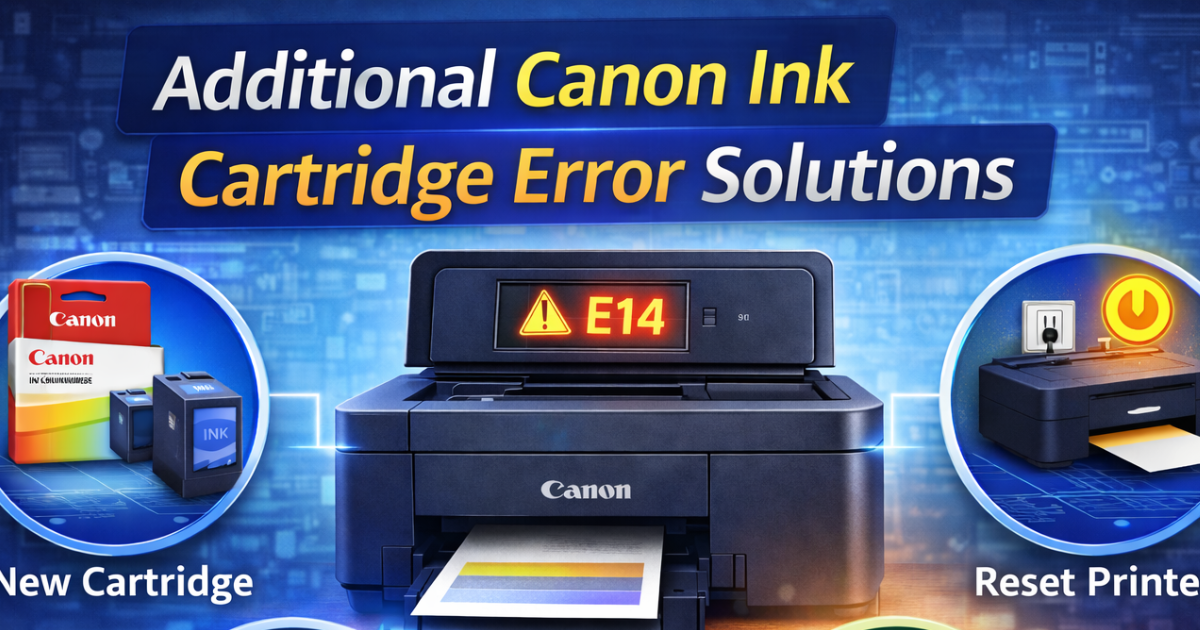
Additional Canon Ink Cartridge Error Solutions
If basic troubleshooting does not solve the issue, try these advanced steps.
Replace the Ink Cartridge
If the cartridge is old or damaged, replace it with a new genuine Canon cartridge.
Using original cartridges reduces the risk of compatibility issues.
Many users face the Canon printer E14 error code due to low-quality third-party cartridges.
Reset the Printer
You can also perform a simple printer reset:
-
Turn off the printer.
-
Unplug it from the power source.
-
Wait for 5 minutes.
-
Plug it back in and turn it on.
This reset often clears temporary system errors.
Update Printer Firmware
If your printer supports firmware updates, check the Canon official website for updates.
An outdated firmware version may cause detection problems.
Check Cartridge Compatibility
Make sure the cartridge model matches your printer model.
Installing the wrong cartridge type can trigger Canon Printer Error E14.
How to Prevent Canon Printer Error E14 in the Future
Prevention is always better than repair. Follow these tips:
-
Always use genuine Canon ink cartridges.
-
Store cartridges in a clean and dry place.
-
Avoid touching the gold contact strips.
-
Install cartridges carefully.
-
Clean your printer regularly.
These simple habits reduce the chances of facing Canon printer not recognizing ink cartridge issues again.
When Should You Contact Support?
If none of the solutions work, the problem may relate to internal hardware damage.
In that case, contact Canon customer support. Their technical team can guide you step by step.
Avoid opening internal parts yourself if you are not experienced.
Final Words
Canon Printer Error E14 usually happens because the printer cannot detect the ink cartridge properly. In most cases, dirt, improper installation, or incompatible cartridges cause the issue.
Thankfully, you can fix Canon printer cartridge error problems at home by cleaning and reinstalling the cartridge. If needed, replace the cartridge with a genuine one.
By following the steps in this guide, you can solve the Canon printer E14 error code quickly and get back to printing without stress.