

Printers have become an essential part of both professional and personal life. From business documents and reports to school assignments and important forms, a reliable printer can save time and simplify everyday tasks. Among the well-known printer brands, Canon is widely recognized for offering a range of printers designed for home, office, and professional use.
Canon printers are popular because of their printing speed, practical features, easy-to-use design, and dependable performance. However, like any electronic device, a Canon printer can occasionally display an error message that interrupts printing. One such issue is Canon Printer Error 1487 and Error 1486, which are commonly related to the incorrect placement of the ink cartridges.
What Are Canon Printer Error 1487 and Error 1486?
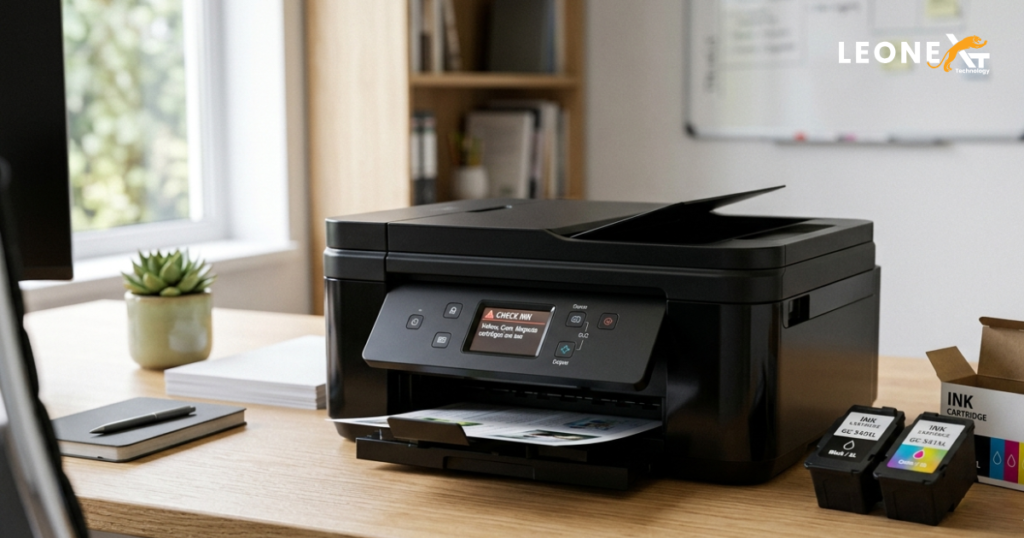
When your Canon PIXMA printer displays the “Check Ink” 1487 or 1486 message, it generally indicates that one or more ink cartridges may not be installed in their correct positions.
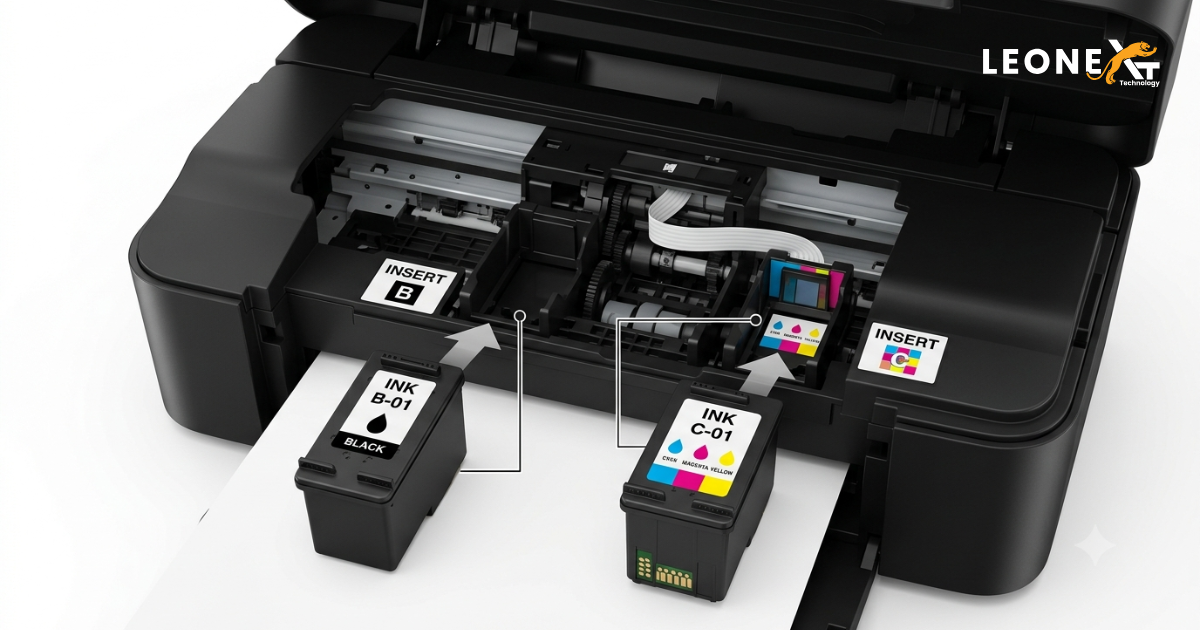
Although Canon ink cartridges may appear similar in shape and size, each cartridge has a specific position inside the printer. A black cartridge and a color cartridge cannot simply be placed in either slot. The printer needs to identify the correct cartridge in the correct location before it can continue printing.
In some cases, this issue may occur after replacing cartridges, reinstalling existing cartridges, or installing cartridges in the wrong slots.
Why Does This Error Occur?
There are several possible reasons why your Canon printer may show this message:
- Black and color cartridges may be installed in the wrong positions.
- The cartridge codes may not match your printer model.
- An ink cartridge may not be seated correctly.
- The printer may have difficulty detecting a cartridge.
- The contacts on the cartridge may require checking and cleaning.
- A recently replaced cartridge may not be compatible with the printer.
Understanding the possible cause makes it easier to troubleshoot Canon Printer Error 1487 and Error 1486 without immediately requiring professional assistance.
How to Fix Canon Printer Error 1487 and Error 1486
You can try the following troubleshooting steps to resolve the “Check Ink” message.
1. Remove the Ink Cartridges
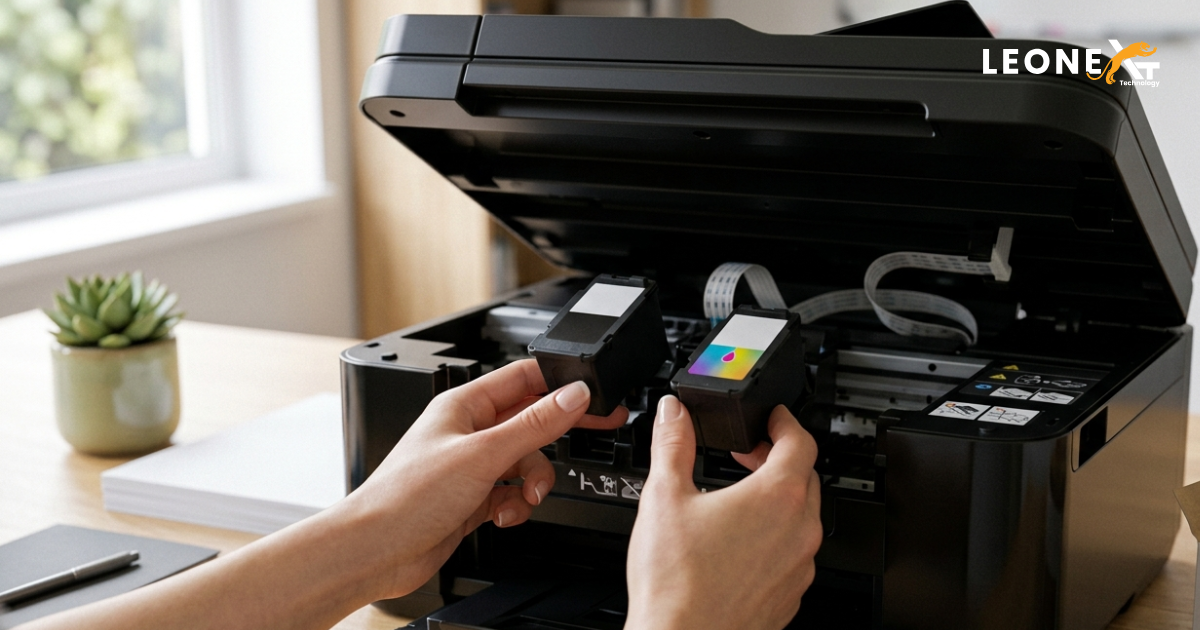
Start by switching on the printer and carefully removing the installed ink cartridges. If the printer software indicates which cartridge is causing the problem, inspect that cartridge first. Otherwise, remove both the black and color cartridges so you can check their positions and condition.
Handle the cartridges carefully and avoid touching the electrical contacts or printhead area unnecessarily.
2. Check the Cartridge Codes
Check the codes printed on the cartridge labels and confirm that they are compatible with your Canon printer model.
You should also verify which cartridge is black and which one is color. Different Canon PIXMA models use different cartridge combinations, so checking the printer manual or compatible cartridge information can help prevent installation errors.
If you are unsure, compare the cartridge numbers with the information listed for your exact printer model.
3. Identify the Black and Color Cartridges
If you have difficulty identifying the cartridges, inspect their labels and printhead structure. Canon cartridges can have different physical characteristics that help distinguish black and color versions.
Make sure the black cartridge is installed in the designated black slot and the color cartridge is installed in the designated color slot.
4. Reinstall the Cartridges Correctly
After checking the cartridge codes and positions, reinstall each cartridge carefully.
Insert the cartridges into their designated holders and press them gently until they are properly seated. Check the markings inside the printer or on the cartridge holder to confirm that each cartridge is in the correct location.
Incorrect placement is one of the main things to check when troubleshooting Canon Printer Error 1487 and Error 1486.
5. Restart the Printer
Once both cartridges are securely installed, close the printer cover and restart the printer. Allow the device to complete its normal startup and cartridge detection process.
If the cartridges are compatible and installed correctly, the “Check Ink” message should disappear and the printer should be ready for use.
What If the Error Still Appears?
If the message remains after reinstalling the cartridges, check that the cartridge contacts are clean and free from dust or residue. You can also verify that the cartridges are genuine or compatible with your exact Canon printer model.
Avoid forcing a cartridge into its holder because incorrect installation can damage the cartridge or printer mechanism.
Persistent Canon Printer Error 1487 and Error 1486 may indicate a cartridge detection problem or another printer-related issue that requires additional troubleshooting.
Get Professional Canon Printer Support
Most cartridge-positioning errors can be addressed by checking the cartridge codes, confirming their correct positions, and reinstalling them properly. However, if the error continues after following the recommended troubleshooting steps, professional technical assistance may be helpful.
Canon printer professionals can inspect the printer, identify the underlying issue, and provide step-by-step guidance based on your printer model.
By following these simple troubleshooting steps and checking the cartridges carefully, you may be able to resolve the issue quickly and get your Canon printer back to normal operation.