

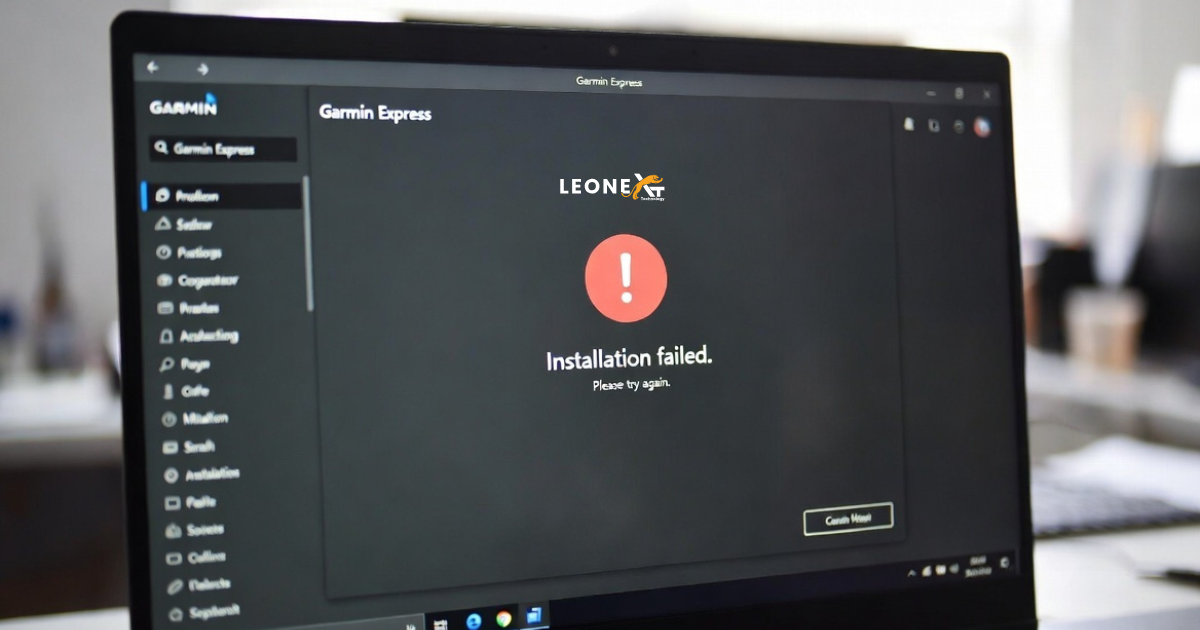
When you try to install Garmin Express on a Windows PC or laptop, you may face different errors. Sometimes the installer does not launch. In other cases, the installation fails halfway through. This can be frustrating, especially when you need to update your Garmin device quickly.
If Garmin Express is not installing or updating on your Windows computer, do not worry. In this blog, we will explain the common reasons behind the problem and share simple solutions to fix it.
Why Garmin Express Fails to Install
Garmin Express may fail to install for several reasons. Your computer may have a software conflict. Windows may block the installer. An antivirus program may stop the process. In some cases, your PC may not meet the system requirements.
Sometimes, the issue happens because an older version of Garmin Express is still installed. A missing or damaged .msi file can also cause problems during installation.
Use a Personal Computer
First, make sure you are using your personal computer. If you install Garmin Express on a work laptop or a shared system, company restrictions may block the installation. Many office computers have security settings that prevent new software from running.
To avoid this issue, use a personal Windows PC or laptop for installation.
Restart Your Computer
A simple restart can solve many problems. Temporary system errors may stop Garmin Express from installing properly. Restart your PC and try the installation again.
This step often clears minor issues and gives the installer a fresh start.
Check the System Requirements
Before installing Garmin Express, make sure your computer meets the basic requirements. Older computers may not support the latest version of the software.
If your PC is very old, hardware or software limitations may cause installation errors. In that case, check the official Garmin requirements before trying again.
Install the Latest Windows Updates
Outdated Windows files can create problems during installation. Update your operating system before installing Garmin Express.
You can check for updates in the Windows Settings or Control Panel. Once the updates are complete, restart your computer and try again.
Run Garmin Express as Administrator
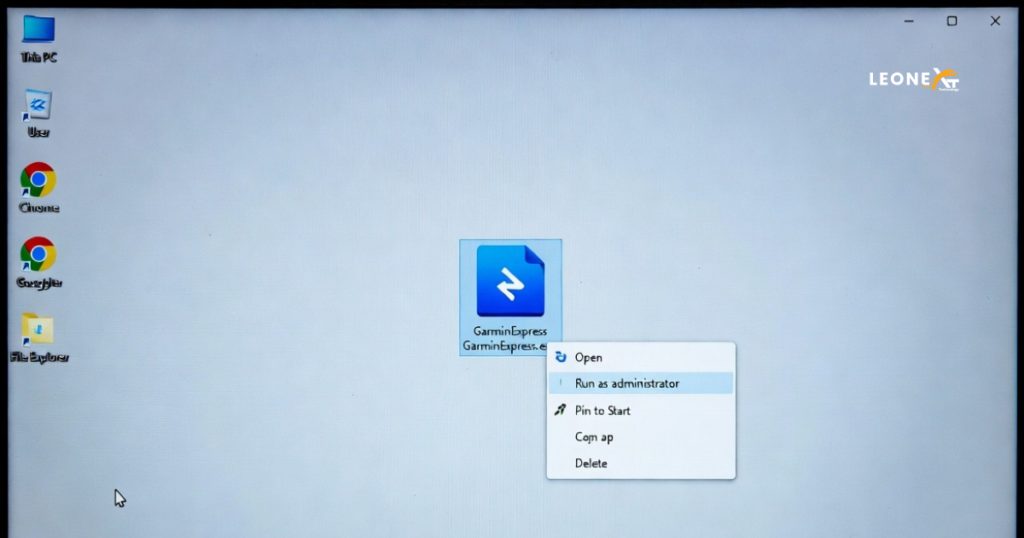
If the installer is blocked, try running it as an administrator. Right-click the Garmin Express setup file and select Run as administrator.
This gives the installer the permissions it needs to complete the process.
Check Windows Security and Antivirus Settings
Sometimes Windows Defender or antivirus software blocks the installer. If that happens, temporarily disable your antivirus during installation.
Also, check whether Windows is blocking the file. If you see a security warning, allow the installer to run.
End Background MSI Installer Processes
If another installation process is already running, Garmin Express may not install correctly. Open Task Manager and check for any active MSI Installer processes.
If you find one, end the process and try the installation again.
Remove Older Versions of Garmin Express
If an old version of Garmin Express is already installed, it may conflict with the new one. Uninstall the previous version first.
After removing it, restart your computer and install the latest version again.
Check the .msi File
If the .msi file is missing or damaged, the installer may fail. Go to the installation folder and confirm that the file is present.
If the file is missing, download Garmin Express again from the official source and reinstall it.
Final Words
Garmin Express installation issues on Windows can happen for many reasons, but most of them are easy to fix. Start with simple steps like restarting your computer, checking Windows updates, and running the installer as administrator. If the issue continues, check antivirus settings, background processes, and older versions of the software.
By following these steps, you can fix most Garmin Express install and update problems on a Windows PC or laptop.
One Response