

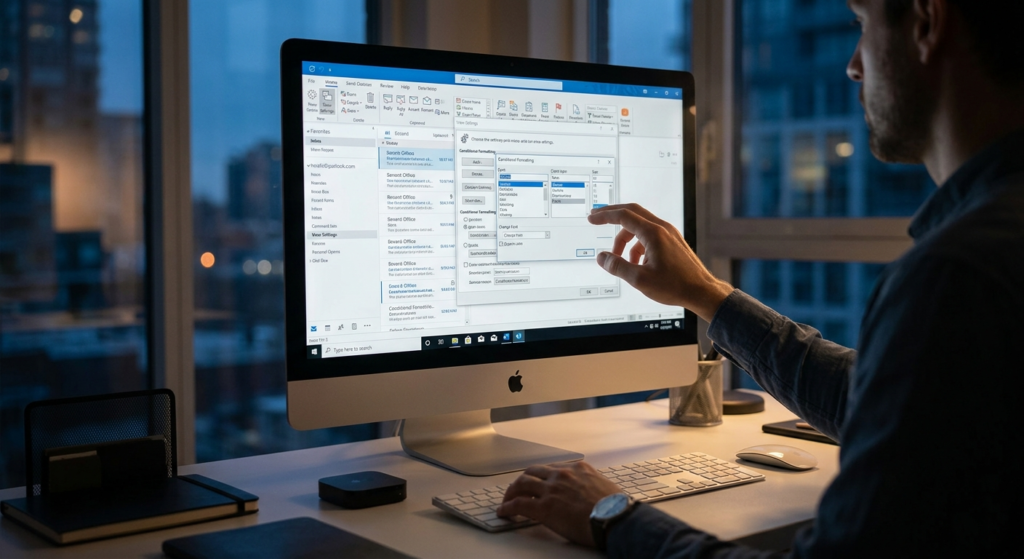
Changing the font size and style in Outlook helps improve readability and gives your emails a more polished and attractive look. Whether you want better visibility or a personalized appearance, Outlook makes it easy to adjust font settings across different sections.
1. Change Font in the Email List (Inbox Panel)
To modify the font in your message list:
- Go to the View tab
- In the Current View group, click View Settings
- Select Other Settings
- Click on Row Font to change the font for email messages
- Choose your preferred font style and size, then click OK
To change the font for column headers:
- Click on Column Font
- Select your desired font settings and confirm
2. Change Font Size in an Open Email
When reading or composing an email:
- Go to the Message or Format tab
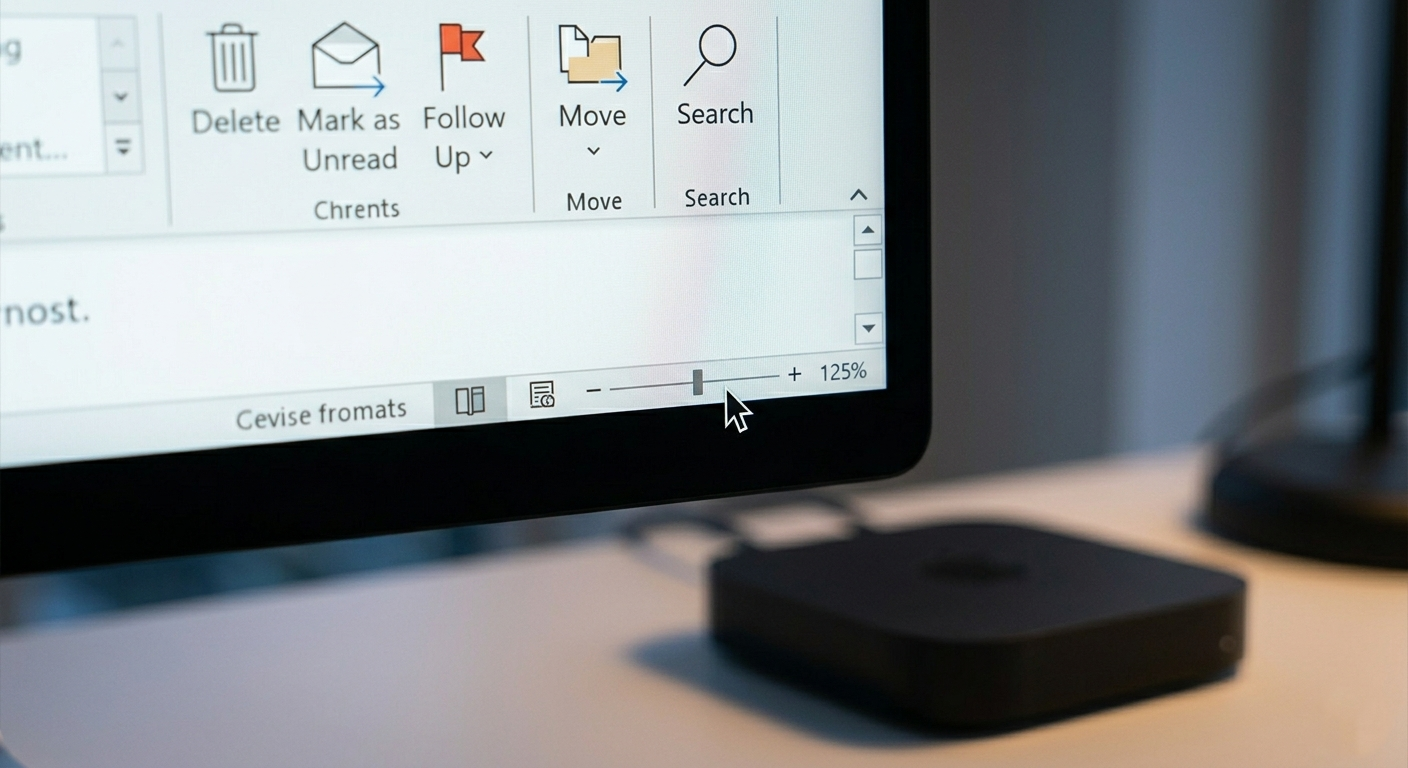
- In the Zoom group, click Zoom
- Select your preferred zoom percentage and click OK
Quick Tip:
You can also hold the Ctrl key and scroll your mouse wheel to zoom in or out instantly.
3. Change Font in the Navigation Pane
To adjust font settings in folders, contacts, and other navigation areas:
- Right-click on the Navigation Pane (or click the menu icon at the bottom)
- Select Navigation Pane Options
- Choose the item you want to modify
- Click Font
- Select your preferred font style and size, then click OK
4. Customize Default Fonts for Emails
Outlook allows you to set different fonts for:
- New emails
- Replies and forwards
- Plain text messages
Steps:
- Go to File > Options > Mail
- Click Stationery and Fonts
- Under each section (New mail messages, Replying/forwarding, Plain text), click Font
- Choose your preferred font style, size, and color
- Click OK to save changes
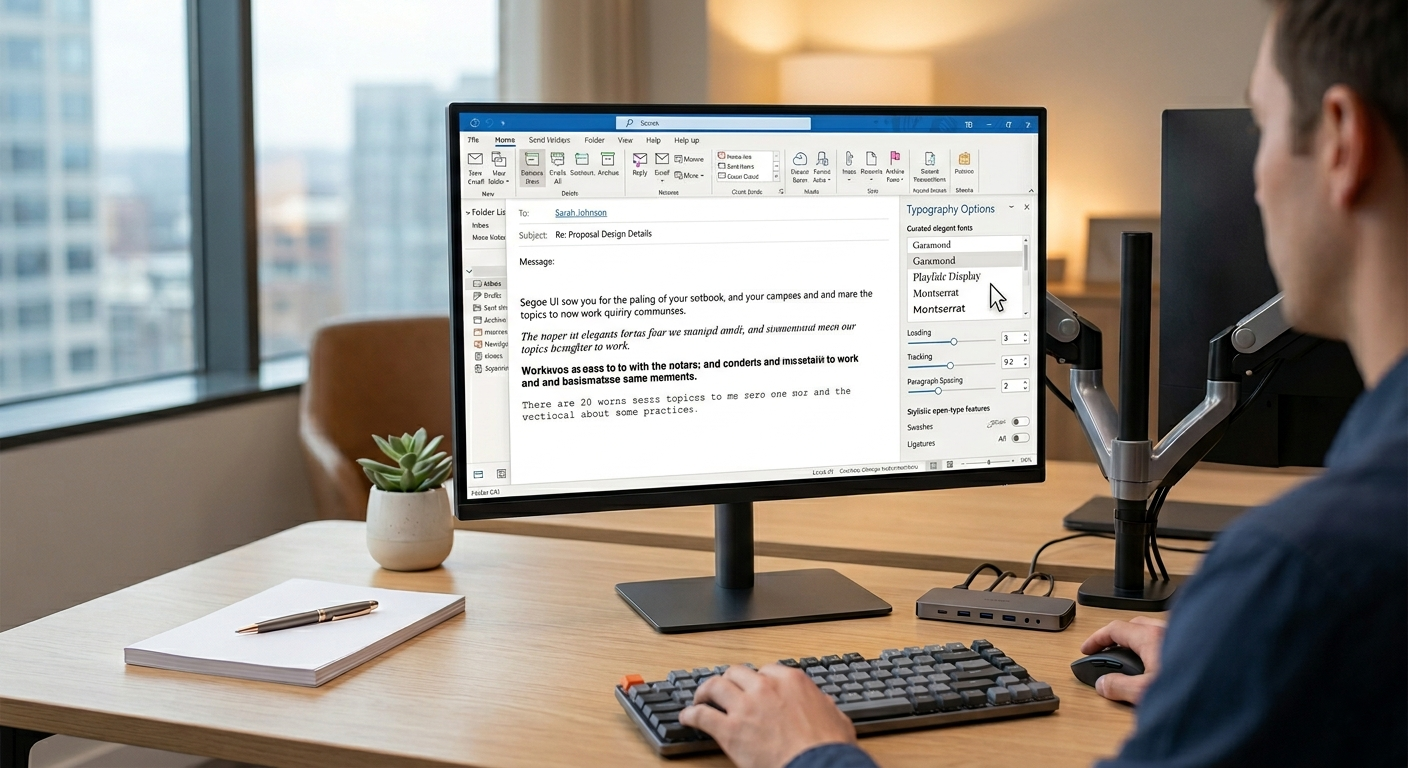
5. Apply or Change Email Themes
Themes automatically define font style, size, color, and effects:
- In the Stationery and Fonts window, click Theme
- Select a theme from the list or choose No Theme to disable
- Click OK
Note:
Applying a theme overrides manual font settings since all styles are pre-defined.
6. Advanced Font Settings
- In the font window, you can explore the Advanced tab
- Adjust spacing, character scaling, and other typography details
- Preview changes before applying
Final Thoughts
Customizing fonts in Outlook improves both readability and presentation. Whether you’re managing professional emails or personal communication, adjusting font settings ensures a better user experience tailored to your needs.