

Is your Microsoft Outlook crashing, freezing, or refusing to open? You’re not alone — this is one of the most common Outlook issues users face. Fortunately, one of the fastest and most effective first steps to diagnose any Outlook problem is to open Outlook in Safe Mode.
In this complete, up-to-date guide, you’ll learn exactly how to launch Outlook in Safe Mode using 5 different methods — from a simple keyboard shortcut to creating a permanent Safe Mode desktop shortcut — compatible with Windows 7, 8, 10, and 11, and with all versions of Classic Outlook.
What Is Outlook Safe Mode?
Outlook Safe Mode is a built-in diagnostic startup mode that launches the application with minimal settings, disabling third-party add-ins and custom configurations that may be causing conflicts or crashes. Think of it as Outlook stripped back to its most essential functions — ideal for troubleshooting without risking data loss.
When you run Outlook in Safe Mode, the following changes take effect automatically:
- All COM add-ins are disabled — third-party tools like PDF converters, CRM plugins, and antivirus integrations are temporarily turned off.
- Custom toolbar and view settings are reset — navigation pane layouts, reading pane positions, and custom ribbon configurations revert to defaults.
- Advanced automation is restricted — custom rules, scripts, and command-line options that could conflict with normal operation are ignored.
- Your data remains completely safe — emails, contacts, calendar entries, and attachments are not deleted or modified.
When Should You Use Outlook Safe Mode?
Safe Mode is especially useful for diagnosing a wide range of Outlook startup errors and performance issues. Use it in the following situations:
| Problem | Why Safe Mode Helps |
|---|---|
| Outlook crashes immediately on launch | Isolates whether an add-in is causing the crash |
| “Cannot start Microsoft Outlook” error | Bypasses corrupt profile settings |
| Outlook freezes at “Loading Profile.” | Removes conflicting customizations |
| Frequent unexpected crashes | Identifies problematic third-party plugins |
| Corrupted view or navigation pane | Resets layout to the default state |
| Slow performance after a new add-in was installed | Confirms if the new add-in is the culprit |
Method 1: Hold the Ctrl Key While Clicking Outlook
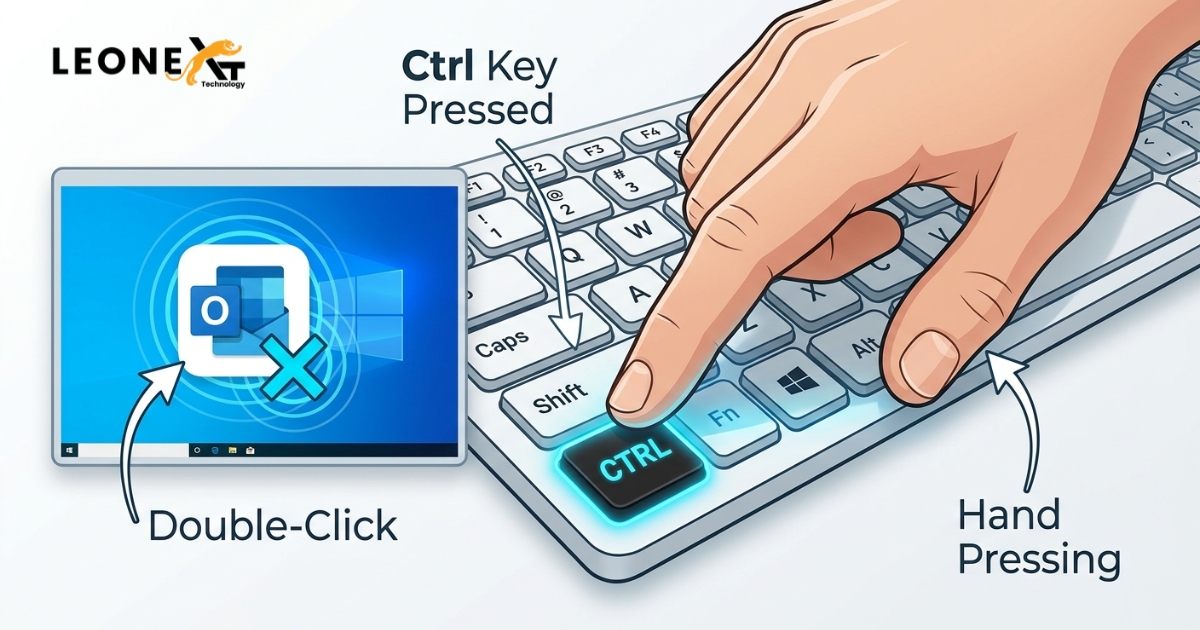
This is the quickest and most universally compatible method. It works on all versions of Windows and all versions of Classic Outlook.
Ctrl Key Shortcut
- Locate the Outlook shortcut on your Desktop, Taskbar, Start Menu, or Start Screen.
- Press and hold the Ctrl key on your keyboard.
- While holding Ctrl, click (or double-click) the Outlook shortcut.
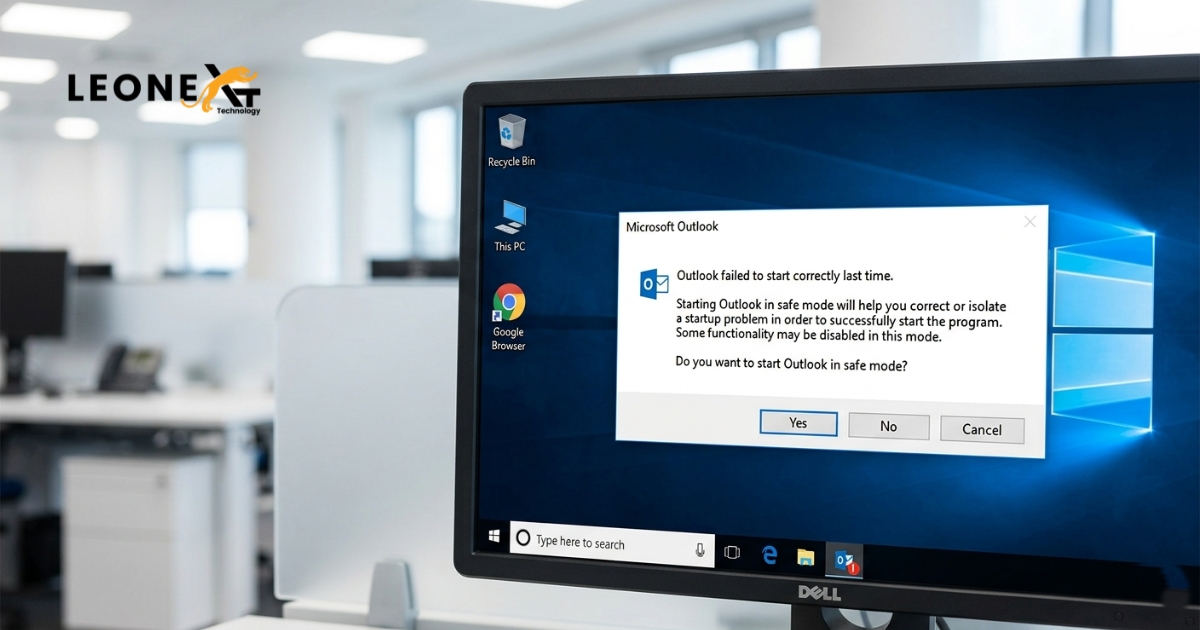
- Keep holding Ctrl until a dialog box appears asking: “Do you want to start Outlook in Safe Mode?”
- Click Yes to confirm.
Method 2: Use the Run Dialog (Win + R) — Fastest Method
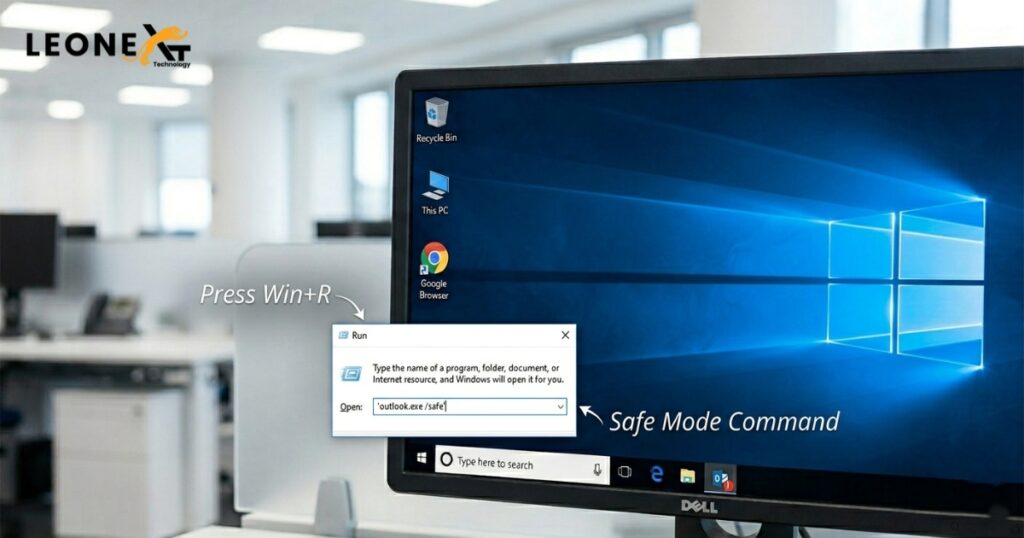
Using the Run dialog with the outlook.exe /safe command is arguably the fastest single method, and it works reliably on Windows 7, 8, 10, and 11.
Run Dialog — outlook.exe /safe
- Press Windows key + R on your keyboard to open the Run dialog.
- Type the following command exactly as shown:
outlook.exe /safe- Press Enter or click OK.
- If prompted, select your Outlook profile and click OK.
Method 3: Windows Search Bar (Works on Windows 7, 8, 10 & 11)
Every version of Windows has a search feature that also accepts run commands like outlook.exe /safe. Here’s how it works on each version:
Windows-7 — Start Menu Search Box
- Click the Start button to open the Start Menu.
- In the search box at the bottom, type:
outlook.exe /safe- Press Enter.
Windows-8 — Start Screen
- Press the Windows key to open the Start Screen.
- Begin typing immediately (the search box appears automatically):
outlook.exe /safe- Press Enter from the search results.
Windows-10 & 11 — Taskbar Search
- Click the Search box on the Taskbar (or press the Windows key to open the Start Menu).
- Type the command directly:
outlook.exe /safe- Click the matching result or press Enter.
Method 4: Open Outlook in Safe Mode via Command Prompt
Command Prompt Method
- Press Windows + S and search for Command Prompt. Right-click it and choose Run as Administrator.
- In the Command Prompt window, type:
"C:\Program Files\Microsoft Office\root\Office16\Outlook.exe" /safe- Press Enter. Outlook will launch in Safe Mode immediately.
- Adjust the path above based on your Outlook version — see the file location table below.
Method 5: Create a Permanent Outlook Safe Mode Desktop Shortcut
If you frequently need to troubleshoot Outlook, creating a dedicated Outlook Safe Mode shortcut on your Desktop is a time-saving solution. This way you can launch Safe Mode with a single double-click at any time.
Create a Safe Mode Shortcut
- Right-click on an empty area of your Desktop.
- Select New → Shortcut from the context menu.
- In the “Type the location of the item” field, enter the full path to Outlook.exe followed by
/safe. For example (Microsoft 365):
"C:\Program Files\Microsoft Office\root\Office16\Outlook.exe" /safe- Click Next.
- Name your shortcut something memorable, like: Outlook Safe Mode
- Click Finish.
Outlook.exe File Locations by Installation Type
If Windows cannot locate outlook.exe automatically, you’ll need to provide the full path. Use the table below to find the correct location for your installation:
| Installation Type | Outlook.exe Path |
|---|---|
| 32-bit Windows (any Office version) | C:\Program Files\Microsoft Office\Office<version>\ |
| 64-bit Windows, 32-bit Office | C:\Program Files (x86)\Microsoft Office\Office<version>\ |
| Microsoft 365 / Click-to-Run | C:\Program Files\Microsoft Office\root\Office16\ |
| 64-bit Office on 64-bit Windows | C:\Program Files\Microsoft Office\Office16\ |
What to Do After Opening Outlook in Safe Mode
Successfully opening in Safe Mode is your first diagnostic step — not a permanent fix. Here’s how to use the information to actually fix your Outlook problems:
Step 1: Identify If the Problem Is an Add-In
If Outlook works normally in Safe Mode but not otherwise, a COM add-in conflict is almost certainly your culprit. Here’s how to find it:
- In Outlook (while in Safe Mode), go to File → Options → Add-ins.
- At the bottom, select COM Add-ins from the dropdown and click Go.
- Uncheck all add-ins and click OK.
- Close Outlook and reopen it normally (without Safe Mode).
- If it opens, re-enable add-ins one at a time, restarting after each, to pinpoint the problematic one.
For more detail, see the official guide from Microsoft Support: Managing Outlook Add-ins.
Step 2: Check for a Corrupted Profile
If Safe Mode doesn’t help, a corrupted Outlook profile could be the deeper issue. Creating a new profile often resolves persistent startup failures:
- Open Control Panel → Mail → Show Profiles.
- Click Add, enter a profile name, and set up your email account.
- Set the new profile as default and restart Outlook.
Step 3: Repair Microsoft Office
If the above steps don’t resolve the issue, a corrupted Office installation may need repair. Go to Control Panel → Programs → Microsoft Office/Microsoft 365 → Change → Quick Repair. If Quick Repair doesn’t work, run Online Repair for a more thorough fix. See Microsoft’s Office Repair guide for detailed steps.
Conclusion
Knowing how to open Microsoft Outlook in Safe Mode is an essential troubleshooting skill for any Windows user. Whether you prefer the simplicity of the Ctrl key shortcut, the reliability of the Run dialog (outlook.exe /safe), or the convenience of a permanent Safe Mode desktop shortcut, all five methods give you quick access to Outlook’s diagnostic state.
Once in Safe Mode, systematically disabling COM add-ins one by one is almost always the fastest path to identifying and permanently resolving the root cause of your Outlook issues. For further assistance, visit the official Microsoft Outlook Safe Mode support page or the Microsoft Outlook Troubleshooting documentation on Learn.Microsoft.com.