

How to turn off notifications in Outlook?
Email plays a vital role in our modern life and work, but nowadays it’s also an important method of communication, and not always great for productivity. Email is a great way to help you get more done, but it’s about the disturbance. Also, those email notifications can be highly distracting. When you work on a new project or files or do whatever, the new mail notification interrupts you and spoil workflow, and also it takes some time to get it back again. It distracts you from your current task, so why not turn off your notifications? It’s so easy to do it.
You’ll get a pop-up notification when received a new mail, task request, or meeting request. So if you don’t want to receive them, turn it off with a simple and quick process.
The following steps to turn off the Outlook notifications:
• First, open the outlook, then right-click on the Windows taskbar.
• Make sure to click on a blank area rather than on an icon.
• After this, choose Taskbar Settings.
• Also, scroll down to the Notification area and click Select which icons appear on the taskbar.
• In the outlook find the Microsoft Outlook entry. If there’s more than one entry for Outlook, find the one with the subheading You have new unread email messages.
• Then make sure the slider is set to the Off position to disable taskbar notifications.
• And after this, if you want to turn on, then follow the same steps to re-enable notifications, and set the slider to the On position.
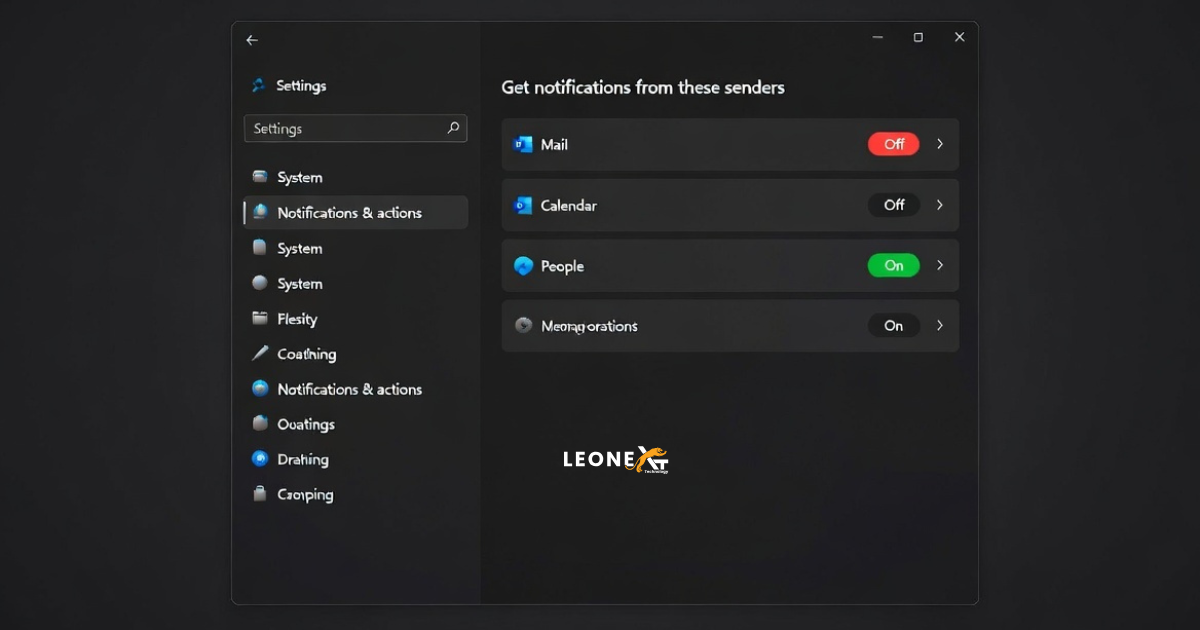
How to turn off notifications in iPhone:
• Open the app on your iPhone device.
• Then tap on the settings.
• Also, tap on the notifications shown in the settings options.
• After this, tap on the mail.
• Then, if it is turned on or off, turned off so as not to receive mail notifications.
You have been successful to turned off the notifications.
How to turn off the notifications in Android:
• First, open your mail application.
• Then tap on the top left menu button.
• In the third step, slowly scroll down, you’ll see at the bottom and tap settings.
• Then tap an account and check notifications.
• Turned off this so the notifications not show you.