


For managing your emails, calendars, and contacts, all in one place, Microsoft Outlook provides an easy way to do all of this. If you’re also using iCloud and Google, which can also manage info like contacts, email, and calendars, you may want to consolidate all this information.
Now, the following methods to add Outlook calendars to an iPhone:
- With iTunes
- With iCloud
- With the iPhone mail app
The first method is to add the Outlook calendar to iTunes.
If iTunes is your go-to place to manage your iPhone, this method is perfect for you.
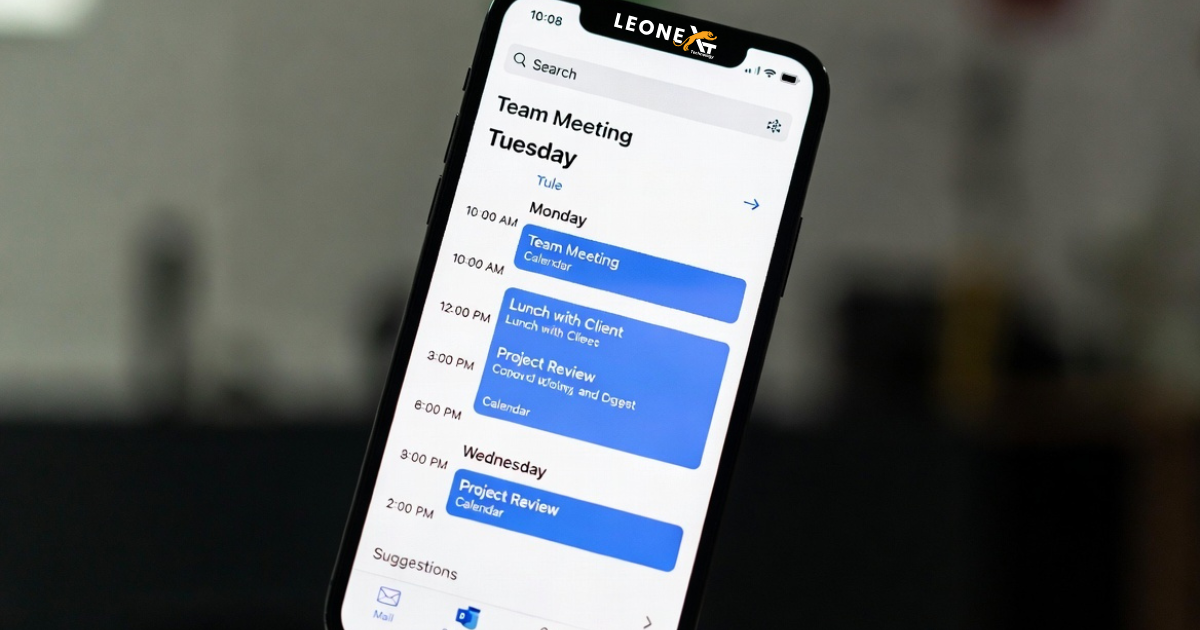
- In the first step, connect your iPhone to your computer with your USB cable.
- Then, if iTunes doesn’t open automatically, launch it.
- After this, click your device icon and open the “Info” tab.
- Also, check the “Sync Calendars with” and select Outlook from the dropdown menu.
- Then, choose to sync all calendars, or only selected calendars, using the settings provided.
- In the last step, click Apply to start syncing your calendars with your iPhone.
The second method is to add Outlook Calendar to an iPhone with iCloud.
To sync the data, you can easily use iCloud between all your devices that use your Apple ID. With this function, your contacts and calendars are always up to date, and you even have access to all your photos on all your devices.
Now, follow the following steps to add Outlook Calendar to an iPhone with iCloud.
- First, download and install iCloud for Windows.
- After downloading, Enter you Apple ID and password.
- Then select what you’d like to sync (ensure that “Mail, Contacts, Calendar, and Tasks” is checked).
- After this, click Apply to complete the process.
The third method is to add Outlook Calendar to iPhone with the iPhone Mail app.
By using your iPhone itself, you can also add your Outlook account.
- First, open Settings on your iPhone.
- Then Tap “Passwords & Accounts”.
- Also, tap “Add Account” > Outlook.com
- After this, enter your username and password for your Outlook account.
- In the final step, when prompted, give the app permissions to sync your data.
One Response