

HP printer setup Windows 8
The setup of HP Printers in Windows 8 is facing some problems after updating it, so in this topic, we discussed how to setup the printer in Windows 8. Let’s start.
After upgrading from 8 to 8.1 the Hp printer allows you to setup your printer when at the time of access to the printer assistant. Sometimes the HP icon on the desktop and the printer folders lose their connection to the driver during upgradation.
The steps follow:
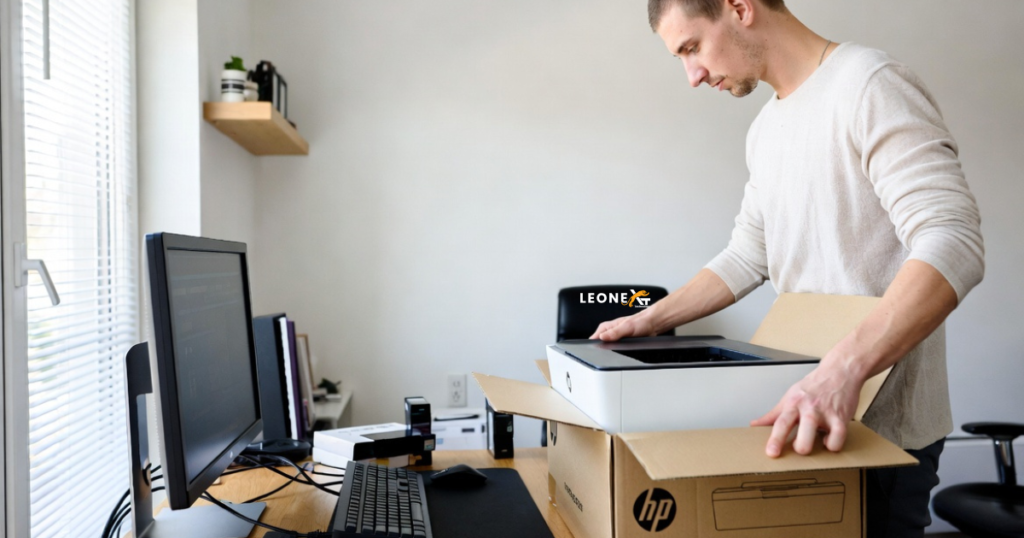
• Unbox the printer.
• Take the printer from the box.
• Read the precautions before the setup.
• Assemble all the accessories of the printer.
• Fix the cartridges/ toner
• Plug it in and turn it on to the main power plug
So, these all are the setup of the hardware parts now, it’s time to setup it with internally with the softwares and installation.
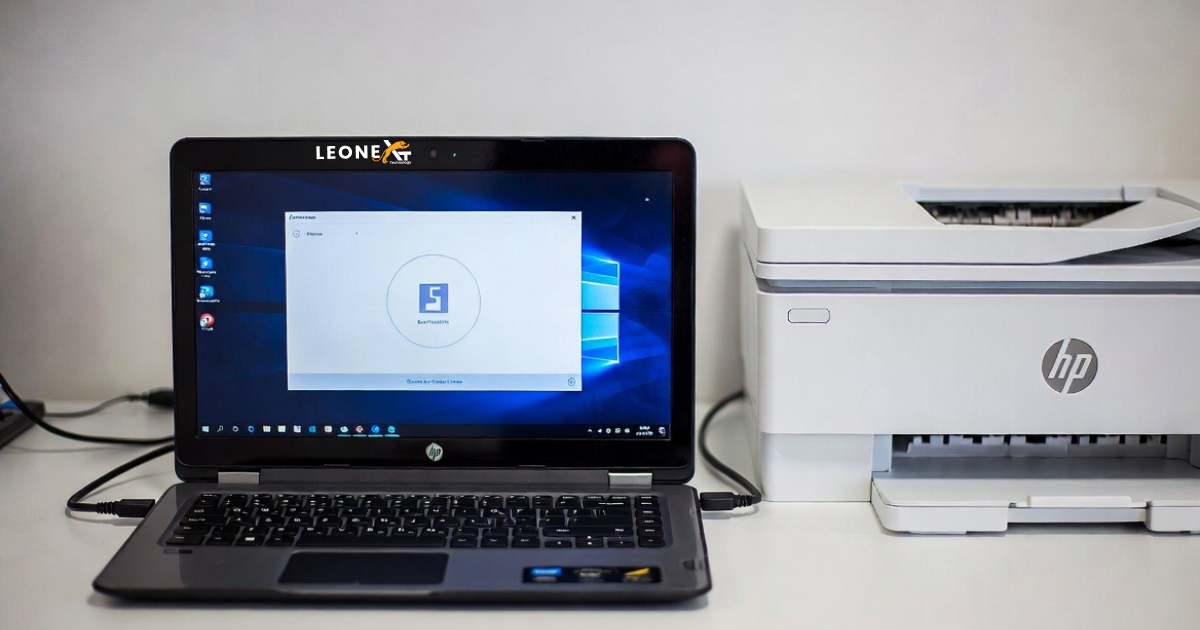
• Visit the website 123.hp.com download the driver of our compatible window.
• Install it to setup successfully.
• Firstly turn on the printer.
• At the time of USB connection If the software installation prompts you to to connect the cable so please connect otherwise disconnect the USB cable from the printer.
• After downloading the setup, select the version and then click Start.
Step 2: Make sure that the printer assistant works.
• After the installation has completed, go
To the desktop and double-click the printer icon.
• Try to scan the printer assistant if it opens.
• If scanning is done it works, so close the printer assistant and give the command, which means try to print using a software program that you have used with printers before.
• You face many problems in Windows 8 after installation. If the printer assistant works to scan and print, you can stop troubleshooting.
• If again facing the same problem so you can try the next fixes.
Fix 2: Reinstall the software after uninstalling it
How to uninstall it:
• First disconnected the USB cable from your printer if it is connected, and also if your printer is connected to a network, leave it in connected.
• Now turn on the printer by pressing the power button.
• Open the programs and features by clicking right-click the Start icon.
• Then shows a printer’s name right click on it to uninstall it.
• Uninstall this software by following the instructions shown on your screen.
Now, how to install it:
• Firstly, turn on the printer.
• Connect the cable if needed at the time of installation; alternatively, the wireless connection is also used.
• Then, visit the HP website to install.
• Type the model name and submit.
• Also, you can select the version, then click Change.
• After all these, download the compatible version to install it and set up the printer in Windows 8.
These all the steps to setup the printer in windows 8 and also above the fixes and problems which you are faced at the time of setup.