


Dell Printer’s slow performance issue
The issue of slow performance is a frustrating experience encountered by many printer users. The speed of a printer is dependent on its make and model. If you find yourself facing this problem, below are some tips to address it.
What causes printers to print slowly?
During document printing, several factors can contribute to slow performance:
- Slow printing with network printers can be attributed to issues with the print spooler or printer drivers.
- Wired printers typically offer better and faster performance compared to wireless printers.
- Slowdowns in the printer server can also lead to slow printing.
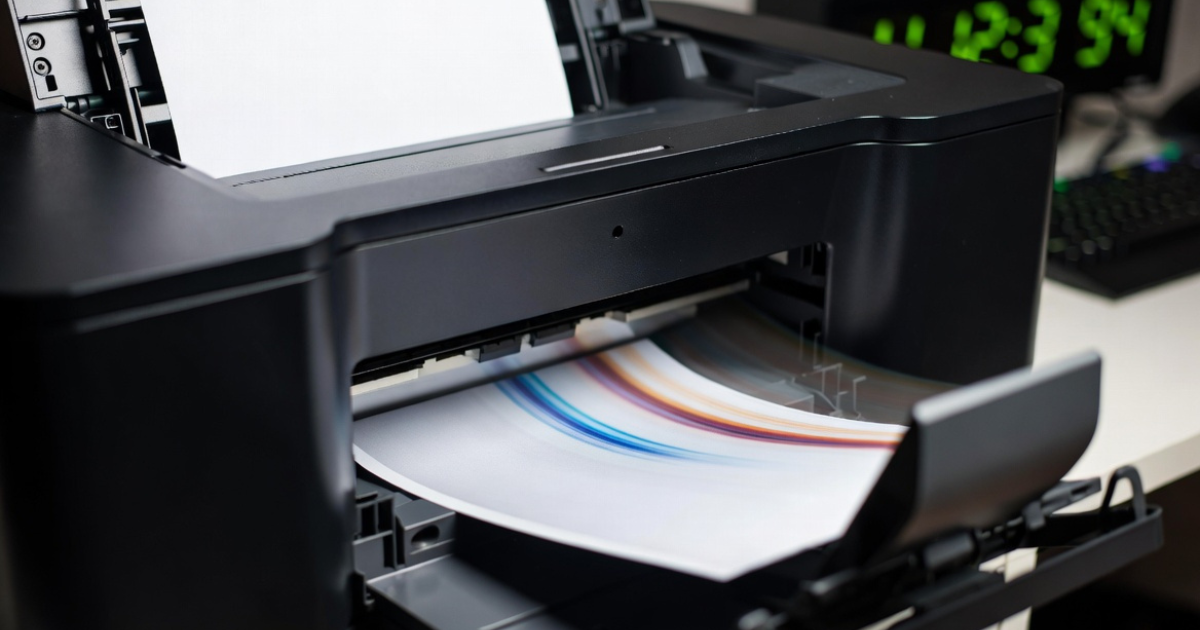
Here are some solutions to address the slow performance issue:
-
Hard reset the printer:
Excessive usage can cause printers to overheat, resulting in decreased printing speed. To resolve this, perform a hard reset using the following steps:
- Press the Power button on the printer to turn it off.
- Disconnect the power cable.
- Allow a few minutes for all electric components of the printer to discharge completely.
- Reconnect the power cable and turn on the printer.
This method should resolve the issue. If the problem persists, proceed to the next solution.
Updating the printer driver to the latest version can effectively resolve slow performance issues. Follow these steps:
- Open the Power menu and select Device Manager.
- Navigate to Printers.
- Locate your printer, right-click on it, and select Update Driver.
- Choose the option to search automatically for drivers.
- Once the driver is updated, it is ready to use.
-
Check the network connection:
Poor network connection can also contribute to slow performance. For wireless printers, ensure a stable connection by rebooting your router or moving closer to the printer. For wired printers, inspect the cable for any damage. Addressing these connectivity issues can significantly improve printer speed.
-
Restart the printer spooler:
The printer spooler manages print jobs and transfers data to the printer. Sometimes, an overloaded spooler can slow down performance. To resolve this, follow these steps:
- Press Windows + R to open the Run box.
- Type “services. msc” and hit Enter.
- Locate the printer spooler, and right-click to open the menu.
- Click on Stop, then minimize the window.
- Open the Run box again and type “spool.”
- Navigate to the spool folder and click on it.
- Locate the print queue and delete all pending files.
- Start the spooler in the Services window.
- Test the printer speed by giving a print command.
Following these steps should help improve the speed of your printer.