

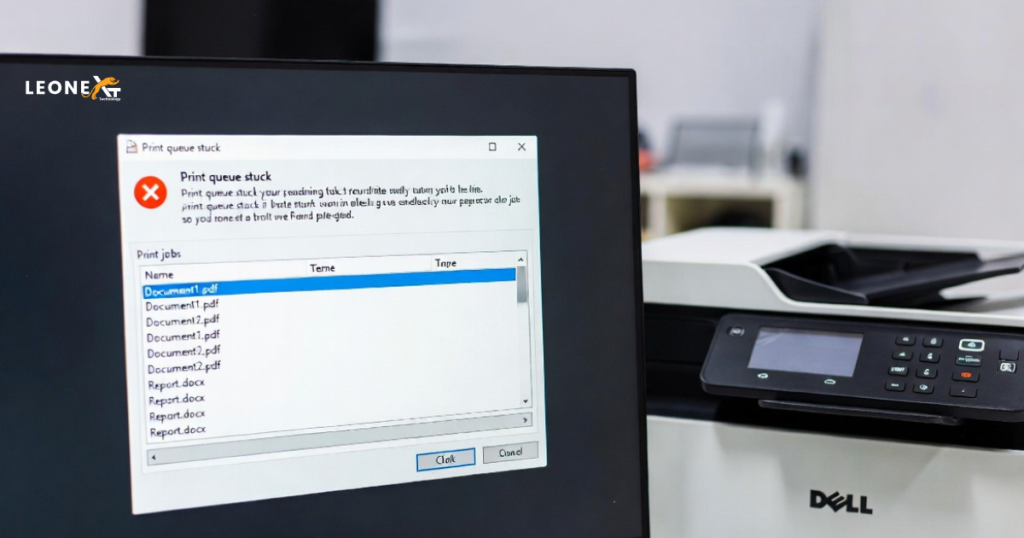
Dell printer spooler error
A printer spooler is a software that managing all the print jobs and handles the process of storing to the printer in the way they were printed. It refers a computer application that passes the organises data or information to the device with low memory and is usually slow to handle the data, like that printer.
Why we need a printer spooler?
The printer would facing the problem at the time time of handle all the information about what you are printing because it is not fast and also doesn’t have a very high memory.
Especially when your printer connected in an office where lots of employees may be printing at once. So at that time printer needs a program to decide what to print first means ( who clicked print first).
A spooler means that you don’t have to wait for the one job completed before loading up another.
There are some common problems:
Various problems faced with printers involving the spooler when you click on print. Some problems include:
• The spooler can’t translate the data or documents which are corrupt to the printer.
• Failure of spooler service- The software has crashed and fail to transfer the information.
• Print jobs can getting stuck in the queue.
Now how to solve the dell printer spooler issue:
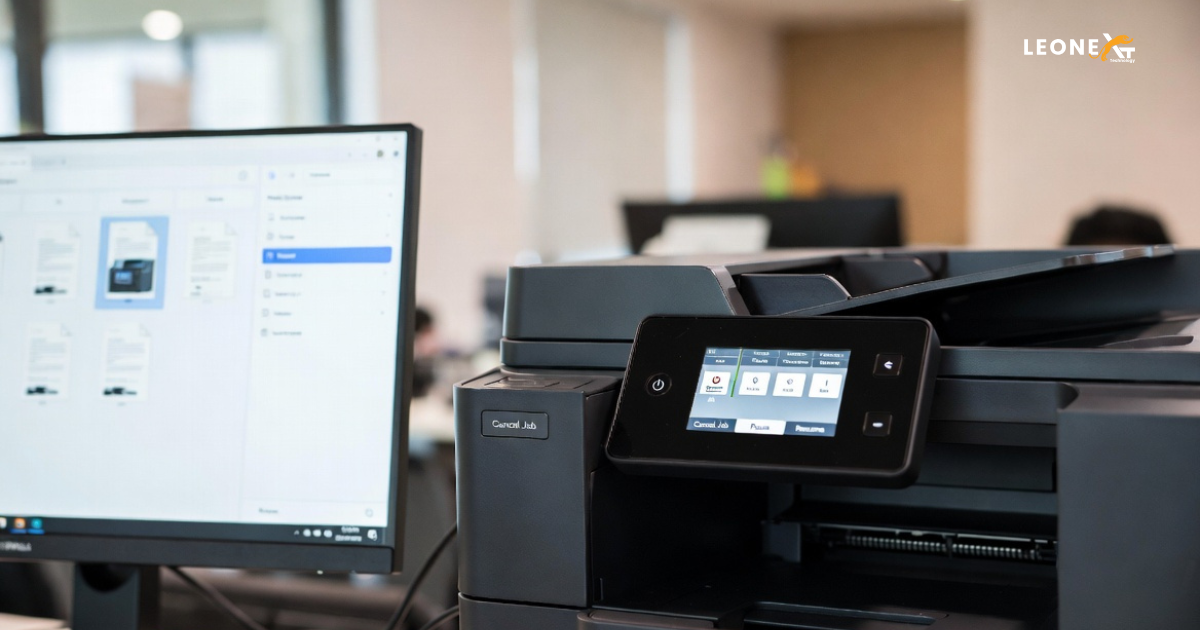
1. Stop the printer spooler software
• Firstly Shut down any programs such as Word or any other that you might have used to try and print with.
• Then Click the ‘Start’ button > Type ’Administrative Tools’ > then click ‘Services’.
• After this, on the list that appears, scroll down to ‘Print Spooler.’ Right click and select ‘Stop.’
• Also Head to ‘My Computer’ and double-click ‘Local Disk (C:).’ Then select the ‘Windows’ folder.
‘System32’ folder> ‘spool’>’Printers’.
• Then Delete all the print jobs in this folder
Go back to ‘Services,’ find ‘Print Spooler’ and right click.
• Now select ‘Start.’
•Now open the program which you closed down and try and print the document you wanted as normal.
2. Clear the printer queue:
Clearing all the printer queue can solve the spooler error. By asking everyone who has sent something to the printer you can also clear down the print queue going in the control panel and visiting ‘ printer and devices’ then right clicking the printer icon and selecting on that what’s printing. In the list of printing cancel each item from the queue by the person who sent it to printer.
3. Update the driver/ software
Old printer driver and software also cause the printer spooler error. Download and install the latest driver or software by searching your printer model name. Install the updated version for your spooler good working. This will help you to solver your spooler error.