

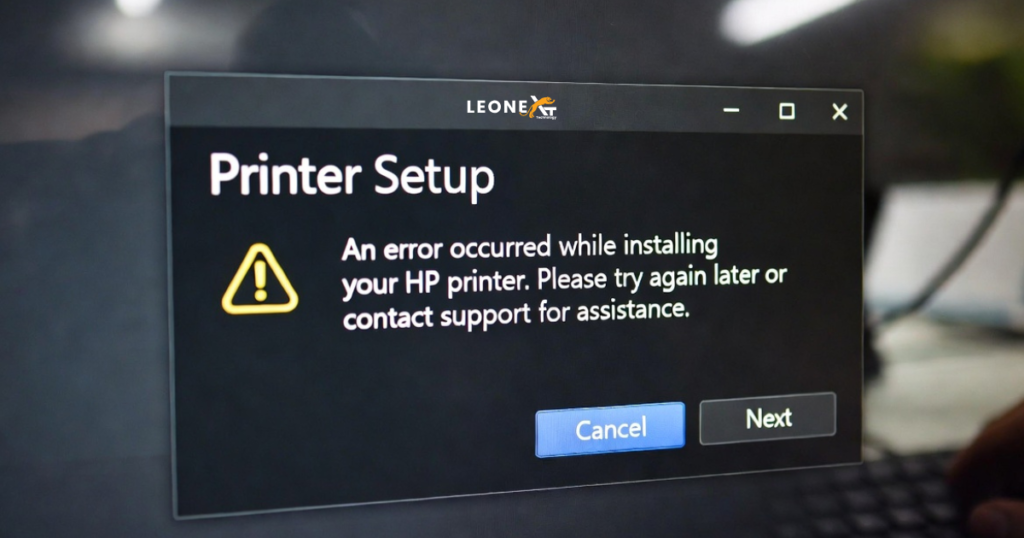
Why is my HP Printer Setup incomplete?
Sometimes, after installation or fully setting up your printer, it shows the error message which means the printer setup is incomplete. It is very annoying that install again and again shown the same problem and you can’t understand what happens to your system or printer. So, to solve the error problem, below are some steps and fixes to solve it. Follow the instructions and remove the errors at the end of the printer setup.
Step 1: Determine which error code displays on your screen.
Below are the following code errors:
• UA_400_EB000U004 or OW_500_OWSID00001: This code shows the we’re sorry something went wrong error to finish the printer setup.
• UA_200_OWSD00001: This code shows the HP printers’ Unable to register the Printer to your account error to finish the printer setup.
• UA_400_EB000U405: This code shows contact HP Customer support for more information.
• Continue to the next step after showing the printer setup, and display the error codes to continue printing.
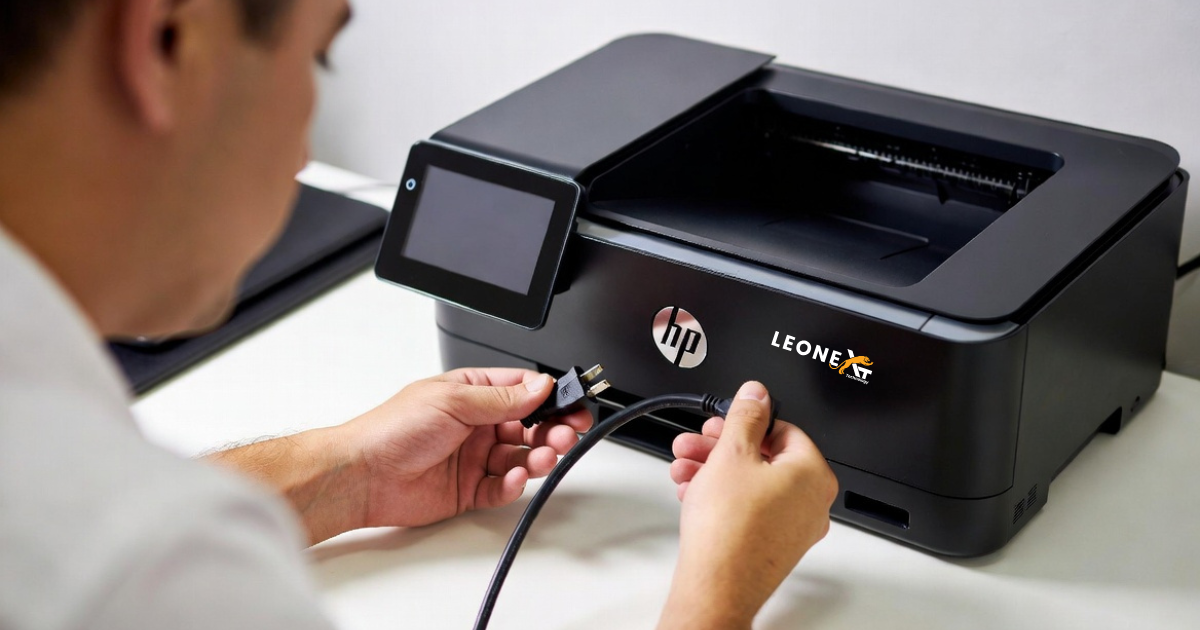
Step 2: Reset the printer
• Disconnect the power cord from the printer with the printer turned on.
• Unplug the power cord from the main power source.
• Reconnect the power cord to the main source and turn on the printer.
Step 3: Sign in to your HP Smart website account
Visit the website and sign in to your HP Smart website account, and then verify your printer type.
• Visit the website HPsmart.com on your mobile and computer and sign in.
•Read the instructions and information that match your printer type.
• If your printer doesn’t display, skip to resetting the printer to factory settings.
• And also, if you have a standard printer, continue to the next step.
• Then, if you have an HP+ printer again, skip to resetting the printer to factory settings.
Step 4: Remove the printer from your HP Smart website account.
Remove the printer from your dashboard on your HP Smart website account.
• Firstly, on your printer dashboard, select Change Settings if necessary.
• Then select the remove printer.
If you’re facing a problem to remove the printer, skip to contacting HP customer support.
• After this, select remove to confirm.
• After removing it, log out of the account and then again log in.
• Also, make sure your printer no longer displays the remove option, and then continue to the next step.
Step 5: Reset your printer to factory settings
To remove all the previous printer settings and preferences, reset your printer.
Step 6: Remove the printer from the HP Smart app
• Firstly, close the HP Smart app, and then reopen the app.
• Then remove the printer from the app, the. Click continue to the next step.
• For the windows, macOS: show the printer name, click on it, and then click forget this printer.
• For Android and iOS: In this long press the printer name, and then click forget the printer.
Step 7: Contact HP customer support.
Follow the precise steps to solve your errors, and if the issue has not been resolved, please contact HP Customer Support.