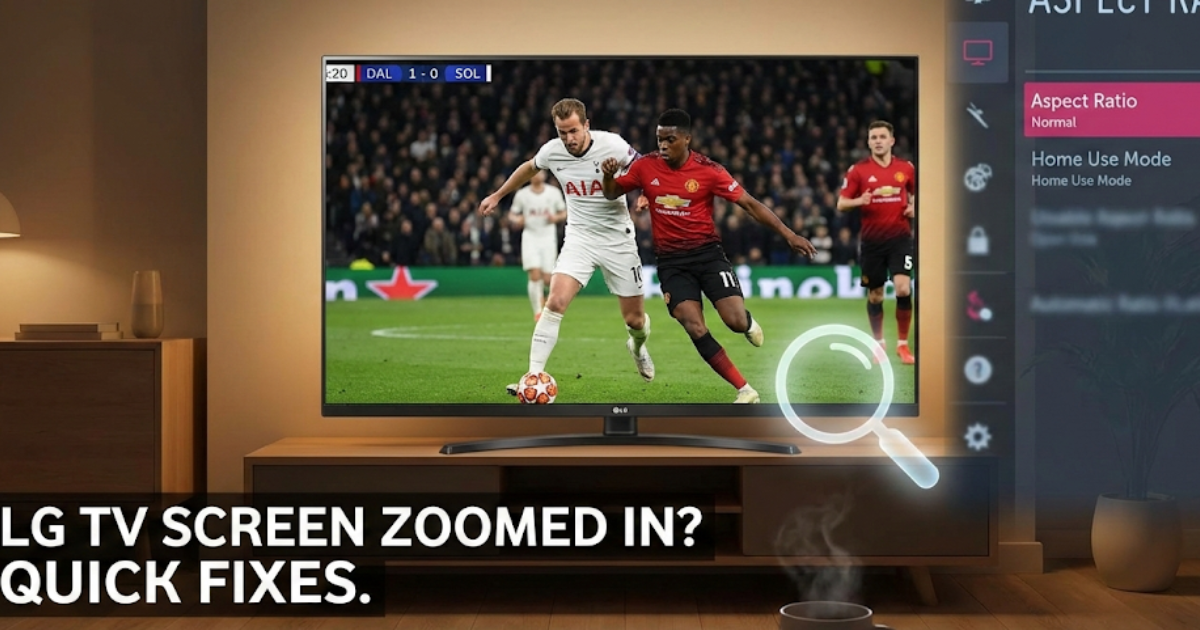
LG TVs are known for their excellent picture quality, vibrant colors, and sharp display. However, sometimes the picture appears too large for the screen. Parts of the image may get cut off from the top, bottom, or sides.
This issue usually happens because of incorrect aspect ratio settings. In some cases, display settings change accidentally. It can also occur after connecting a new device like a cable box, gaming console, or streaming device.
The good news? You can fix this problem in just a few minutes.
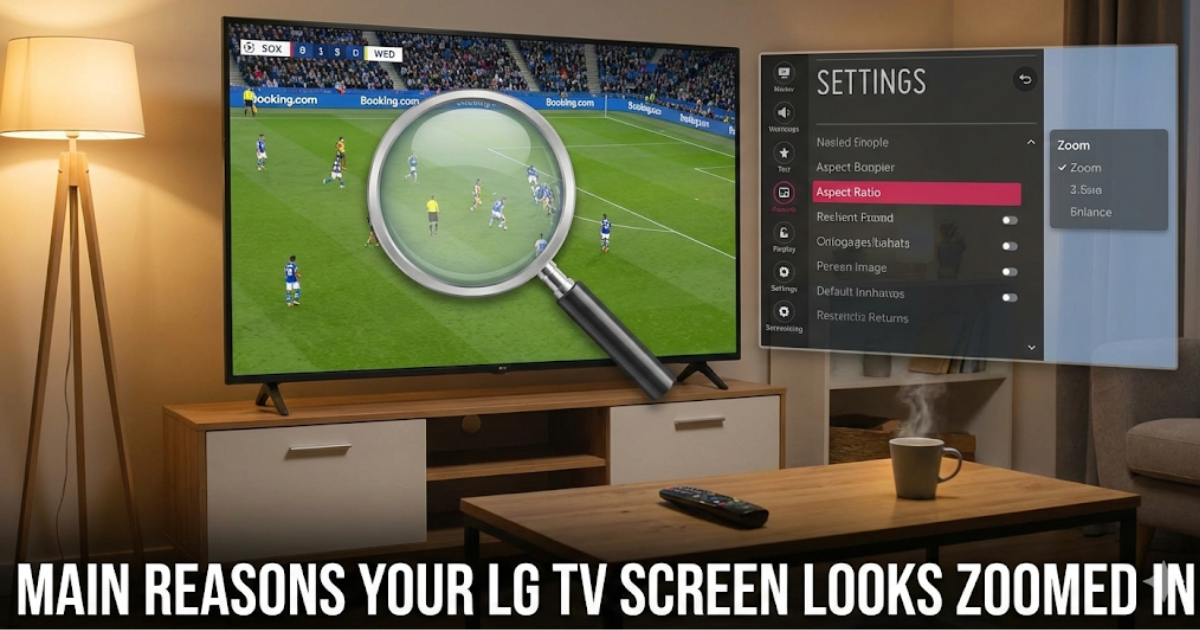
Main Reasons Your LG TV Screen Looks Zoomed In
Here are the most common causes:
-
Incorrect aspect ratio setting
-
TV not set to Home Use Mode
-
External device resolution mismatch
-
Zoom mode turned on
-
Auto-optimization disabled
In most cases, the issue comes from the TV settings menu.
Fix 1: Set Your LG TV to Home Use Mode
Many users face this issue because their TV is not set to Home Use Mode. Store Mode can sometimes change display settings automatically.
Follow these steps:
-
Press the Home button on your remote.
-
Go to Settings.
-
Select All Settings.
-
Choose General.
-
Select Mode Setting.
-
Change it to Home Use.
After changing the mode, check if the picture fits properly.
Fix 2: Change the Aspect Ratio
The aspect ratio controls the height and width of the picture. If it does not match the content, the image may appear too large.
The recommended aspect ratio for most LG Smart TVs is 16:9.
Steps to Change Aspect Ratio:
-
Press the Home button.
-
Go to Settings.
-
Select Picture Settings.
-
Click on Aspect Ratio Settings.
-
Choose the correct ratio.
-
Save the settings.
-
Play a video to confirm the fix.
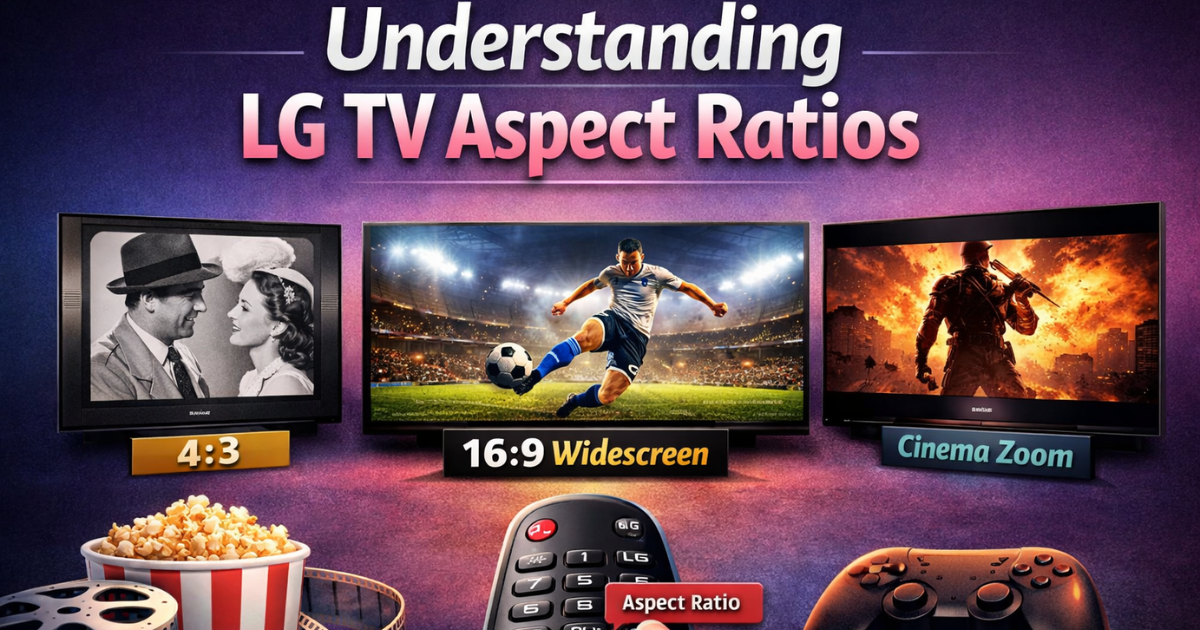
Understanding LG TV Aspect Ratios
Different content requires different aspect ratios. Choose the one that fits your viewing needs.
4:3
Best for old movies and classic TV shows. It displays vintage content without stretching.
16:9
This is the standard widescreen format. It works best for modern movies, sports, and streaming platforms.
Cinema Zoom
Use this mode for a theatre-like experience. It removes black bars and enhances movie viewing.
Check for Zoom or External Device Issues
If the problem continues:
-
Turn off Zoom mode in Picture Settings.
-
Check your cable box or streaming device resolution.
-
Make sure the external device is set to 1080p or 4K (depending on your TV model).
-
Restart your TV after changing settings.
Sometimes a simple restart solves the issue.
Final Thoughts
If your LG TV picture looks too big for the screen, do not worry. The issue usually comes from incorrect aspect ratio or display settings. By adjusting the settings to Home Use Mode and selecting the correct aspect ratio, you can fix the problem quickly.
Follow the steps above and enjoy a perfectly fitted screen on your LG TV.