

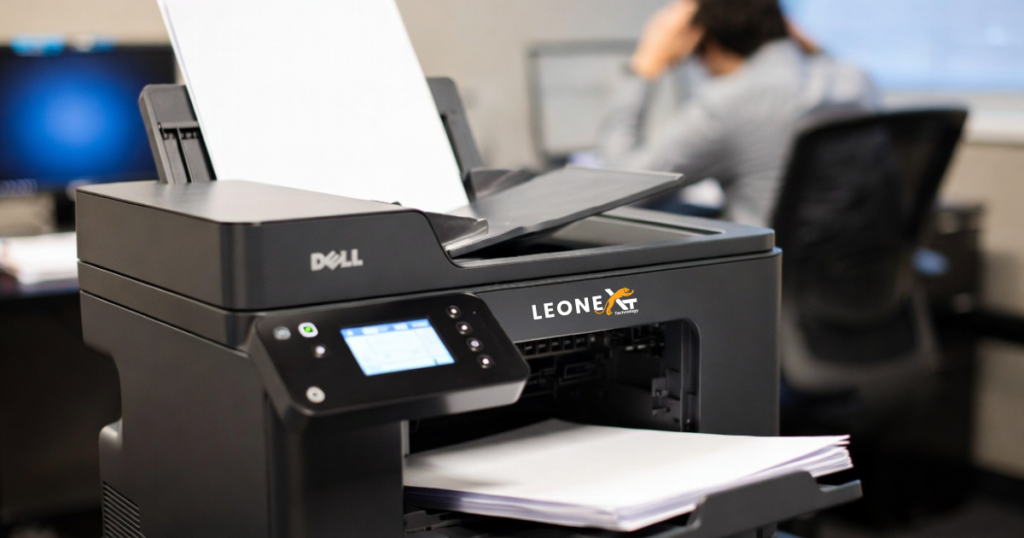
It is very annoying at the time of work when you are going to print documents, and the page is blank when it comes out. If your printer suddenly starts printing blank pages doesn’t mean you are running out of ink. There are many causes that your Dell printer prints blank pages. Some fixes can help you out of that problem, and your printer starts printing pages.
1. Print a test page
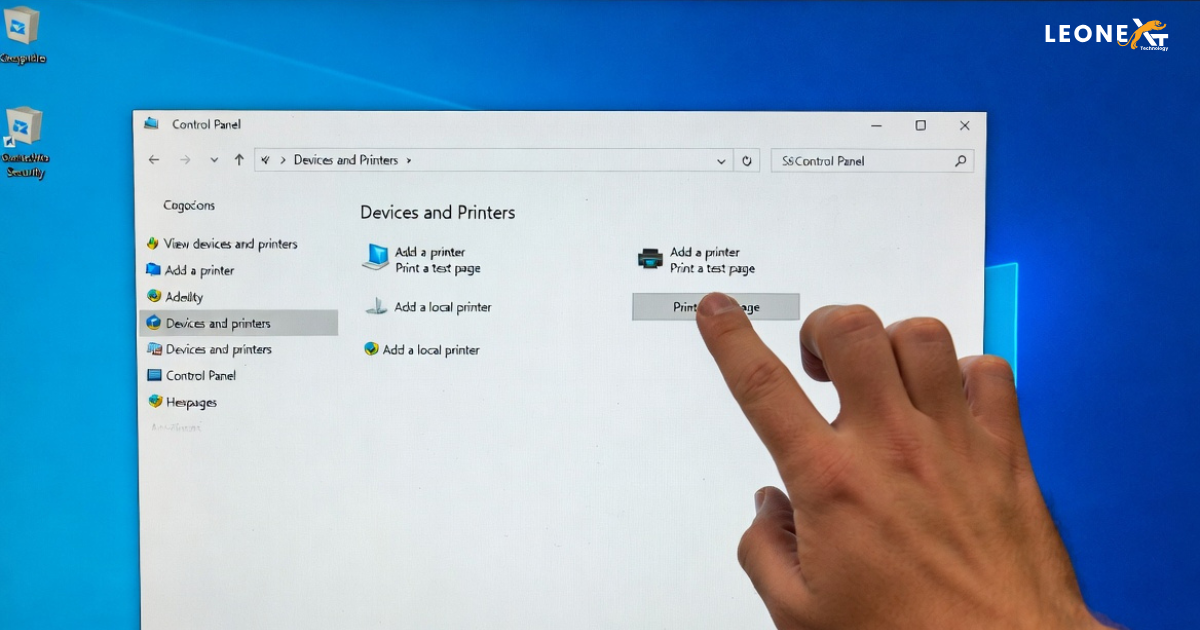
Print a test page to help you isolate the underlying issue. Sometimes,y your print heads may not be aligned, or stoppage of ink flow. Below are some steps on how to print a test page on Windows.
- First, in the start menu, go to the control panel.
- Then click on the devices and printer option.
- It shows your printer; right-click on it and select printer properties.
- After this, in the general tab, click on the print test page button.
2. Restart your system and printer
Sometimes restarting your pc and printer also resolves this issue. This is also the cause of your printer printing blank pages. So here are some steps :
- Turn off your printer by pressing the power button.
- Unplug it from your computer after it shuts down.
- Then restart your PC.
- After your pc starts, plug in your printer.
- Start your printer.
- Then, check by printing pages whether it’s working or not.
3. Ink/ toner cartridge issues
Installed your ink cartridge properly if it is damaged or not installed properly it causes prints blank pages. After installing your printer’s cartridges, are properly fitted, and also check the ink levels.
Below are some steps to check the ink levels:
- Open the control panel, go to the devices and printers option.
- It shows your printer; right-click on it and select the printer properties.
- Then click on the view printer status button under the maintenance tab.
- Now, under the estimated ink levels section, check your ink level and how much ink you have left.
Some printers displayed the ink levels directly on the screen of the printer. Here are :
- Go into the setup or settings options on your printer’s display
- There is a tool option; click on the estimated ink Levels option.
4. Aligned the printer cartridges
Your printer’s cartridge may also cause printing blank pages because if it is not installed properly, it could lead to misaligned or skewed printing. Follow these steps to align your printer’s cartridges:
- Open the control panel and click on Devices and Printers.
- Select printing preferences by right-clicking on your printer.
- Then click on maintenance and preferences.
- After this, there is no option to align the print head and follow the on- screen instructions.
5. Run the printer troubleshooter
Running the printer troubleshooter can also resolve the issue. Some steps to run the printer troubleshooter:
- First, open the Start menu and go to Settings
- Then click on the update and security and navigate to the troubleshoot tab.
- You’ll see a printer troubleshooter in the running section.