

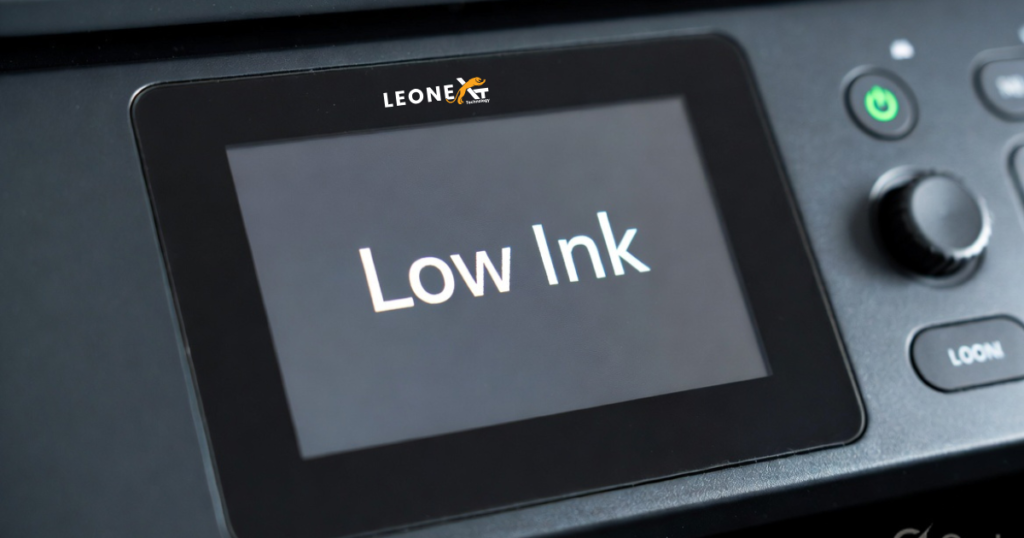
Many printer users encounter a situation where the printer displays a “Low Ink” warning, prints faded pages, or even produces blank pages. This issue can occur even after refilling or replacing an ink cartridge. In most cases, the problem relates to the cartridge chip, printer settings, or cartridge installation.
This guide explains the common causes and solutions to help you continue printing without interruption.
Why Does the Printer Show a Low Ink Warning?
Modern printers use a small chip installed on the ink cartridge to track ink usage and the number of pages printed. Sometimes, after refilling a cartridge, the chip continues to report that the cartridge is empty, even when it contains ink.
As a result, your printer may:
- Display a low ink or empty cartridge message.
- Print faded or poor-quality pages.
- Refuse to print altogether.
- Show incorrect ink level readings.
In many cases, the cartridge is still usable despite the warning message.
Solution 1: Reset the Printer
A printer reset can often clear temporary errors and restore normal printing functionality.
Follow These Steps:
- Remove the ink cartridge from the printer.
- Turn off the printer.
- Unplug the power cord from the printer and the power outlet.
- Wait for 10–15 seconds.
- Reconnect the power cord.
- Turn the printer back on.
- Reinstall the ink cartridge.
- Reinstall or update the printer driver if necessary.
After completing these steps, check whether the low ink warning still appears.
What If the Warning Message Remains?
If the low ink message continues to appear after resetting the printer, the cartridge chip may still contain old usage information.
Most cartridge chips cannot be manually reset. The printer reads the chip data and may incorrectly report the cartridge as empty even when it has been refilled.
If your printer continues to print normally, you can usually ignore the warning and continue using the cartridge until print quality decreases.
Common Causes of Incorrect Ink Level Readings
Several factors can cause a printer to display inaccurate ink levels:
1. Remanufactured or Refilled Cartridges
Refilled cartridges often retain the original chip data, causing incorrect ink level reports.
2. Protective Tape Not Removed
New cartridges typically include protective tape that must be removed before installation.
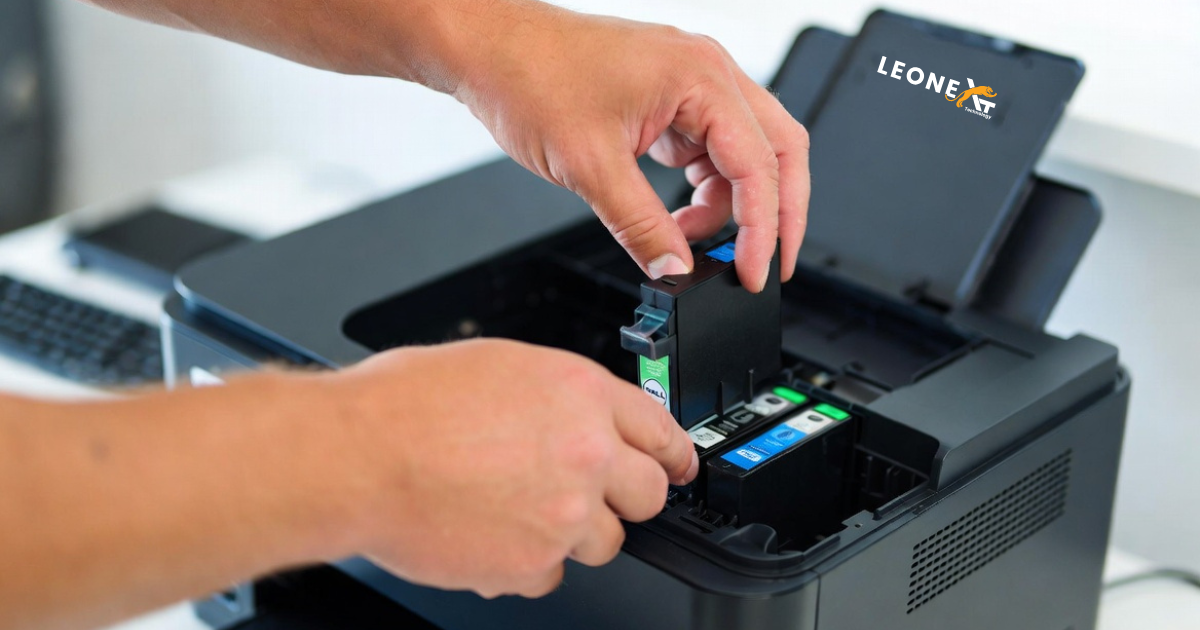
3. Incorrect Cartridge Installation
A cartridge that is not properly seated may prevent the printer from reading it correctly.
4. Damaged Ink Cartridge
Physical damage to the cartridge or chip can trigger error messages.
5. Poor Chip Contact
The cartridge chip must make proper contact with the printer’s contact points to function correctly.
When Should You Replace the Cartridge?
Consider replacing the cartridge if:
- Pages continue to print blank.
- Print quality remains poor after cleaning the printhead.
- The cartridge is physically damaged.
- The printer repeatedly fails to recognize the cartridge.
Installing a new cartridge typically resolves chip-related ink level errors because the new chip provides fresh usage data.
Conclusion
Low ink warnings do not always mean that a cartridge is empty. In many cases, the printer is reading outdated information stored on the cartridge chip. Resetting the printer, checking cartridge installation, and ensuring proper chip contact can often resolve the issue.
If the printer continues to print correctly despite the warning, you may safely continue printing until print quality begins to decline. However, if printing problems persist, replacing the cartridge is usually the most effective solution.
Key Takeaways
- Reset the printer before replacing the cartridge.
- Check that the cartridge is installed correctly.
- Ensure all protective packaging has been removed.
- Verify proper contact between the chip and printer.
- Replace damaged cartridges when necessary.
- Ignore persistent low ink warnings only if print quality remains normal.