

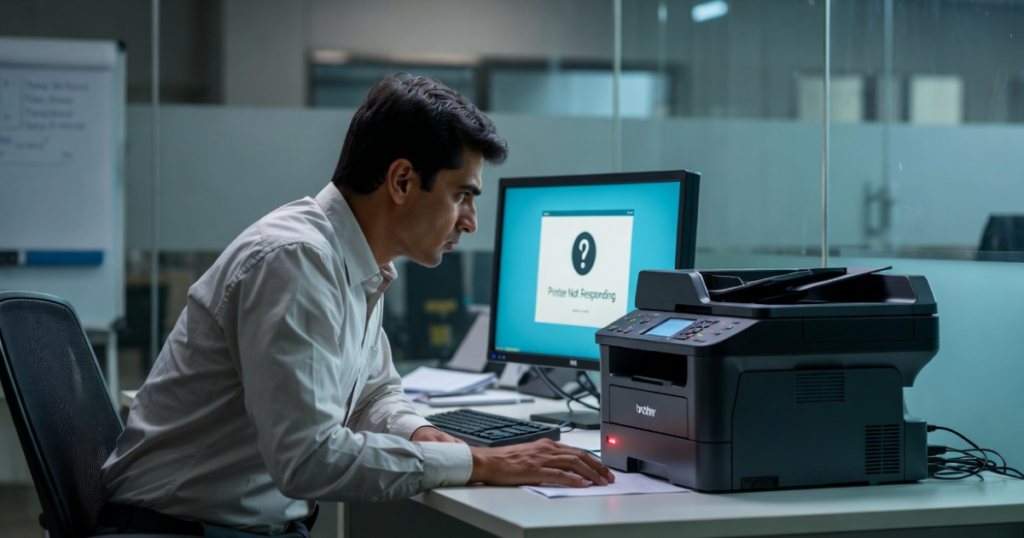
The Printer Not Responding error is one of the most common printer issues on Windows and Mac computers. This problem usually occurs when your computer cannot communicate with the printer properly.
You may notice this issue when you try to print or scan a document. The printer suddenly stops working, fails to respond, or remains offline even though it appears connected.
Fortunately, you can fix this problem by following a few simple troubleshooting steps.
Common Causes of the Printer Not Responding Error
Several factors can trigger this error. Identifying the cause can help you resolve the problem faster.
Possible Reasons Include:
- A faulty or damaged USB cable.
- A slow or frozen computer.
- An unresponsive printer driver.
- Outdated printer firmware.
- Hardware issues with the printer.
- Network connectivity problems.
- The printer and computer are connected to different Wi-Fi networks.
- Stuck print jobs in the print queue.
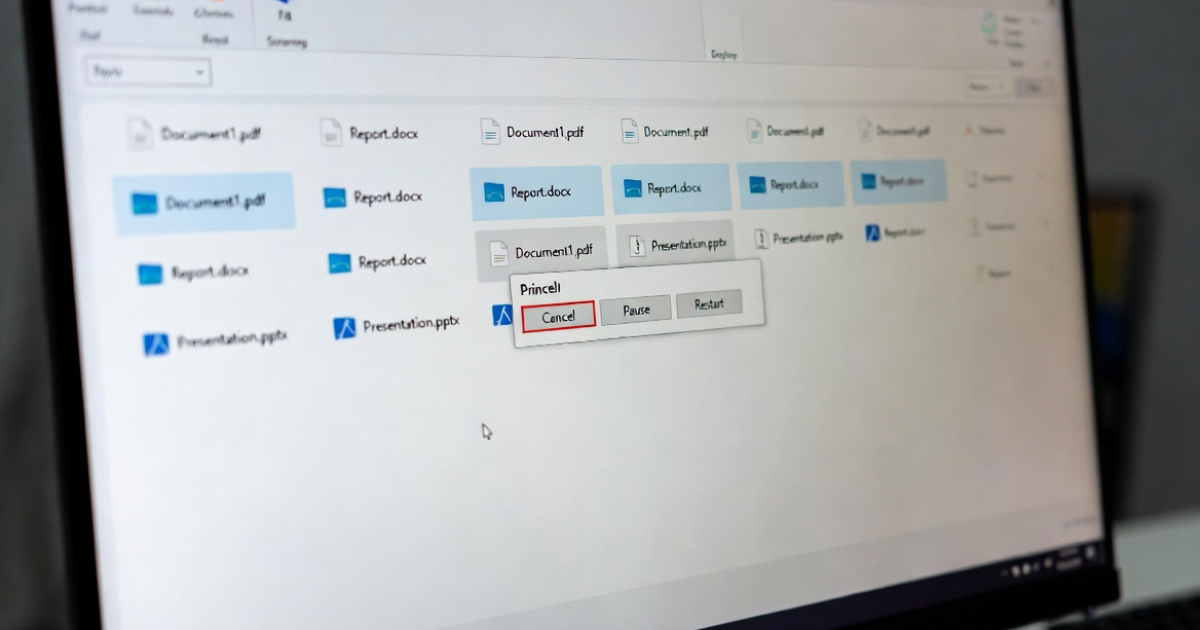
Step 1: Cancel All Pending Print Jobs
A stuck print job can prevent the printer from responding.
Follow These Steps:
- Locate the printer icon on the taskbar.
- Double-click the printer icon to open the print queue.
- Right-click the pending print job.
- Select Cancel.
- Repeat the process for all pending print jobs.
- Close the print queue window.
Once you remove all pending jobs, try printing again.
Step 2: Restart the Printer and Computer
A simple restart often resolves temporary communication issues.
How to Restart Your Devices:
- Shut down your computer completely.
- Turn off the printer.
- Unplug the printer’s power cable.
- Wait for one minute.
- Plug the power cable back in.
- Turn on the printer.
- Restart the computer.
After both devices restart, check whether the printer responds correctly.
Step 3: Inspect the USB Cable
If you use a USB connection, make sure the cable works properly.
Check the Following:
- Disconnect the USB cable from both devices.
- Wait for one minute before reconnecting it.
- Connect the cable to a different USB port.
- Inspect the cable for cuts, bends, or damage.
- Replace the cable if it appears faulty.
A damaged USB cable often causes communication failures between the printer and computer.
Step 4: Update the USB Driver
Outdated USB drivers can prevent the computer from communicating with the printer.
Update the USB Driver on Windows
- Press Windows + R on your keyboard.
- Type devmgmt.msc and click OK.
- Open Device Manager.
- Expand Universal Serial Bus Controllers.
- Right-click the USB driver.
- Select Update Driver.
- Click Search Automatically for Drivers.
- Follow the on-screen instructions.
- Restart the computer after the update finishes.
Updating the driver can restore proper communication between the printer and the system.
Step 5: Check the Wireless Connection
If you use a wireless printer, verify that both devices connect to the same network.
Verify Network Settings
- Check the Wi-Fi status on your computer.
- Confirm that the printer connects to the correct wireless network.
- Ensure both devices use the same Wi-Fi connection.
- Restart the router if necessary.
- Reconnect the printer to the network if it shows offline status.
Network mismatches frequently cause printer communication errors.
Step 6: Update the Printer Driver
An outdated or corrupted printer driver can also trigger the “Printer Not Responding” message.
To Update the Printer Driver:
- Open Device Manager.
- Locate your printer under Printers or Print Queues.
- Right-click the printer.
- Select Update Driver.
- Follow the installation instructions.
- Restart the computer after the update.
Using the latest printer driver improves compatibility and performance.
Step 7: Update Printer Firmware
Printer manufacturers regularly release firmware updates to fix bugs and improve stability.
Check your printer manufacturer’s website and install any available firmware updates for your model.
Updated firmware can resolve communication and connectivity issues.
Final Thoughts
The Printer Not Responding error usually occurs because of connectivity issues, outdated drivers, damaged USB cables, or network problems. Start by clearing pending print jobs, restarting your devices, and checking your connections. If the problem continues, update your USB drivers, printer drivers, and firmware.
Following these troubleshooting steps can help restore communication between your computer and printer and get your printing tasks back on track.
Quick Fix Checklist
✔ Cancel all pending print jobs
✔ Restart the printer and computer
✔ Check and replace the USB cable if needed
✔ Update USB drivers
✔ Update printer drivers
✔ Verify Wi-Fi connectivity
✔ Connect both devices to the same network
✔ Install the latest printer firmware