

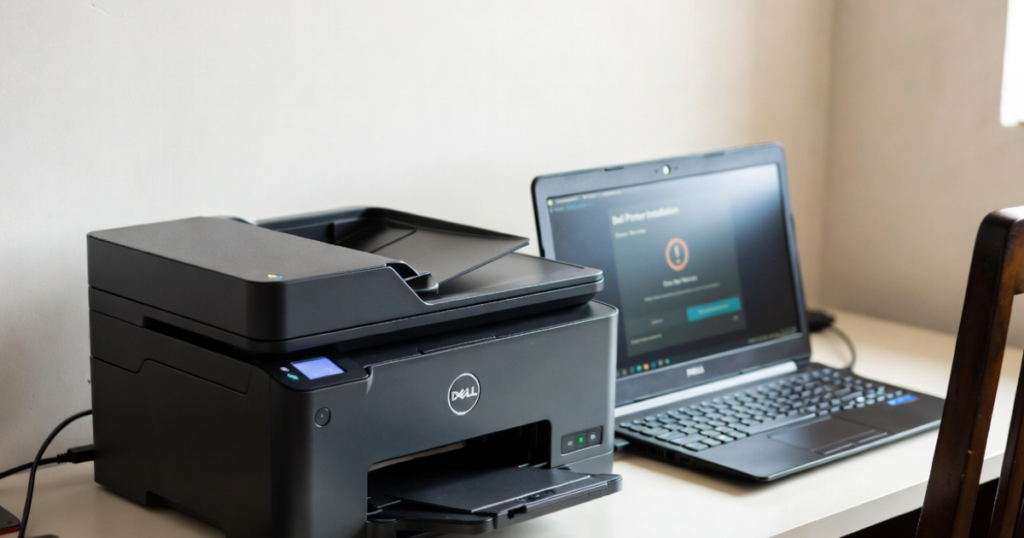
If you are facing a Dell Printer Driver Installation Issue, you are not alone. Many users encounter error codes like 016-xxx during setup.
A printer is an electronic device that accepts text and graphic output from a computer and transfers the information in the form of paper. It prints on a sheet with a standard size of 8.5 by 11 sheets. Printers vary in speed, size, and cost. There are also the most expensive printers, which are used for higher quality printing or high- resolution colour printing.
There are different types of printers:
1. Laser printers
2. Inkjet printers
3. 3d printers
4. Thermal printers
When you use the printer, it needs to be installed in your computer to give the printing command, and sometimes you have to face problems installing it and the driver installation issue.
So, below are some error which you faced and fixes at the time of driver installation.
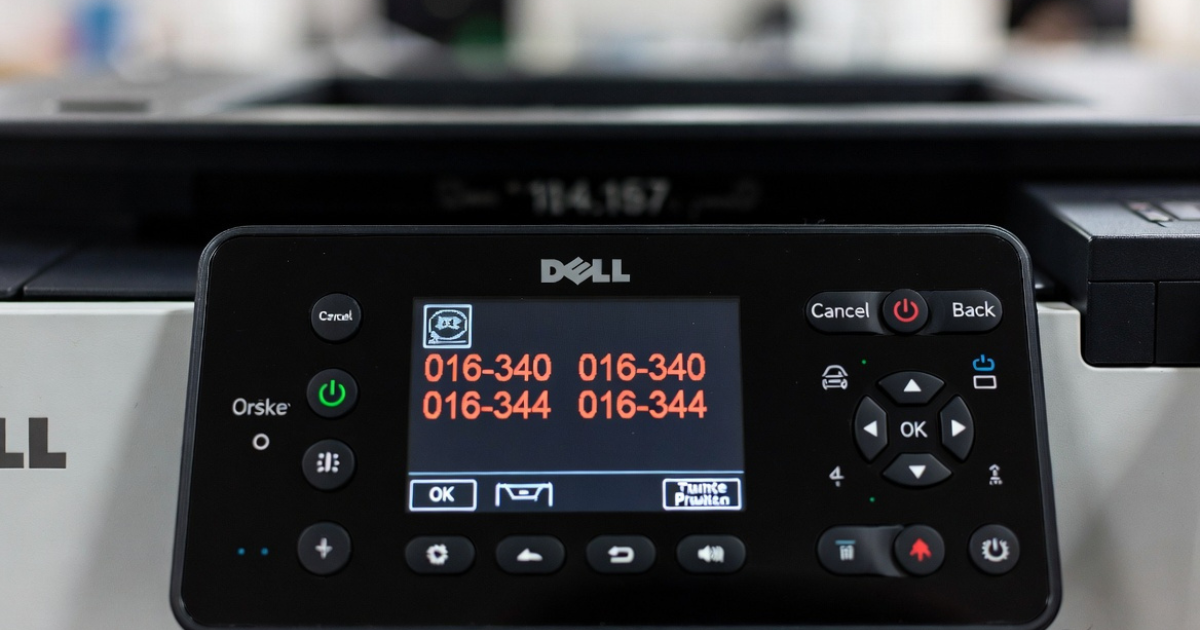
1. Some errors
016-340 / 016-344 / 016-345 / 016-346 / 016-352 / 016-359 / 016-392 / 016-393 / 016-394 / 016-799 016-300 / 016-301 / 016-302 / 016-313 / 016-315 / 016-315 /016-325 / 016-327 016-316 / 016-318 / 016-323
In that, some of the most commonly error like 016-xxx, which is related to a hardware issue also.
2. Restart the printer and also remove the data connection.
- Firstly, turn off the printer.
- Then disconnect the printer from any data cables or wireless networks.
- When you remove the data connection, then turn the printer on.
- If the printer doesn’t show any error after this, then print a settings report from the operator panel menus.
3. Reinstall the printer driver
- Firstly, completely uninstall the driver from which the error occurs when printing.
- Then, after uninstallation, restart the system or the printer spooler service.
- Install the latest version of the printer driver.
- If the error occurs again, clear the commands and restart the printer, and test with the current driver to print.
4. Change the IP address of the printer’s
- First, turn off the printer.
- Then disconnect the printer from any data cables.
- Then turn on with the data connections removed.
- After this, go to the printer’s menu on the operator panel and change the printer’s IP address to a static address that is different from the previous IP address.
- Again, reconnect the printer to the data connection and clear the error so it does not show again.
- If the error again show clearing the print queues.
5. Update the printer firmware
- Restart your printer after clearing all print queues without an error.
- hen download and installing the latest version of the printer’s firmware.
- After updating to the latest version, try to reprint your documents.
- This will help you to solve the error, and if the error is showing again after the update, then try the next fix.These fixes are helping you to solve your error and help in installing your printer driver.