

If your Brother printer is sitting on your desk and simply refusing to cooperate with your network, you’re not alone. Network and connectivity problems are among the most common complaints from Brother printer users, and the good news is that most of them are completely fixable without calling a technician.
In this guide, we’ll walk you through everything you need to know: what causes these issues, how to set up your printer on Wi-Fi, and exactly what steps to take when things go wrong.
What Is Printer Networking, and Why Does It Matter?
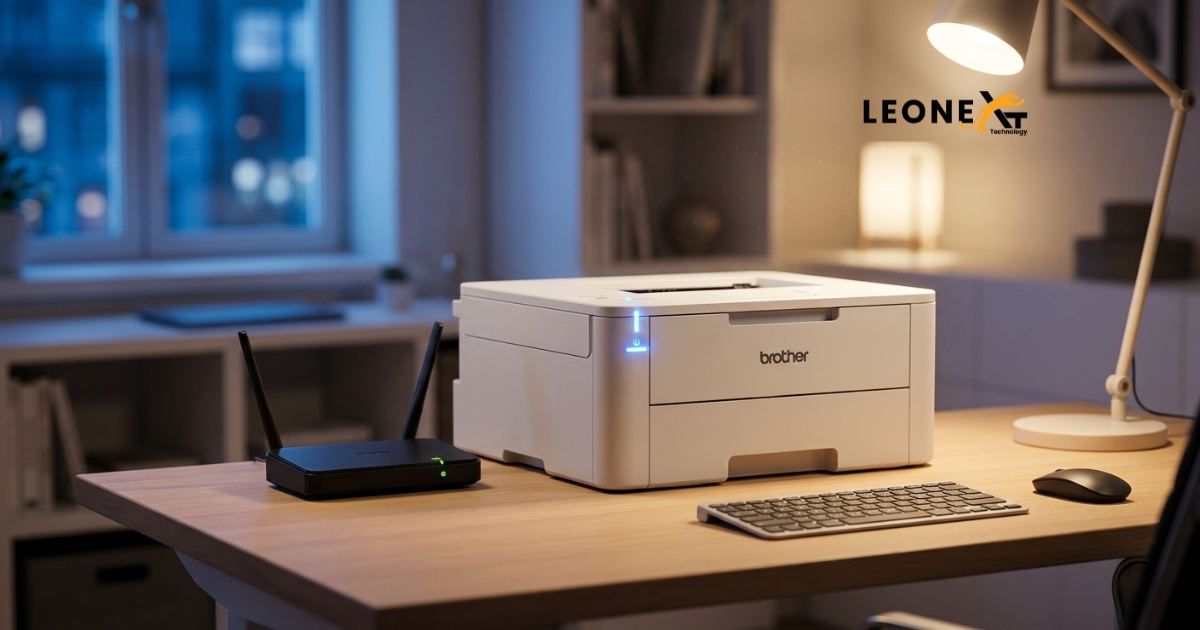
When a printer is part of a network, it means multiple computers in the same workspace or home can send print jobs to that single device — without anyone needing a direct cable connection. This setup is commonly called a workgroup, and it’s the standard way modern offices operate.
Brother printers support this kind of wireless networking right out of the box. Instead of plugging in a USB cable every time someone needs to print, the printer joins your Wi-Fi network and stays available to everyone connected to it. The only requirement is that your printer’s wireless settings are configured correctly.
Connectivity, in simple terms, is the ability of your printer to communicate with your devices — whether that’s your laptop, phone, or desktop PC. When this communication breaks down, printing stops, that’s what we’re here to fix.
Why is your brother’s printer not connecting to Wi-Fi?
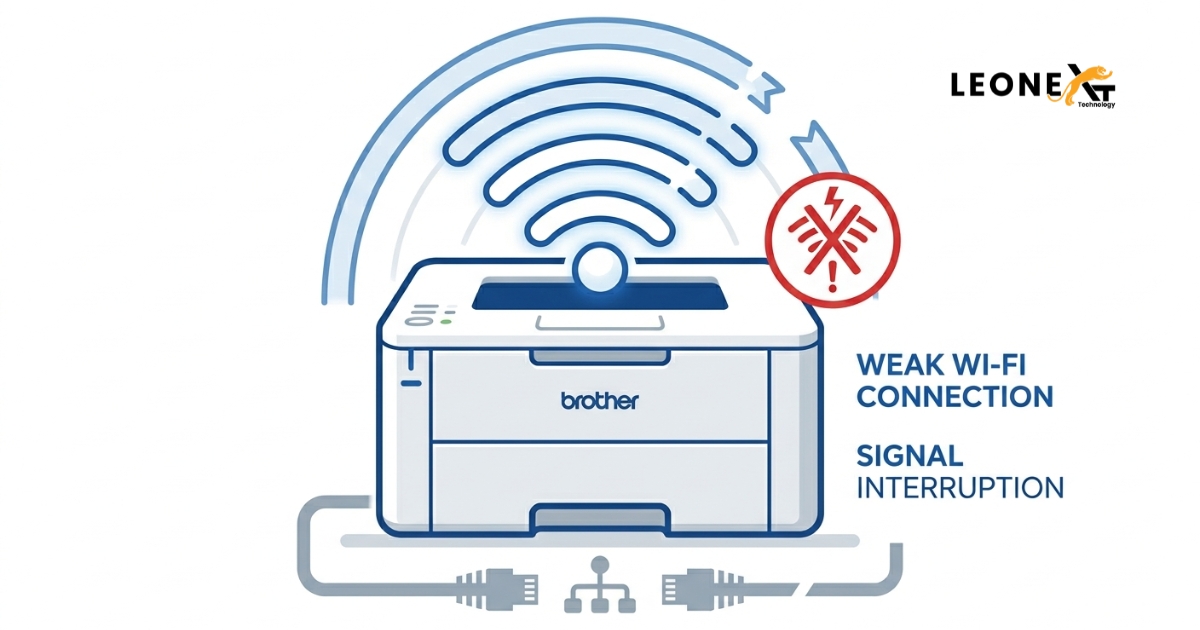
There are several reasons your Brother printer might be struggling to join your wireless network. Here are the most common culprits:
1. Weak Wi-Fi Signal If your printer is placed too far from your router, the signal may not be strong enough to maintain a stable connection. The fix here is simple — move the printer closer to the router, or consider a Wi-Fi extender if distance is unavoidable.
2. Incorrect Network Settings Your printer may be trying to connect to the wrong network, or it may have been configured with an outdated password after you changed your router settings.
3. Authentication or Encryption Mismatch Every Wi-Fi network uses a security protocol, like WPA2 or WPA3. If your Brother printer doesn’t support the encryption method your router is using, the connection will fail. Check your printer’s manual to find out which security protocols it supports.
4. Outdated Drivers Drivers are the software bridge between your computer and your printer. If they’re out of date, your computer might not be able to communicate with the printer properly, even when the printer is connected to Wi-Fi. Downloading the latest drivers from Brother’s official website usually resolves this.
5. Old Firmware Firmware is the built-in software that controls how your printer operates. If your printer hasn’t received a firmware update in a while, it may struggle with newer network standards. Keeping firmware up to date ensures smoother performance and fewer connection errors.
Step-by-Step: How to Enable the Network Interface on Your Brother Printer
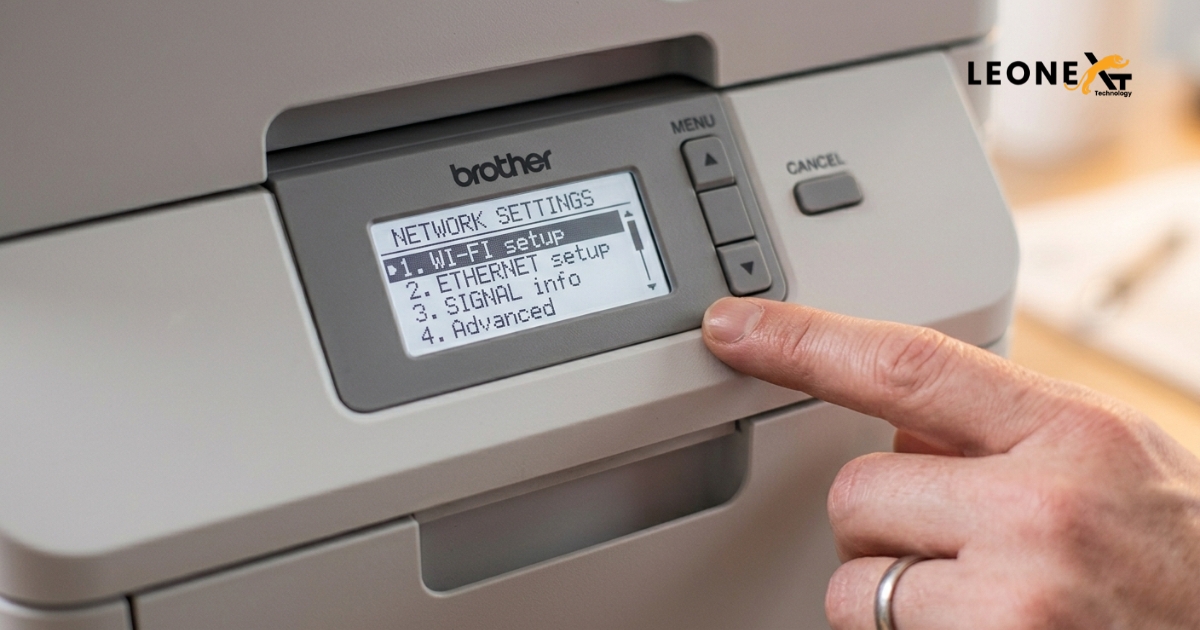
Before your printer can connect to any network, you need to make sure its wireless interface is turned on. Here’s how to do it directly from the printer’s control panel:
- Press the Menu button on your printer.
- Use the navigation arrows to scroll to Network and select it.
- Choose either Wired LAN or WLAN, depending on your connection type.
- Select WLAN Enable.
- Toggle the setting to On and confirm.
Once this is done, your printer is ready to search for and join a wireless network.
Understanding WPS – The Easiest Way to Connect
If your router supports WPS (Wi-Fi Protected Setup), you can connect your Brother printer to Wi-Fi without typing in any passwords. WPS creates a secure connection automatically by pressing a button on your router and confirming it on your printer.
This method is ideal if you find navigating through network menus frustrating. Just enable WPS on your router, start the WPS connection from your printer’s network menu, and the two devices will pair themselves within seconds.
How to Connect Your Brother Printer to Wi-Fi – Full Setup Guide
Here’s the complete process for getting your Brother Printer connected to your wireless network from scratch:
Step 1 – Find Your Wi-Fi Credentials
Locate your Wi-Fi network name (also called the SSID) and your network password (sometimes called the network key). These are usually printed on a label attached to the bottom or back of your router. If your network is open (no password), you won’t need a key.
Step 2 – Navigate to Wireless Settings on Your Printer
On the printer’s control panel:
- Go to Menu → Network → WLAN
- Confirm that the wireless interface is set to Enabled
- Select Setup Wizard or Find Network
Step 3 – Select Your Network and Enter the Password
Your printer will scan for available networks. When your Wi-Fi name appears in the list, select it. Enter your password using the printer’s keypad and confirm. If everything is entered correctly, your printer’s screen will display a “Connected” message within a few moments.
Step 4 – Test the Connection
Send a test print from your computer. If the page prints successfully, you’re all set. If it doesn’t, double-check your Wi-Fi password and make sure your printer and computer are on the same network.
Quick Tips to Avoid Future Connectivity Problems
- Restart your router and printer regularly — just like your phone or laptop, these devices benefit from an occasional reboot.
- Keep drivers and firmware updated — check Brother’s official support page every few months.
- Assign a static IP to your printer — this prevents your router from assigning a different IP address each time, which can cause your computer to lose track of the printer.
- Avoid placing the printer near microwaves or cordless phones — these can interfere with Wi-Fi signals.
Final Thoughts
Brother printers are reliable and feature-rich, but like any networked device, they occasionally need a little attention to stay connected. Whether you’re dealing with a weak signal, a driver issue, or a misconfigured network setting, the steps above should get you back up and printing in no time.
If you’ve tried everything and your printer still won’t connect, it may be worth visiting leonext.com for more detailed troubleshooting guides or reaching out to Brother’s official support team.
2 Responses