

Email archiving is a systematic process for saving and protecting the data contained in emails to enable fast retrieval. These tools play a vital role in organisations in which data permanence is a priority. An email archive tool helps with knowledge management and storage management. In the mail archiving, we store the messages for the future.
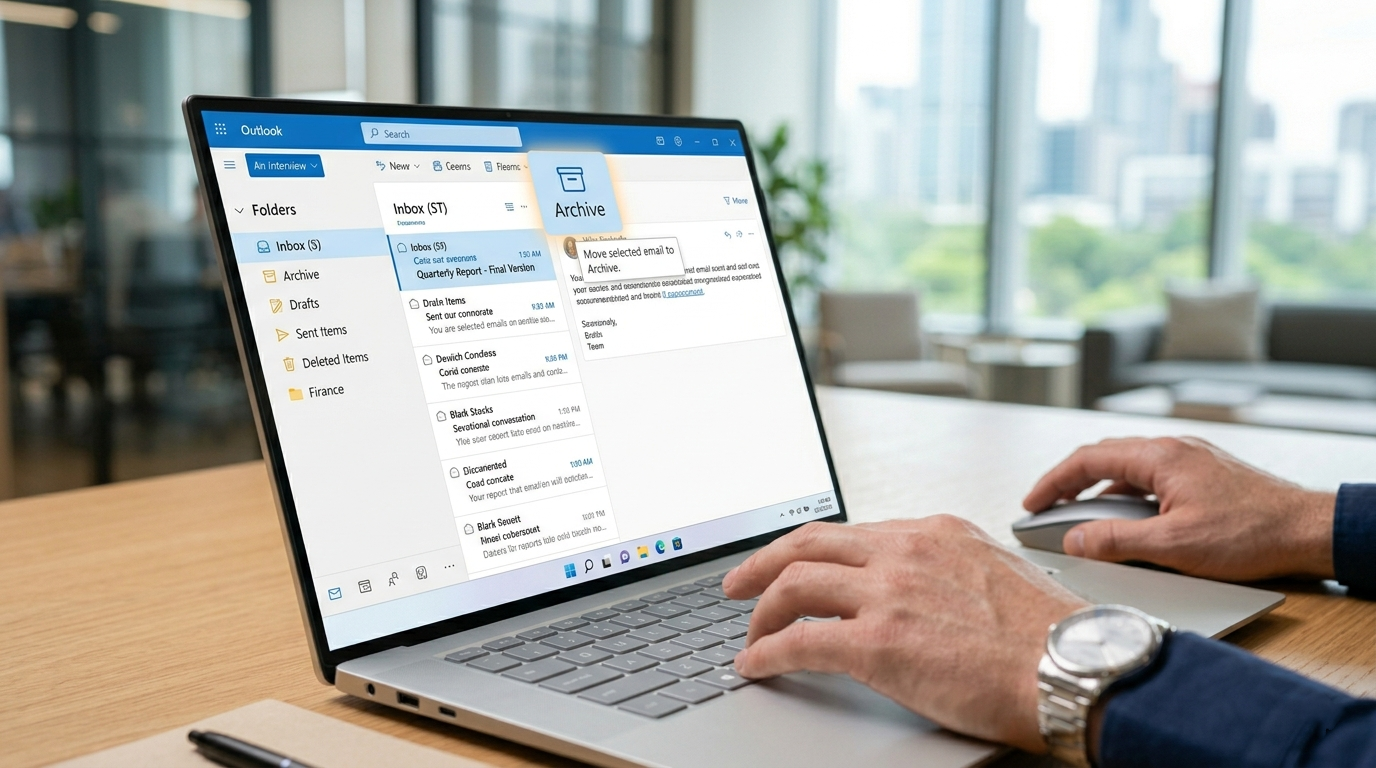
Now, the following steps show how to archive emails in Outlook:
- Firstly, go to Outlook and log in to your email account.
- After logging in to your email account, click on the folder on the left where your emails are located.
- Then, select the emails you’d like to archive from the right panel.
- After doing all the steps, now click the option that says Archive in the top menu bar.
- By mistake, if you archived an email, click undo at the bottom to undo your action.
After all these procedures, you can see all your archived emails on the left.
And again, if you ever want to move an archived email back to the main folder, find that email in the Archive folder, click the email, click Move to at the top, and select where you want to move the email.
Now, above we archived mail manually, but also the mails are archived automatically in Outlook, so let’s see some points to archive mails automatically.
A feature name, Auto Archive, that helps archive your emails automatically in Outlook. This feature helps you to archive mails automatically by sending your mails to the main folders of a amount of time has passed.
Now, some steps for automatically archiving:
- First, open Outlook.
- Then click file at the top, and then select options from the left sidebar.
- Then, after this, click the advanced options on the left.
- Then, find the auto archive feature on the right pane and click the auto archive settings button.
- Then, tick Run AutoArchive for every option at the top and specify when the feature should run in your Outlook.
- After this, go to the Default folder settings for the archiving section, select when an item should be archived. Mainly, you’re specifying the age of your Outlook content.
- Then click Browse and select the destination folder for your archive file. You only need to do this if you don’t like the default Outlook PST directory.
- Finally, hit OK at the bottom to save your changes.