

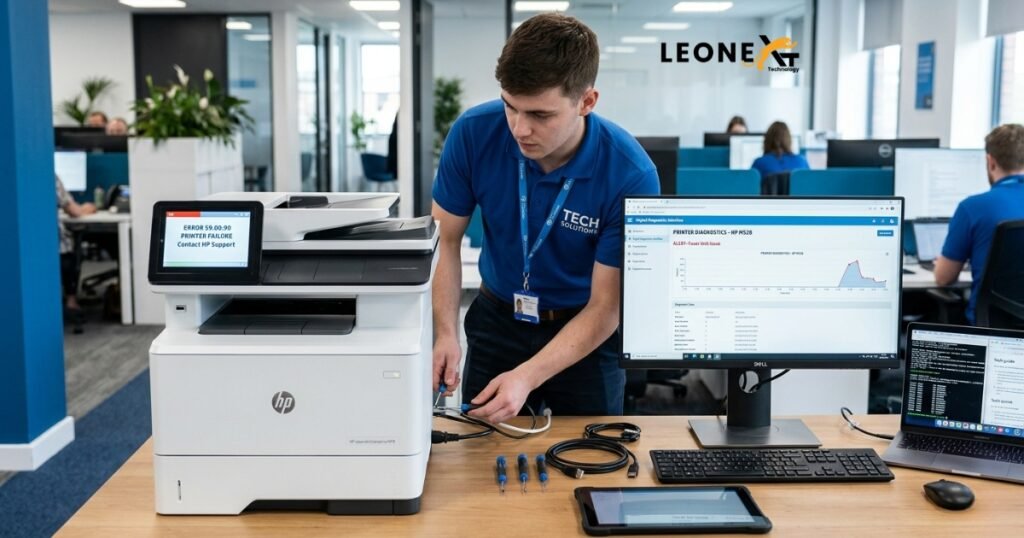
HP printers are known for their reliability, but users may occasionally encounter printer errors that interrupt printing tasks. These errors can be caused by software issues, driver conflicts, connectivity problems, outdated firmware, or hardware malfunctions. This guide explains common HP printer errors, their causes, and the most effective solutions to get your printer working again.
What Is an HP Printer Error?
An HP printer error occurs when the printer is unable to perform a task correctly. The printer may display an error code, show an error message on its screen, or indicate a problem through the HP Smart App or your computer.
Common causes include:
- Outdated or corrupted printer drivers
- Connectivity issues
- Low or empty ink cartridges
- Paper jams
- Print spooler problems
- Incorrect printer settings
- Hardware failures
Identifying the exact cause is the first step toward resolving the issue.
Common HP Printer Error Messages
Some frequently reported HP printer errors include:
- HP Printer in Error State
- Printer Offline
- Paper Jam Error
- Cartridge Error
- Printhead Error
- Driver Unavailable
- Print Spooler Error
- HP Printer Not Responding
Each error may require a different troubleshooting approach.
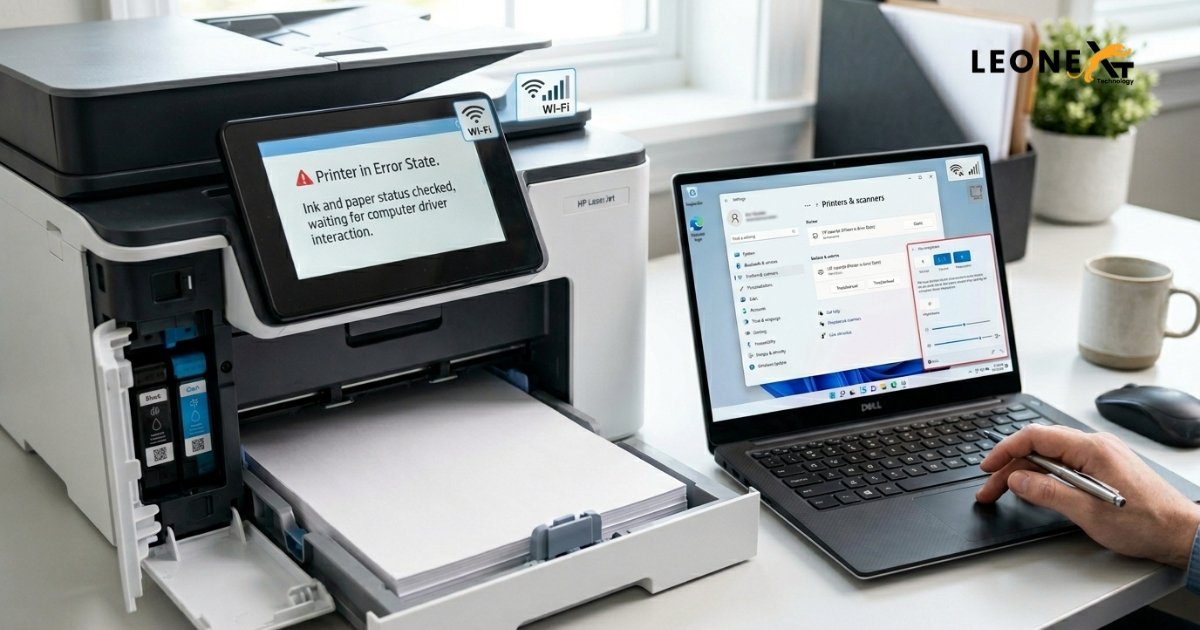
What Does “HP Printer Error State” Mean?
If your printer displays “HP Printer in Error State,” it usually indicates that the printer cannot communicate properly with your computer or has detected an internal issue.
Possible reasons include:
- Loose or damaged cables
- Wi-Fi connection problems
- Low ink levels
- Paper jams
- Outdated printer drivers
- Hardware malfunctions
Before attempting advanced troubleshooting, ensure the printer is powered on and properly connected.
How to Fix HP Printer Errors
1. Check Printer Connections
Start by verifying all physical and wireless connections.
For USB Printers:
- Disconnect the USB cable.
- Restart both the printer and computer.
- Reconnect the cable securely.
For Wireless Printers:
- Ensure the printer is connected to the correct Wi-Fi network.
- Restart your router if necessary.
- Confirm that your computer and printer are on the same network.
2. Restart the HP Printer
A simple restart can resolve temporary glitches.
Steps:
- Turn off the printer.
- Unplug the power cord.
- Wait 60 seconds.
- Plug the printer back in.
- Turn it on and check if the error is resolved.
3. Inspect Ink Cartridges and Printhead
Incorrectly installed or faulty cartridges can trigger printer errors.
Check the following:
- Cartridges are properly seated.
- Protective tape has been removed.
- Ink levels are sufficient.
- Printhead is installed correctly.
Replace any empty or damaged cartridges.
4. Clear Print Queue
Stuck print jobs often cause printing failures.
To clear the queue:
- Open Printers & Scanners on your computer.
- Select your HP printer.
- Open the print queue.
- Cancel all pending print jobs.
- Restart the printer and try printing again.
5. Run HP Print and Scan Doctor
HP provides a free diagnostic tool called HP Print and Scan Doctor that can automatically detect and fix many common printing issues.
Steps:
- Download and install the tool.
- Open the application.
- Click Start.
- Select your HP printer.
- Follow the on-screen instructions.
This tool can fix connectivity, driver, and print queue issues.
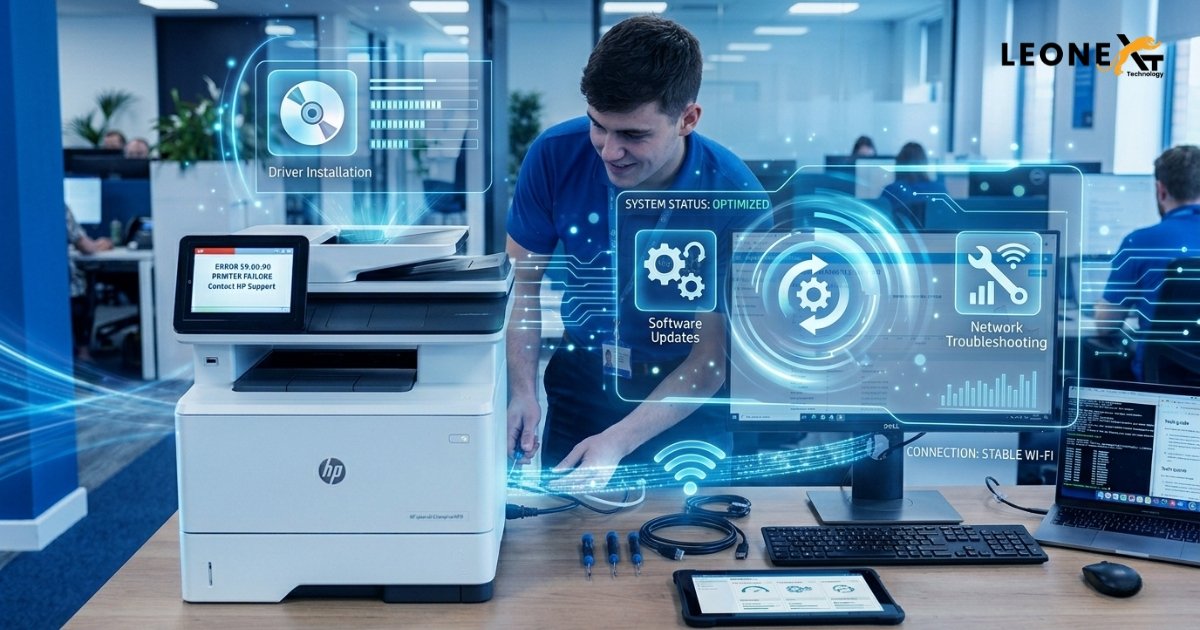
6. Update or Reinstall Printer Drivers
Outdated drivers are a common cause of HP printer errors.
To update drivers:
- Open Device Manager.
- Locate your printer.
- Right-click and select Update Driver.
If the issue persists:
- Uninstall the printer driver.
- Restart your computer.
- Download and install the latest driver from HP’s official support website.
7. Check Firewall and Security Software
Sometimes antivirus programs or firewalls block printer communication.
Try these steps:
- Temporarily disable the firewall.
- Test the printer.
- If printing works, add the HP printer software as an exception.
Re-enable security software after testing.
8. Verify Print Settings
Incorrect print settings can result in printing errors or poor-quality output.
Ensure:
- Correct paper size is selected.
- Appropriate paper type is chosen.
- Printer preferences match your print job requirements.
9. Check for Paper Jams
Even small pieces of paper can trigger error messages.
Inspect:
- Input tray
- Output tray
- Rear access panel
- Print path
Carefully remove any jammed paper and restart the printer.
10. Update Printer Firmware
Firmware updates improve performance and fix known bugs.
To update firmware:
- Open HP Smart or the printer’s settings menu.
- Check for firmware updates.
- Install any available updates.
- Restart the printer.
Additional Maintenance Tips
Regular printer maintenance helps prevent future errors:
- Clean printheads periodically.
- Use genuine HP ink cartridges.
- Keep firmware updated.
- Avoid overloading paper trays.
- Print a test page regularly.
- Store paper in a dry environment.
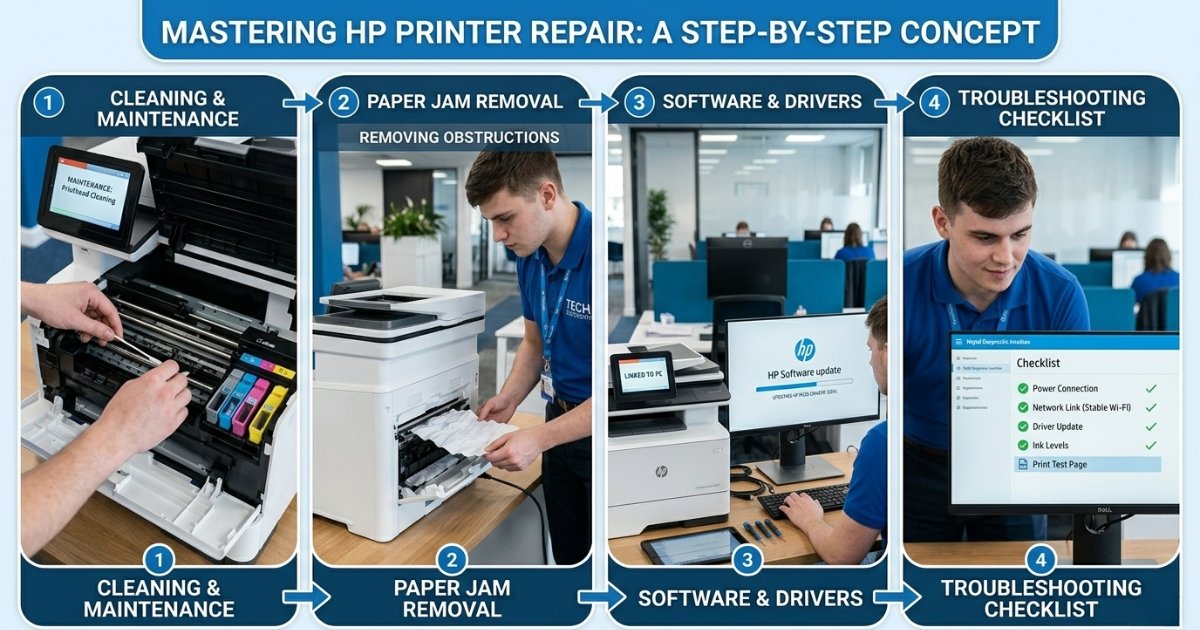
When to Contact HP Support
If none of the troubleshooting methods resolve the issue, the problem may be hardware-related.
Contact HP Support if:
- Error codes continue to appear.
- The printer will not power on.
- Printhead or hardware failures are detected.
- Firmware updates fail repeatedly.
Professional assistance may be required to repair or replace damaged components.
Conclusion
Most HP printer errors can be resolved by checking connections, restarting the printer, updating drivers, clearing the print queue, and ensuring cartridges are functioning properly. Regular maintenance and software updates can help prevent many common printer issues. If the error persists after completing all troubleshooting steps, contacting HP Support is the best option for further assistance.