

Samsung is a world-renowned company, widely recognized for its innovative electronic products and advanced technology. The company manufactures a wide range of home and professional devices that are used by customers around the world.
However, like any electronic device, Samsung products can sometimes experience technical problems. Such issues can affect the user experience and may even influence a customer’s perception of the product.
One common problem reported by Smart TV users is the black screen issue. When a Samsung Smart TV suddenly displays a black screen, it can be difficult to determine the exact cause. Fortunately, there are several simple troubleshooting steps that you can try before contacting a professional technician.
1. Check the Cable Connections
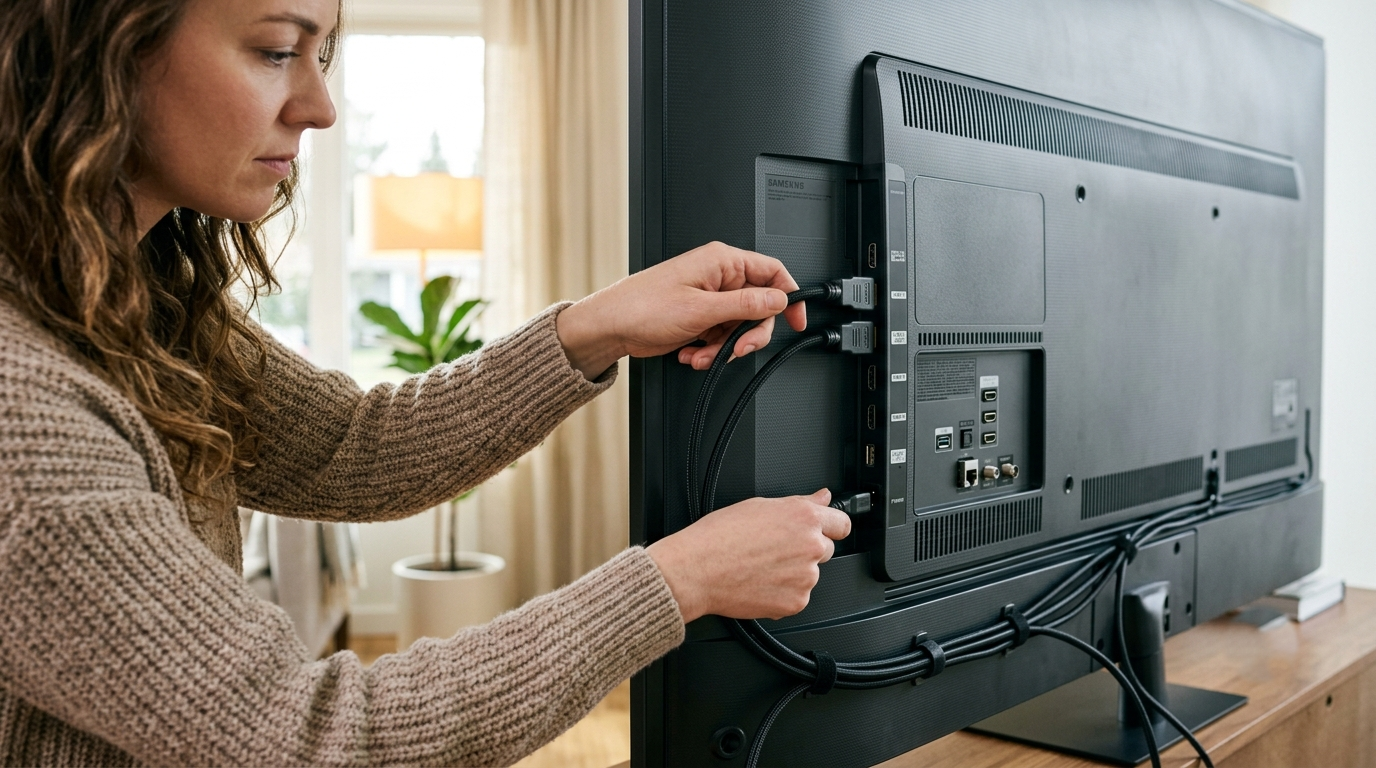
One of the simplest solutions is to check all the cable connections connected to your television.
First, unplug the cables connecting the TV to external devices and the power supply. Then, reconnect each cable firmly and make sure that everything is properly plugged in.
Pay special attention to the:
- Power cable
- HDMI cable
- Other cables connected to external devices
After reconnecting the cables, turn on the television and check whether the screen is working normally.
If the problem continues, inspect the cables for visible damage. A damaged or faulty cable may prevent the TV from displaying a picture. Replace any damaged cable and check the TV again.
You can also try connecting the HDMI cable to a different HDMI port to determine whether the problem is related to a specific port.
2. Check the Connected Sources
Sometimes the black screen is caused by an external device rather than the television itself.
To check whether your Samsung TV is functioning properly, press the Menu or Home button on the remote control. If the menu appears on the screen, the TV display is probably working, and the issue may be related to the connected external device.
Common external sources include:
- Amazon Fire TV or other streaming devices
- DVD or Blu-ray players
- Gaming consoles such as Xbox
- Set-top boxes
- Other HDMI devices
Check each connected device to identify whether one of them is causing the problem.
3. Change or Restart the Source
Try switching the connected source off and then turning it back on. This can sometimes resolve temporary connection or signal problems.
You can also switch to another input source and then return to the original one. For example, if your device is connected through HDMI 1, try HDMI 2 and then switch back to HDMI 1.
If another source works properly, the issue may be with the original external device or its connection.
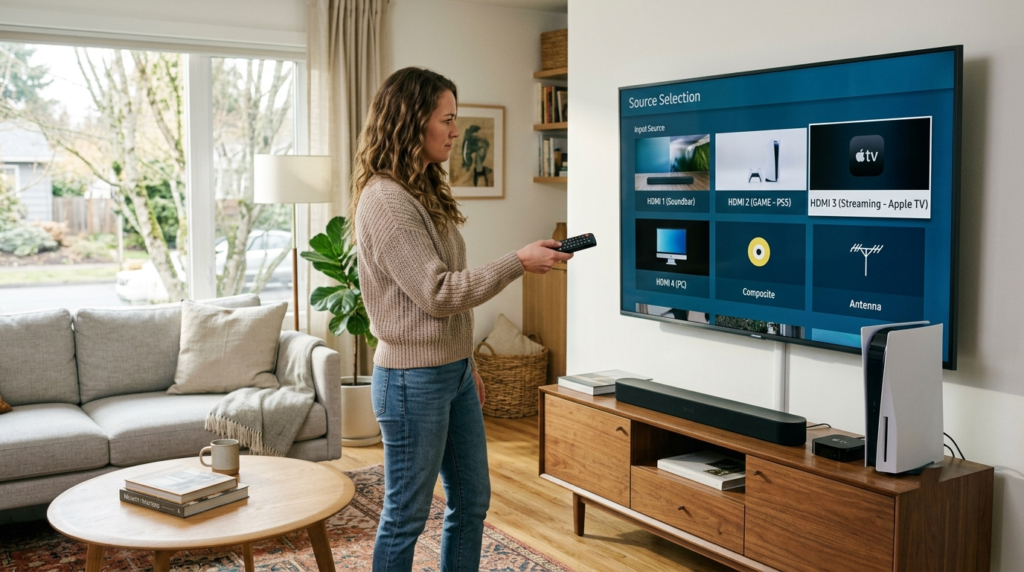
4. Select the Correct Input Source
An incorrect input setting can also cause your Samsung TV to display a black screen.
Press the Source button on your Samsung remote control. A list of available input sources should appear on the screen.
Select the input corresponding to the device you are currently using.
For example, if your set-top box is connected to HDMI 1, make sure the television is also set to HDMI 1.
Make sure the TV input matches the port where your external device is connected.
5. Check the Sleep Timer
The Sleep Timer is a feature that automatically turns the television off after a selected period. If it has been enabled accidentally, it may cause the TV to turn off unexpectedly.
You can check the Sleep Timer settings and turn the feature off.
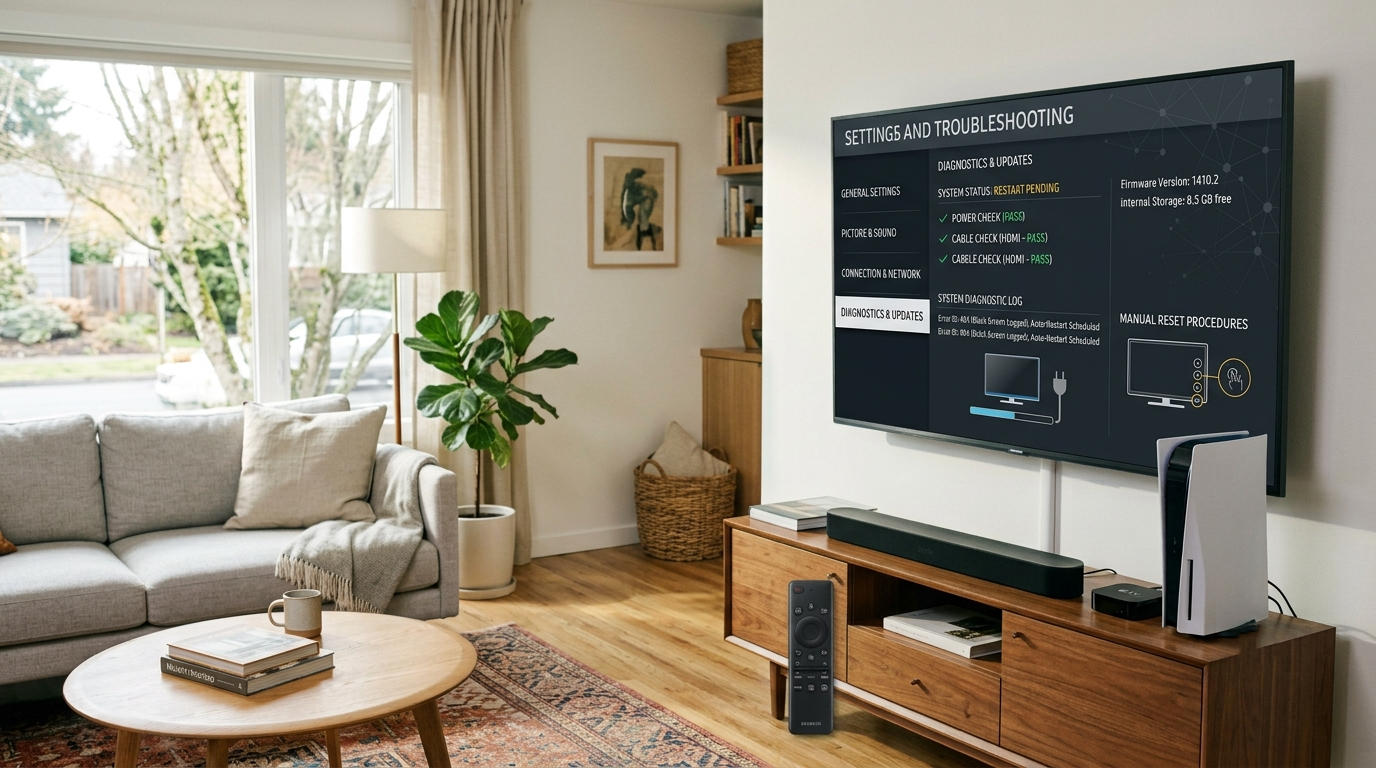
Depending on your Samsung TV model, the menu path may vary. Generally:
- Press the Menu or Home button on the remote.
- Go to Settings.
- Open General or System Manager.
- Select Time or Sleep Timer.
- Turn the Sleep Timer off.
6. Reset the Television
If none of the previous solutions work, you can try resetting the television.
A factory reset can remove certain software-related problems and restore the TV to its default settings. However, keep in mind that a factory reset may erase saved settings, accounts, applications, and other customized preferences.
The exact reset procedure can vary depending on the Samsung TV model. Generally, you can:
- Press the Home or Menu button on the remote.
- Open Settings.
- Go to Support or General & Privacy.
- Look for the Reset option.
- Follow the instructions displayed on the screen.
Before performing a factory reset, make sure you are comfortable setting up the TV again afterward.
7. Turn the TV Off and On Again
A simple power cycle can sometimes solve a temporary software or display problem.
Turn off the television and unplug it from the power outlet. Wait for a few minutes, then plug it back in and turn it on again.
You should also check whether the TV’s indicator light is behaving normally. If the television still does not display an image after restarting it, continue with the other troubleshooting steps.
8. Seek Professional Assistance
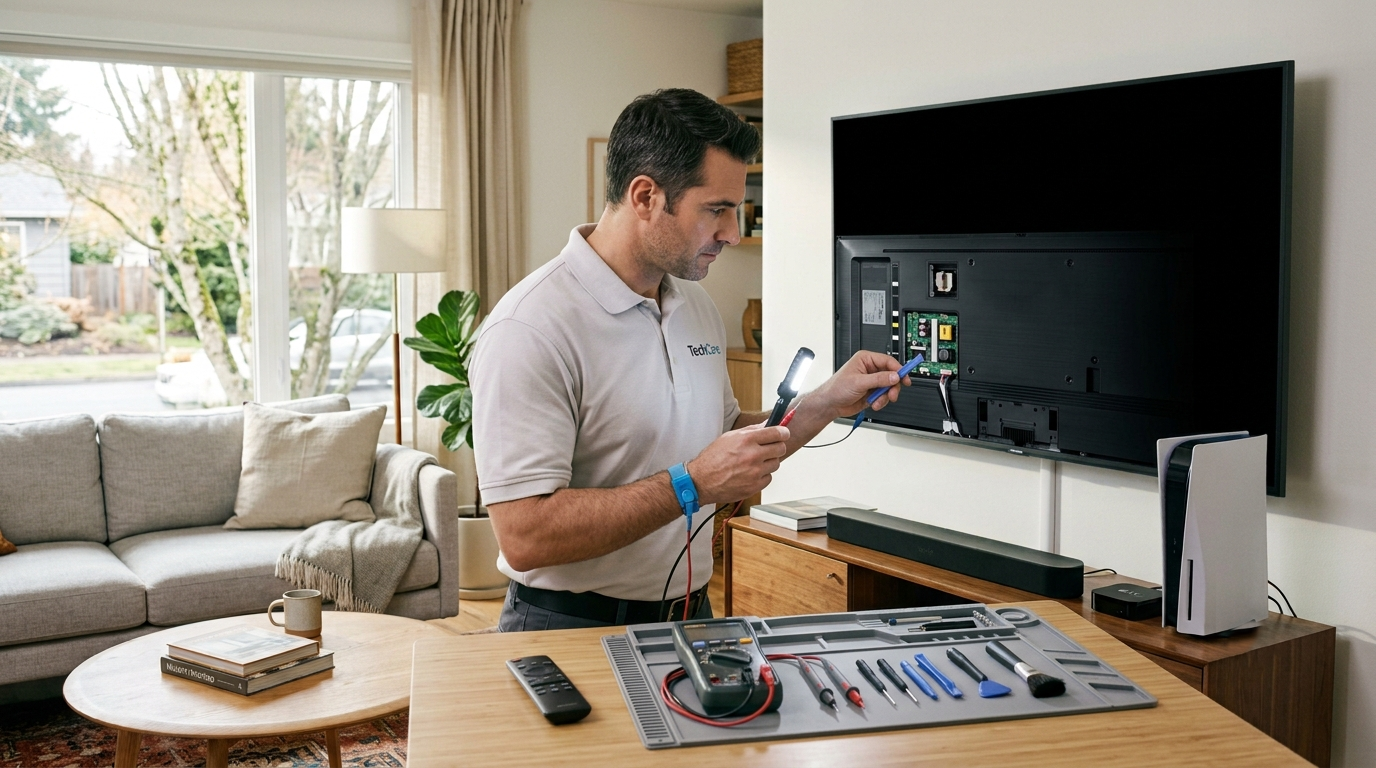
If the black screen problem continues after trying all of the above solutions, the television may have a hardware or internal component problem.
In such cases, it is recommended to contact Samsung Support or a qualified TV technician. Professional technicians can inspect the television and determine whether the problem is related to the display panel, power supply, motherboard, backlight, or another internal component.
Conclusion
A black screen on a Samsung Smart TV can be caused by several different issues, including loose cable connections, incorrect input settings, external devices, sleep-timer settings, software problems, or hardware faults.
Before contacting a technician, try checking the cables, changing the input source, restarting the connected devices, and power-cycling the television. If the issue still persists, a reset or professional inspection may be necessary.
These troubleshooting steps can help you identify the possible cause of the Samsung Smart TV black screen issue and may restore the display without requiring immediate professional assistance.