

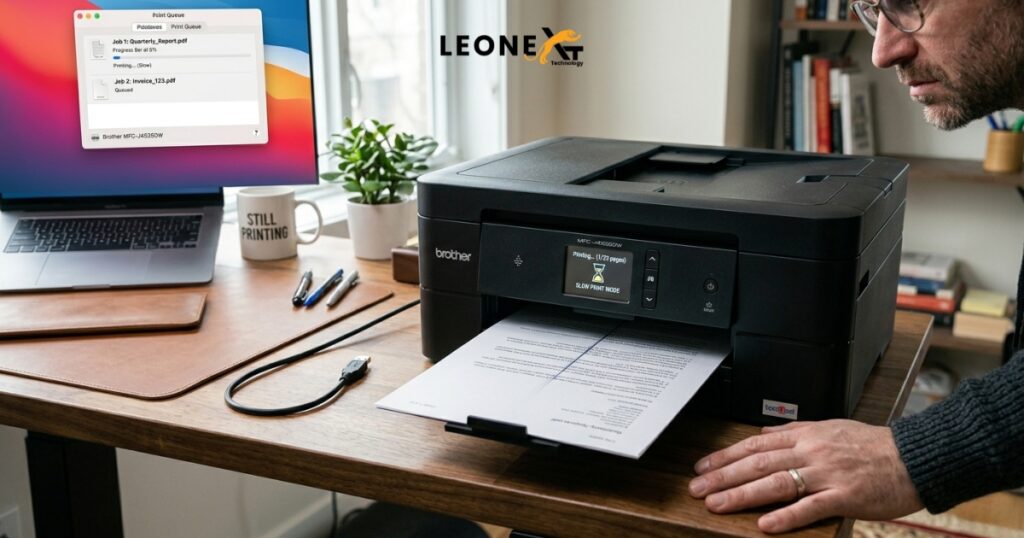
If your Brother printer slow printing issue or making you wait every time you send a document to print, there are several fixes you can try. Brother printer slow printing issue can happen for many reasons, but the good news is that it is often easy to solve.
Try the following solutions to improve your printer’s speed.
Fix 1: Reset Your Printer
If your printer has been running for a long time, it may slow down to protect the print mechanism from overheating or getting damaged. Resetting the printer can often help.
Follow these steps:
- Turn on your printer.
- Disconnect the power cable from the printer.
- Unplug the power cable from the wall outlet.
- Wait for one minute.
- Reconnect the power cable to both the printer and the wall outlet.
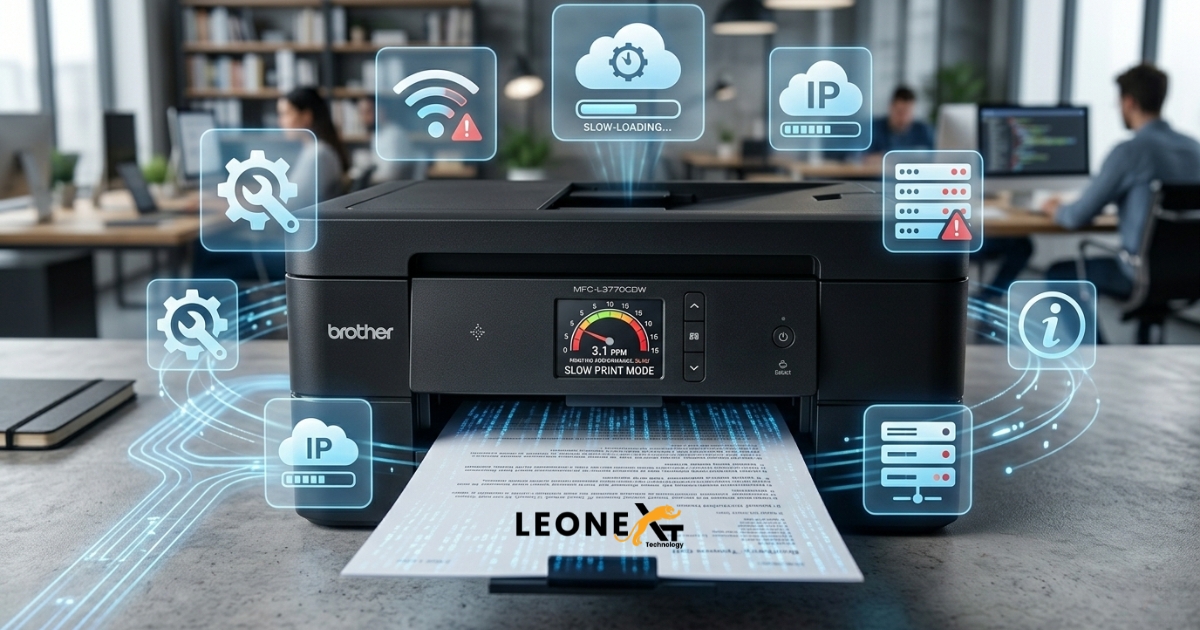
Fix 2: Check the Printer Preferences
Your print quality settings can also affect printing speed. High-quality printing uses more ink and takes more time. To make printing faster, change the quality setting to Normal or Draft.
Here is how to do it:
- Press the Windows key and S together, then search for Printers and Scanners.
- Click on your printer and select Manage.
- Choose Printer Preferences.
- Go to the Paper/Quality tab.
- Select Plain Paper in the media or paper type field.
- Under Quality Settings or Print Quality, choose Draft, Normal, or Standard.
- Click OK to save the changes.
After making these changes, your print speed should improve. If the printer is still slow, move on to the next fix.
Fix 3: Update Your Printer Driver
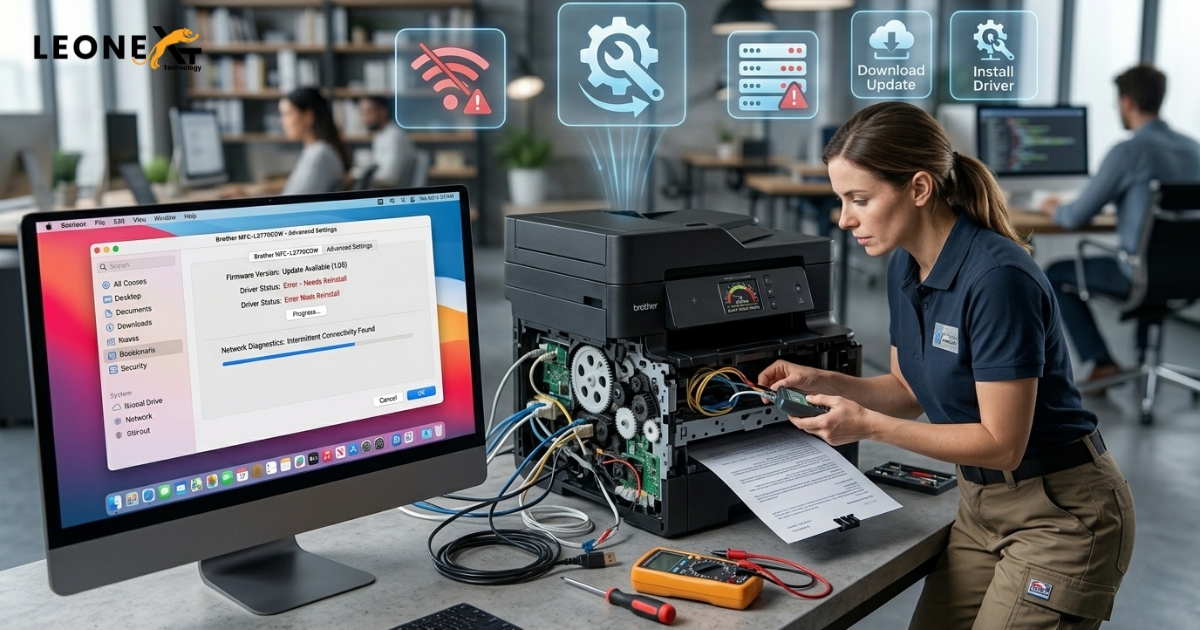
An outdated printer driver can also cause slow printing. The printer driver helps your computer communicate with the printer, so keeping it updated is important.
You can update the driver in two ways:
- Manually
- Automatically
Updating to the latest version may help your printer work more efficiently.
Fix 4: Turn Off Quiet Mode
Quiet Mode is useful for reducing noise, but it can also slow down printing. If speed is more important than silence, turning off Quiet Mode may solve the issue.
Steps to turn it off:
- Open your printer settings.
- Select your printer and go to Advanced Settings.
- Expand Preferences and find Quiet Mode.
- Turn it off.
- Click Apply.
Fix 5: Check Your Network Connection
A weak or unstable network connection can also cause slow printing, especially with wireless printers.
Try these tips:
- If you are using an Ethernet cable, make sure it is properly connected.
- If you are using a wireless printer, restart your router. Unplug it from the power source, wait for one minute, and plug it back in.
After trying these steps, print again and check whether the issue is resolved.
Conclusion
These are some of the best fixes for improving your Brother printer’s slow printing performance. By resetting the printer, checking preferences, updating the driver, turning off Quiet Mode, and checking the network connection, you can often restore normal print speed.