


First impressions count even in your inbox. Adding a profile picture to your Outlook mobile app on iPhone is one of the simplest ways to give your account a professional, recognizable identity. Whether you use Outlook for work emails, team collaboration, or personal correspondence, a clear profile photo helps colleagues and contacts instantly identify your messages. This guide walks you through every step, covering multiple account scenarios, common hiccups, and expert tips so you are set up in minutes.
Why Your Outlook Profile Picture Matters
In a crowded inbox, a profile picture serves as a visual signature. It builds trust, reduces confusion between similarly named contacts, and makes your emails appear more credible and polished. For professionals using Microsoft 365, your Outlook photo also syncs across Teams, SharePoint, and other Microsoft services — making a single setup effort go a long way.
What You Need Before You Start
Before diving into the steps, make sure you have the following ready:
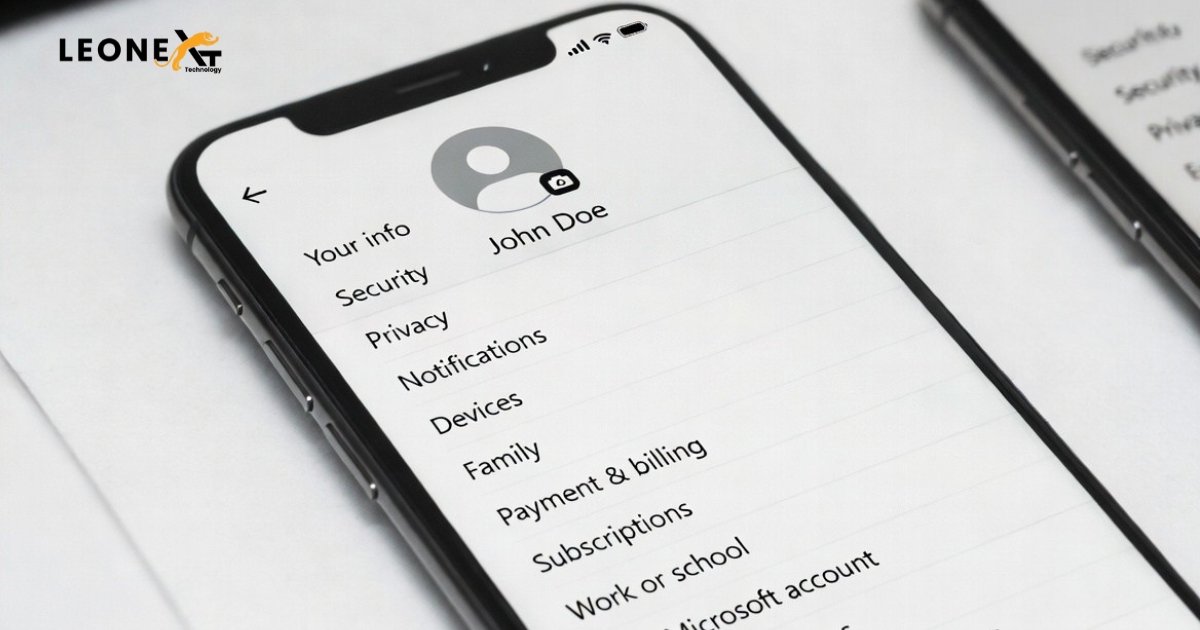
Step-by-Step: Adding a Profile Picture in Outlook on iPhone
Method 1 — Through the Outlook App Directly
- Pro tip: Use a square photo with your face centered for the best result after cropping. Avoid busy backgrounds — a clean, neutral backdrop makes your picture appear sharp at small sizes.
Method 2 — Through Your Microsoft Account Online (Syncs to the App)
If the in-app option is unavailable or greyed out (common with work or school accounts managed by an IT administrator), you can update your photo via the Microsoft account portal from any browser.
Troubleshooting Common Issues
Profile picture not showing after upload?
Sometimes the app takes a few minutes to refresh. Force-close Outlook by swiping it away from the app switcher, then reopen it. If the issue persists, sign out of your account within the app and sign back in to trigger a fresh sync.
Option to change the photo greyed out?
This is typical for work or school accounts where your organization controls profile settings through Microsoft Entra (formerly Azure Active Directory). In this case, contact your IT department or ask your administrator to update your photo in the Microsoft 365 admin center.
Outlook app not updating the picture from the web?
Ensure your app is updated to the latest version. Open the App Store, search for Outlook, and tap “Update” if available. Older versions occasionally have sync delays.

Keeping Your Profile Picture Consistent Across Devices
One of the greatest advantages of using a Microsoft account is the built-in synchronization. Once your profile picture is updated — either through the app or the web portal — it automatically reflects across Outlook on your Mac, PC, iPad, and web browser. The photo also appears in Microsoft Teams conversations, OneDrive sharing links, and SharePoint sites, giving you a unified professional identity without any extra effort.