

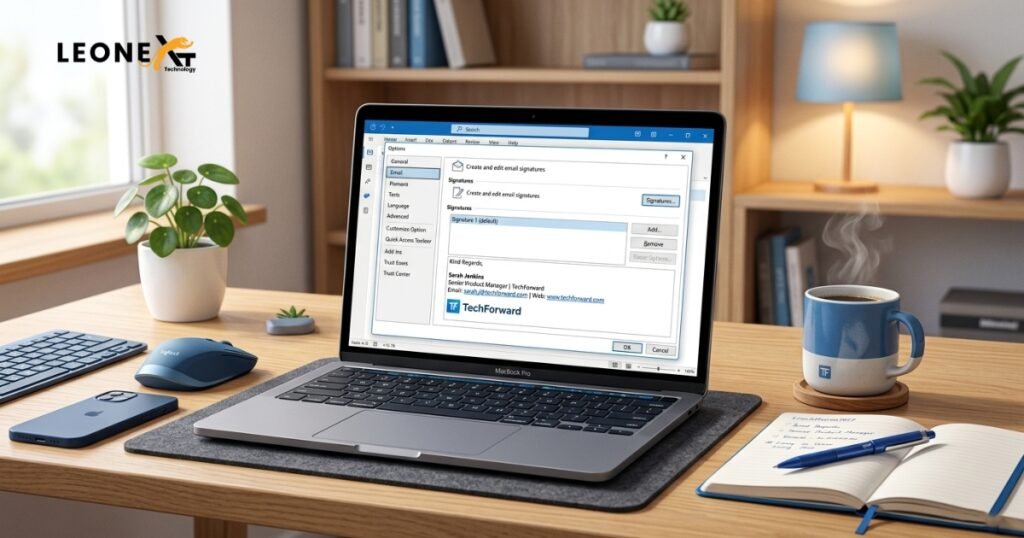
Email signatures act like virtual business cards, giving every message a consistent professional look and providing recipients with your contact details. You can create multiple signature templates (for example, personal vs. business) and set one to be added automatically to new emails and replies. This guide shows how to change a signature in Outlook on both desktop and web, and how to fix common signature issues.
Change Signature in Outlook (Windows Desktop)
To change an existing signature in Outlook for Windows:
- Open Outlook. In any mailbox, click File > Options > Mail. Then click the Signatures… button in the Compose messages section. (Alternatively, open a new email, go to the Message tab, click Signature, and choose Signatures….)
- Select the signature to edit. In the Signatures and Stationery window, under Select signature to edit, choose the signature you want to change.
- Edit your signature. In the Edit signature box, make your changes (text, formatting, links, images, etc.). Use the formatting toolbar to style fonts and colors.
- Save your changes. Click Save and then OK to close the dialog. The updated signature will now be used according to your settings (for example, automatically added to new messages or replies if selected).
- Set default signature (optional). Under Choose default signature, you can assign which signature to use for new emails and for replies/forwards. For example, select your signature in the New messages dropdown to have it automatically added to all new emails. Otherwise, no signature will be added by default, and you can insert one manually when composing.
By following these steps, you change your signature in Outlook permanently – every future email will include the updated signature (provided it’s set as the default).
Change Signature in Outlook on the Web (Office 365)
For Outlook on the web (OWA), the steps are similar:
- Open Settings. In Outlook on the web or Outlook.com, click the Settings (gear) icon in the top-right corner.
- Go to Email Signature settings. Choose View all Outlook settings (if needed), then go to Mail > Compose and reply (or Account > Signatures in some views).
- Select and edit your signature. In the signature editor, either select the signature you want to change or click New signature to create one. Type and format the signature text in the box. (You can include images or links here as well.)
- Save your changes. Click Save (or OK) to apply. The signature will be stored in your account and used on Outlook Web and compatible apps.
Microsoft’s official instructions state: “If you want to make changes to your email signature [in Outlook on the web], use the following steps: Select Settings > Accounts > Signatures, then select the Edit signature button next to the signature you want to change, and after making your changes, select Save”.

Troubleshooting: Signature Not Updating in Outlook
- OWA signature option missing: If you cannot find the signature option in Outlook on the web, it may be disabled by policy. To fix this, an Exchange admin can enable it. In the Exchange Admin Center, go to Roles > Outlook Web App policies, edit the applied policy, and under Features, ensure Email signature is checked under the User experience section. Once enabled, users can change their signature in OWA.
- Signature looks different on reply: Outlook sometimes formats signatures differently in the reading pane versus the compose window. If your signature’s appearance changes when replying (for example, fonts or line spacing), try simplifying the signature’s formatting. Create it with simple HTML or text, or recreate it using the built-in editor.
- Using the New Outlook app: The new Outlook for Windows (toggleable in Outlook settings) uses a similar settings layout. Click the gear icon > Accounts > Signatures, then edit and save your signature as described above.
- Images not showing: If your signature’s images disappear for recipients, use embedded (inline) images instead of linked images, or host images on a reliable server. (Linked images may be blocked by email clients.)
Multiple Signatures in Outlook
You can have more than one signature template in Outlook, but each message will use only one signature at a time by default. If you need additional content, you can manually insert a second signature template into the email. Outlook lets you create and manage multiple signatures per account. For example, you might have one signature with a logo for sales inquiries and another with a generic sign-off for general emails. You then select which signature to use when composing an email (via the Signature menu in the compose window).
In summary: To change signature in Outlook, open the signature settings (either in the desktop Signatures and Stationery dialog or in Outlook Web’s settings), select your signature, make edits, and save. Your updated signature will then appear in new emails as configured. Always remember to click Save or OK after editing to ensure the changes take effect.