

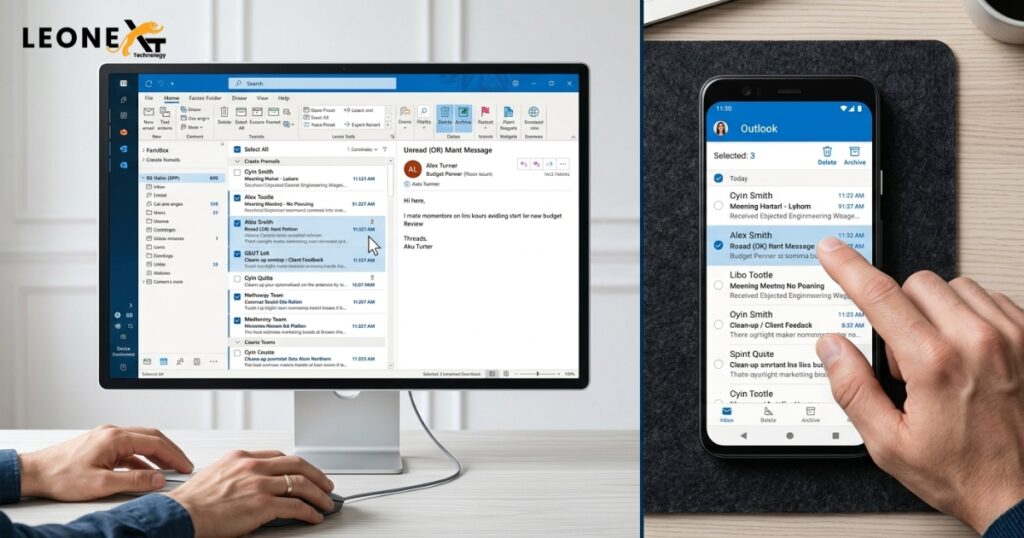
To help clean up your inbox, the email client offers a way to quickly and efficiently delete multiple emails at once in Outlook. The process for removing multiple emails is the same no matter what version of Outlook you use, but it is slightly different depending on whether you’re on a desktop or the mobile app. Having a clean mailbox speeds up your productivity and also improves response time.
- Now, the steps to delete all the emails in a single folder:
- First, open the inbox and then click any message to select it.
- After this,s press Ctrl + A to select all the messages in the folder.
- Then, press the delete key to eliminate them.

How to delete a range of consecutive messages:
- Click on the first message and then scroll to the last email that you want to delete.
- Then, by holding the shift button, click on the final email.
- In the last step, press delete to delete it.
Now, the following steps to delete non- consecutive emails:
- In the first step,p press and hold the Ctrl button on the keyboard.
- Then, while still holding Ctrl, click each message you want to delete.
- After all this, when you’re confirmed, press delete.
Now, below are the following steps to delete multiple emails in Outlook on a mobile device.
- In the first step, open the folder with the message that you want to delete.
- Then, tap and hold the first message that you want to delete. After some time, check boxes to the left of each email will appear.
- Also, tap on each message that you want to delete.
- To delete everything in the folder, for this “select all the emails at the top of the screen.
- When you’re confirmed, tap the delete icon at the bottom of the screen.