

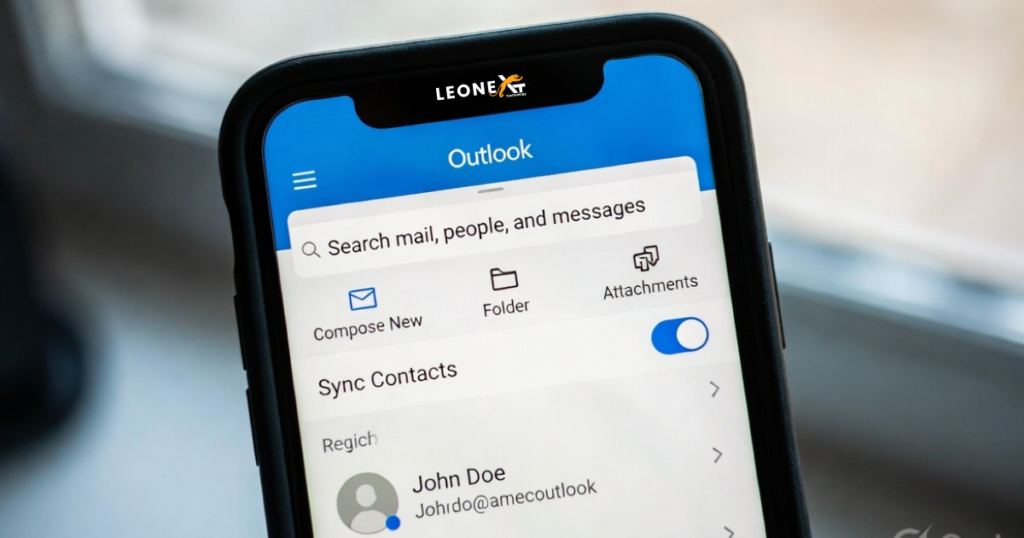
This guide covers all four current methods in detail, including an important update about the future of iTunes contact syncing that every Windows user should know about before relying on it.
Why Sync Outlook Contacts with Your iPhone?
Contacts locked inside your desktop Outlook are only useful when you’re at your desk. Syncing Outlook contacts to your iPhone means your entire address book is available when you’re on a call, travelling, or using a new device — automatically and in real time.
Here are the key benefits:
- Always up-to-date: When you add, edit, or delete a contact in Outlook, the change reflects on your iPhone automatically — no manual exports needed.
- One unified address book: No more switching between apps or having duplicates. All contacts live in one place across your devices.
- Caller ID everywhere: Your iPhone recognises incoming calls from Outlook contacts — your entire work contact list becomes part of your phone’s native dialer.
- Survive a lost or broken phone: Because contacts are stored server-side (via Exchange or iCloud), buying a new iPhone restores your full address book instantly.
Method 1: Sync Outlook Contacts via the Outlook App (Easiest)
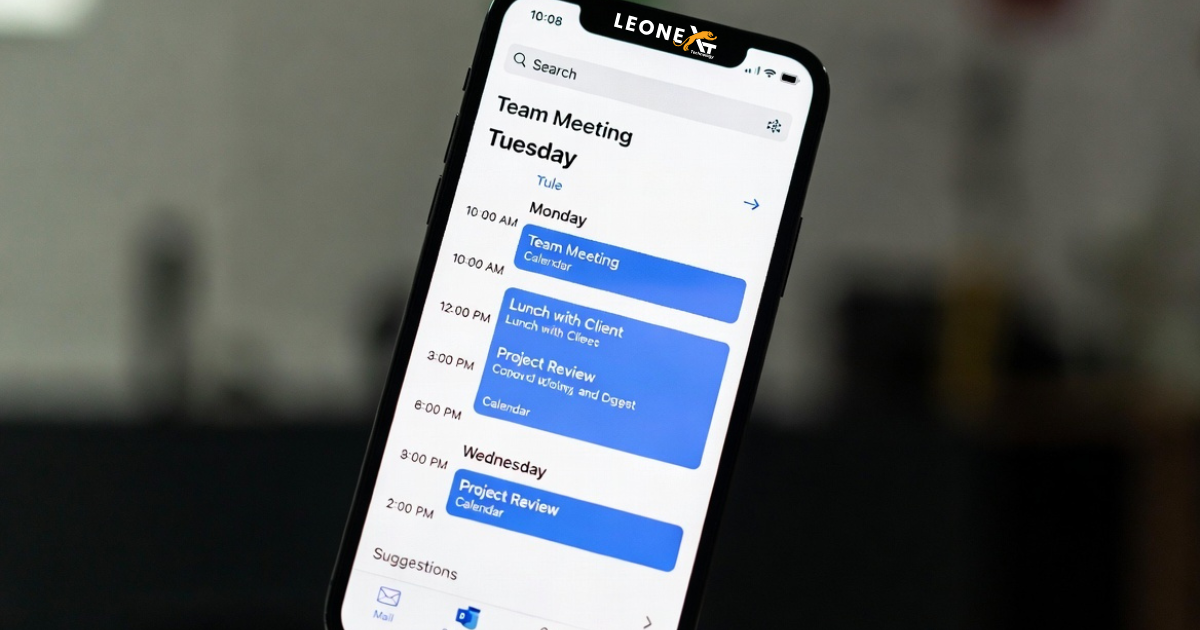
This is the simplest and most recommended method for most users. The free Microsoft Outlook app for iPhone (available on the App Store) allows you to sync your Outlook contacts directly to your iPhone’s native Contacts app with just a toggle switch.
ℹ️ Requirement: Your iPhone must be running iOS 16 or higher and the Outlook app must be installed. This method works with Outlook.com, Microsoft 365, and Exchange accounts.
Steps to Sync Contacts via the Outlook App
- Open the Microsoft Outlook app on your iPhone.
- Tap your profile icon (your initials or photo) in the top-left corner.
- Tap the gear/settings icon (⚙️) at the bottom-left of the slide-out panel.
- Scroll down and tap on your Outlook email account.
- Find “Save Contacts” and toggle the slider to the ON (blue) position.
- A prompt will appear asking: “Would you like to save Outlook contacts to iPhone?”
- Make sure your iPhone is plugged into power, then tap “Save to my iPhone”.
Method 2: Sync Contacts via an Exchange Account in iPhone Settings
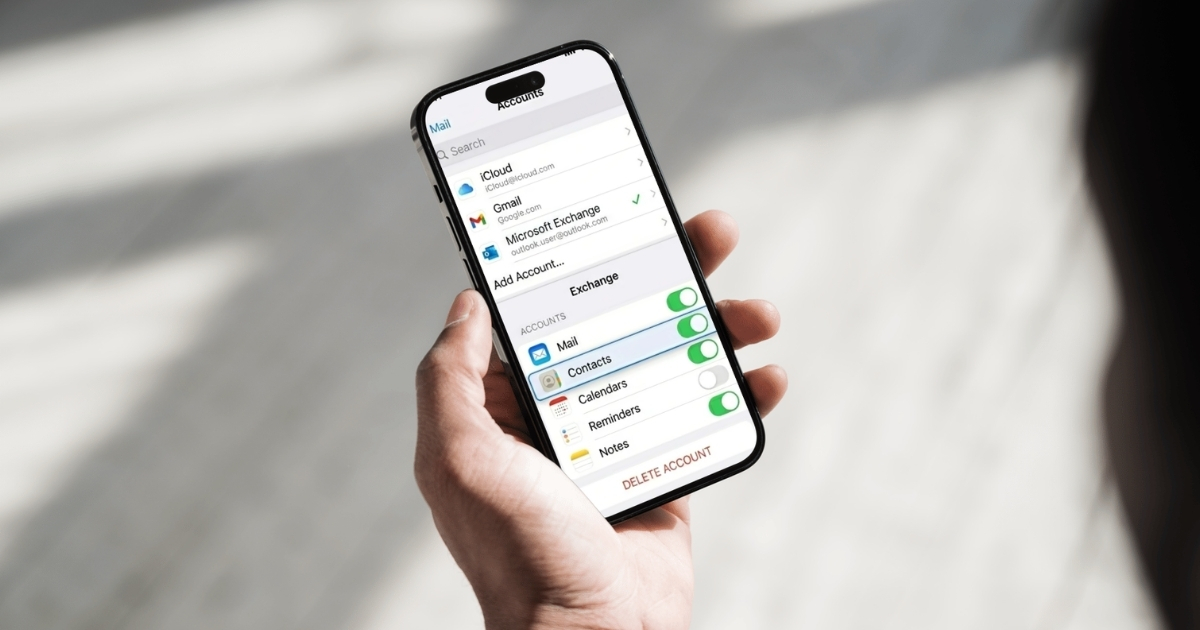
If your company uses Microsoft Exchange or Office 365 with Exchange enabled, this method syncs contacts directly through the Exchange server — no additional apps required. This is the most reliable method for business users because it works automatically in the background.
ℹ️ Requirement: Your Outlook or Office 365 account must have Exchange enabled. Contact your IT administrator if you’re unsure. The contacts will be pulled directly from the Exchange server.
Steps to Sync via Exchange in iPhone Settings
- On your iPhone, open the Settings app.
- Scroll down and tap Mail (on older iOS versions this may say “Accounts & Passwords”).
- Tap Accounts.
- If your Outlook/Office 365 Exchange account isn’t listed, tap “Add Account”, choose Microsoft Exchange, and sign in with your work email and password.
- Tap on your Exchange account from the list.
- Toggle Contacts to the ON position.
- Tap Save.
Method 3: Sync Outlook Contacts via iTunes (Windows) — ⚠️ Read First
⚠️ Important 2026 Warning: Apple has officially announced that support for syncing contacts and calendars via iTunes has been deprecated and will be removed in a future version of iTunes. While the feature may still work on some setups today, Apple strongly recommends switching to iCloud for Windows (Method 4 below) as the long-term solution. Do not rely on iTunes sync as a primary method going forward.
If you’re still on a setup where iTunes sync is working and you want to use it in the short term, here’s how it works. Note that before syncing contacts with iTunes, you must first disable iCloud Contacts sync on your iPhone to avoid conflicts and duplicates.
Step 1: Disable iCloud Contacts First
- On your iPhone, go to Settings → [Your Name] → iCloud.
- Find Contacts and toggle it to OFF.
- When prompted, choose “Keep on My iPhone” to preserve local copies.
Steps to Sync Contacts with iTunes
- Open iTunes on your Windows PC (make sure it’s up to date).
- Connect your iPhone to your PC using a USB cable.
- Click the iPhone device icon that appears near the top of iTunes.
- In the left navigation panel, click “Info”.
- Check the box next to “Sync Contacts with”.
- You may see a warning: “Contacts and calendars will be removed in a future version of iTunes.” Click OK to dismiss.
- In the dropdown next to “Sync Contacts with”, select Outlook.
- You may receive a message asking to switch syncing to Outlook — click Switch.
- Click Apply, then Done. The sync will begin.
Method 4: Sync via iCloud for Windows (Best iTunes Alternative)
With iTunes contact sync headed toward deprecation, iCloud for Windows is now Apple and Microsoft’s recommended alternative for Windows users who want to keep Outlook contacts in sync with their iPhone. It works by connecting your iCloud account to Outlook, creating a seamless bridge between the two.
ℹ️ Requirements: A free iCloud/Apple ID account, iCloud for Windows installed (free from the Microsoft Store), and your iPhone signed into the same Apple ID.
Step 1: Set Up iCloud on Your iPhone
- On your iPhone, go to Settings → [Your Name] → iCloud.
- Scroll down to Contacts and toggle it to ON.
- Your iPhone contacts are now being backed up to iCloud.
Step 2: Install and Configure iCloud for Windows
- On your Windows PC, download and install iCloud for Windows from the Microsoft Store.
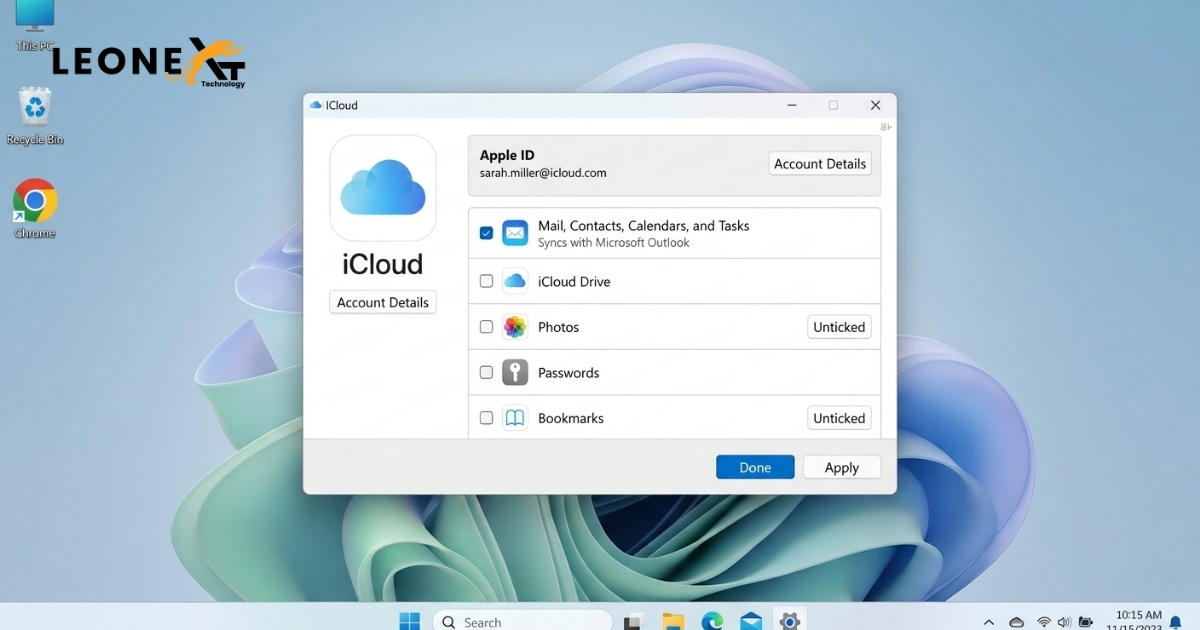
- Open iCloud for Windows and sign in with your Apple ID.
- Check the box next to “Mail, Contacts, Calendars, and Tasks”.
- Click Apply.
- iCloud will add an iCloud Contacts folder inside Outlook automatically.
Method Comparison at a Glance
| Method | Best For | Real-Time Sync? | Status (2026) |
|---|---|---|---|
| 1. Outlook App | Personal / home users | ✅ Yes | ✅ Fully supported |
| 2. Exchange Account | Business / Office 365 users | ✅ Yes (automatic) | ✅ Fully supported |
| 3. iTunes (USB) | Offline / no-cloud users | ❌ Manual only | ⚠️ Deprecated (use caution) |
| 4. iCloud for Windows | Windows users replacing iTunes | ✅ Yes (via iCloud) | ✅ Fully supported |
Troubleshooting: Outlook Contacts Not Showing on iPhone
If you’ve followed the steps above but your Outlook contacts are still not appearing on your iPhone, try these fixes:
Fix 1: Check the Contacts Toggle in iPhone Settings
Go to Settings → Mail → Accounts, select your Outlook or Exchange account, and make sure the Contacts toggle is ON. This is the most common cause of missing contacts.
Fix 2: Force a Manual Refresh
Open your iPhone’s native Contacts app, pull down to refresh. If you added your account via Exchange, go to Settings → Contacts → Accounts → Fetch New Data and tap “Fetch Now”.
Fix 3: Remove and Re-add the Account
In iPhone Settings → Mail → Accounts, tap your Outlook/Exchange account and choose Delete Account. Wait 30 seconds, then re-add it fresh. This clears any corrupted sync state.
Fix 4: Check Your Exchange ActiveSync Version
Microsoft has announced that devices running ActiveSync versions lower than 16.1 will no longer connect to Exchange Online services as of March 2026. If you’re on an older iPhone or iOS version, updating your device may restore sync functionality.
⚠️ Important note on iCloud duplicate contacts: If you enable both iCloud Contacts sync and Outlook/Exchange contacts sync on your iPhone simultaneously, you may get duplicate contacts. Choose one sync method as your primary and disable the others to avoid this common issue.
Conclusion
Knowing how to sync Outlook contacts with your iPhone means your entire address book travels with you everywhere. For most users, Method 1 — the Outlook app toggle is the fastest and simplest solution. For business users on Office 365, Method 2 — Exchange account sync is the most automatic and reliable. And if you’ve been relying on iTunes, now is the time to transition to iCloud for Windows before Apple removes that deprecated feature entirely.
For further reading, see Microsoft’s official guide to syncing contacts with mobile devices and Apple’s iCloud support documentation.
One Response