

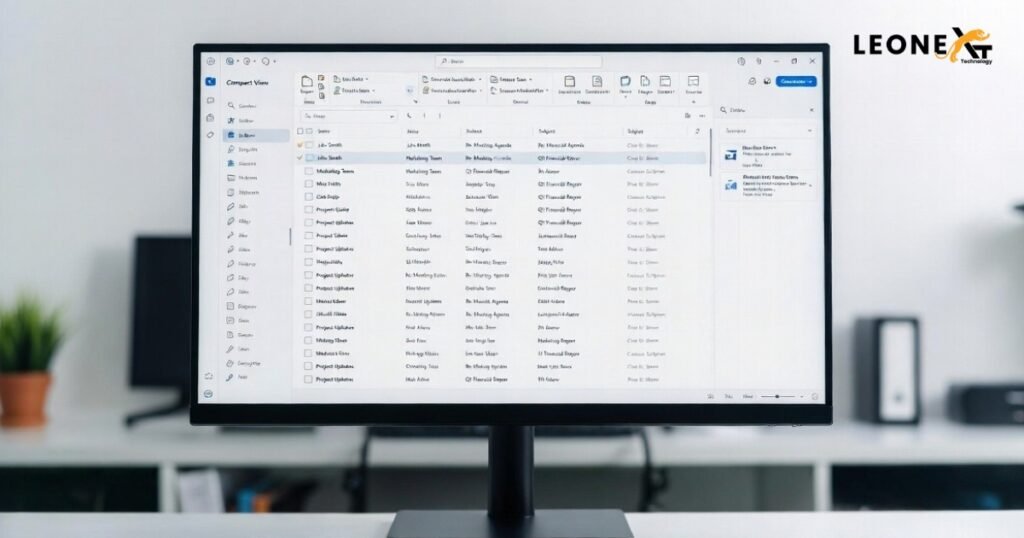
Changing the Outlook folder view can make it look more attractive and different from the normal view. If you want to Change Outlook View, Outlook provides several built-in options and customization features to help you organize your emails more efficiently.
In Outlook, you can change the Inbox folder view in several ways. You can switch between the preset folder views, customize folder views by adding columns, sorting, filtering, grouping, and conditional formatting, or reset the folder view to its default settings.
Change the Current Folder View
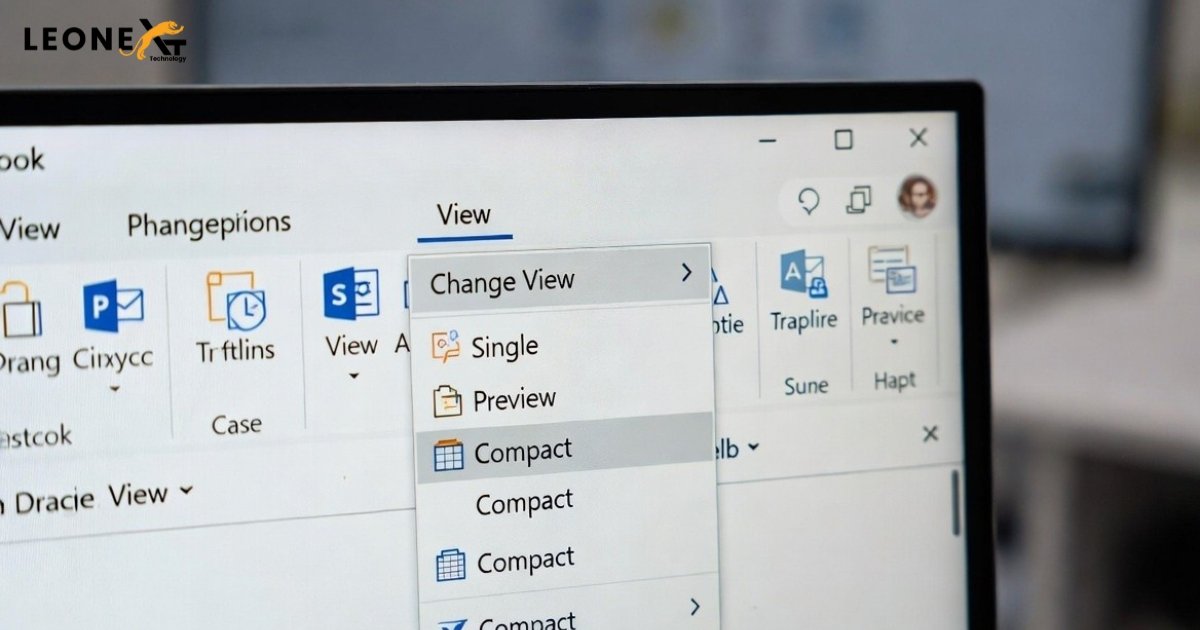
By default, the Inbox folder opens in Compact view in Outlook. However, you can Change Outlook View to Single view or Preview view by using:
View > Change View > Compact / Single / Preview
Compact View
The Inbox folder opens in Compact view by default. If it is not already selected, you can choose it by clicking:
View > Change View > Compact
In this view, the message list is displayed in multiple lines:
- The first line shows the sender.
- The second line shows the subject and the received date.
- The third line can show a preview of the message body.
Single View
After opening the Inbox folder, you can Change Outlook View to Single view by clicking:
View > Change View > Single
In this view, each email is displayed in two lines:
- The first line shows all message details through columns such as importance, reminders, attachments, sender, subject, received date, and more.
- The second line shows a preview of the email body.
Preview View
After opening the Inbox folder, you can Change Outlook View to Preview view by clicking:
View > Change View > Preview
In this view, each email is also displayed in two lines:
- The first line shows all message fields in columns such as From, Subject, Received, Size, Flag, and others.
- The second line shows a preview of the message body.
Adding Columns to the View
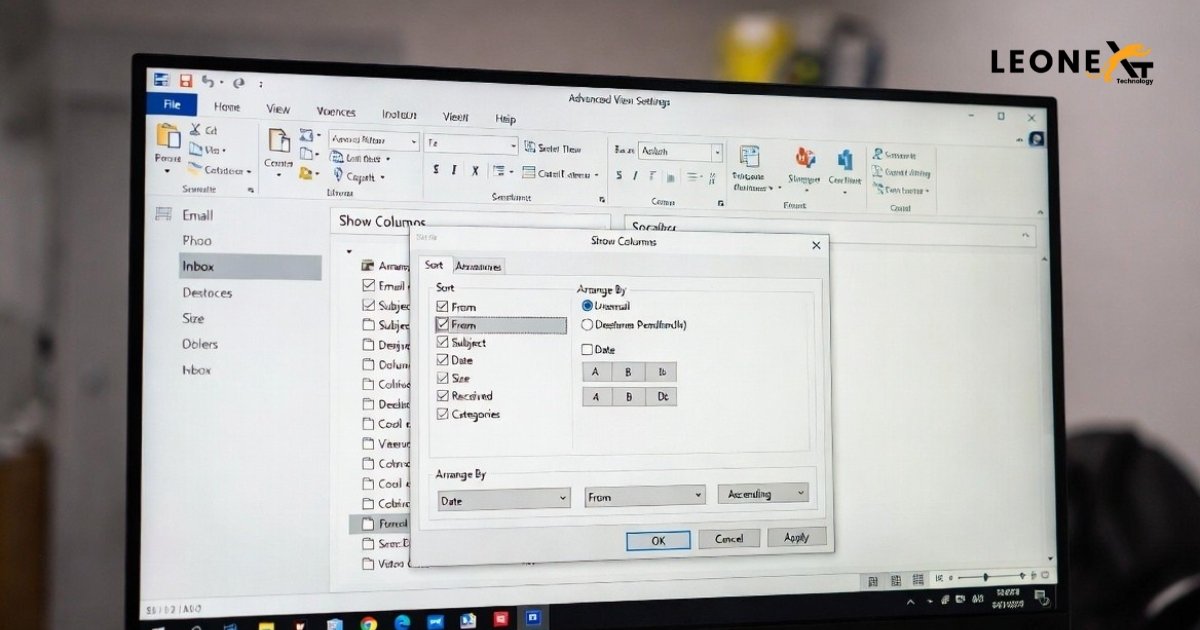
To further Change Outlook View and customize how emails are displayed, follow these steps:
- Click the Columns button in the Advanced View Settings dialog box to open the Show Columns dialog box.
- Use the drop-down list next to Maximum number of lines in compact mode to set the number of lines.
- Use the Select available columns from drop-down list in the upper-left corner to choose the type of fields you want to display.
- Select a field from the left side and click Add to move it to the list on the right.
- To change the position of the added field, select it in the right-side list and click Move Up or Move Down until it appears in the desired position.
- Finally, click OK after adding and arranging the fields.
By using these options, you can easily Change Outlook View to match your workflow and improve email management in Outlook.